Organizations
The Organizations section in InLoox lets you manage all organizations — companies, clients, partners, or other external entities — involved in your projects. It replaces the former Clients area. Each organization has a dedicated detail view where you can edit its information, view linked persons and projects, track changes, add comments, and manage custom fields.
Access to the Organizations section is controlled by the global permissions Read organizations and Create, edit and delete organizations. To let users add a new organization directly from a project's Manage page without granting full edit rights, enable the Create organizations on the project manage page permission. Contact your InLoox account administrator if the section is not visible to you.
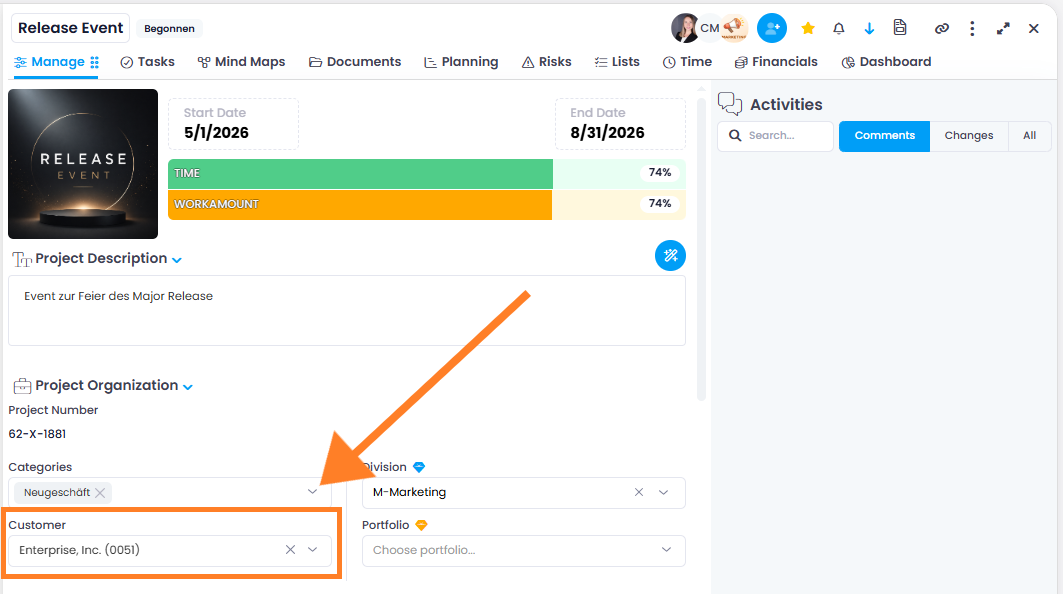
Without any of these three permissions, users who are allowed to read a project's Manage page still see the name and the number of the linked organization in the Customers field. If they may edit the Manage page, the dropdown of that field also lists every existing organization with name and number, so they can link one to the project. No further organization details are available to them.
The Organizations List
The Organizations list shows all organizations in your InLoox account. Click New Organization in the toolbar to create one, or click an entry to open its detail view. Like other list views, you can add or remove columns, filter, sort, or group the list, and save customized views.
To delete a single organization, open it and select Delete organization from in the upper right. To delete several at once or edit their custom fields in bulk, multi-edit the organizations.
Organization Details
Clicking on an organization opens its detail view, which is organized into three tabs: General, Persons, and Projects.
General
The General tab opens by default and holds the organization's core information:
- Name — The display name of the organization.
- Number — The organization number. The numbering format is configured in Account Settings → Clients → Numbering tab. See Clients and Client Numbers for configuration details.
- Address — The organization's street, postal code, city, state, and country.
- Domain — The organization's web domain.
- Description — A free-text description for additional information about the organization.
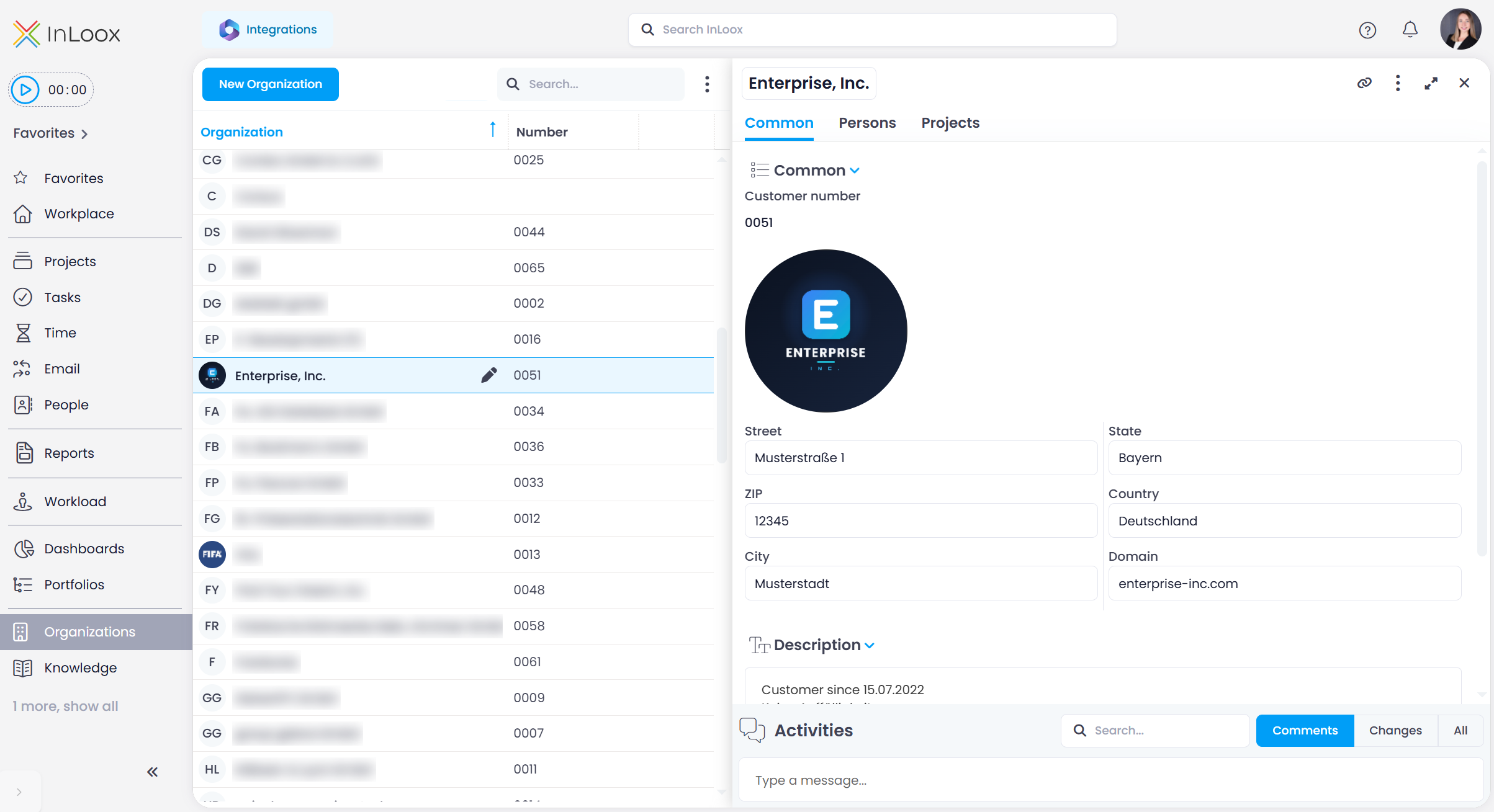
The General tab also includes:
- Linked Items — Connect the organization to relevant items from your projects in InLoox — such as tasks, documents, time entries, planning elements, or knowledge pages. The links are bidirectional, so you can jump directly to the connected content at any time. See also Linked Items.
- Activity — A feed of everything that happens on the organization. Use the tabs to filter it: Comments (free-text comments you add, with @Name notifications), Changes (which fields were changed, by whom, and when), and All (the combined view).
- Custom Fields — If custom fields have been configured for Organizations in the account settings, they appear here. To set them up, go to Account Settings → Custom Fields and select Organizations. Learn more in Custom Fields.
Persons
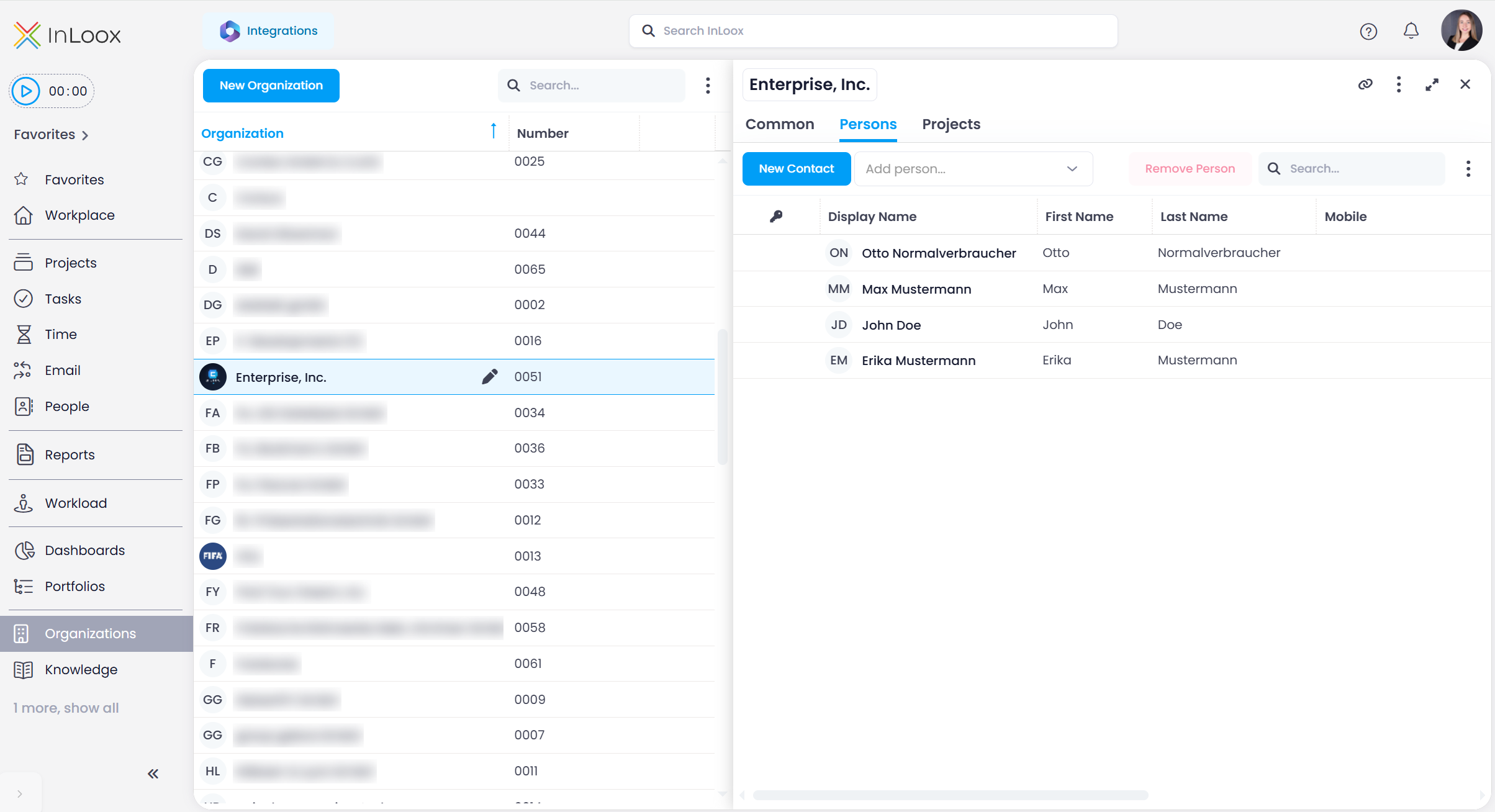
The Persons tab lists all contacts associated with this organization. These are contacts from the People & Contacts section linked to this organization. Click New Contact to create a new person, or use the Add person field next to it to search for an existing contact in the dropdown and select it.
Projects
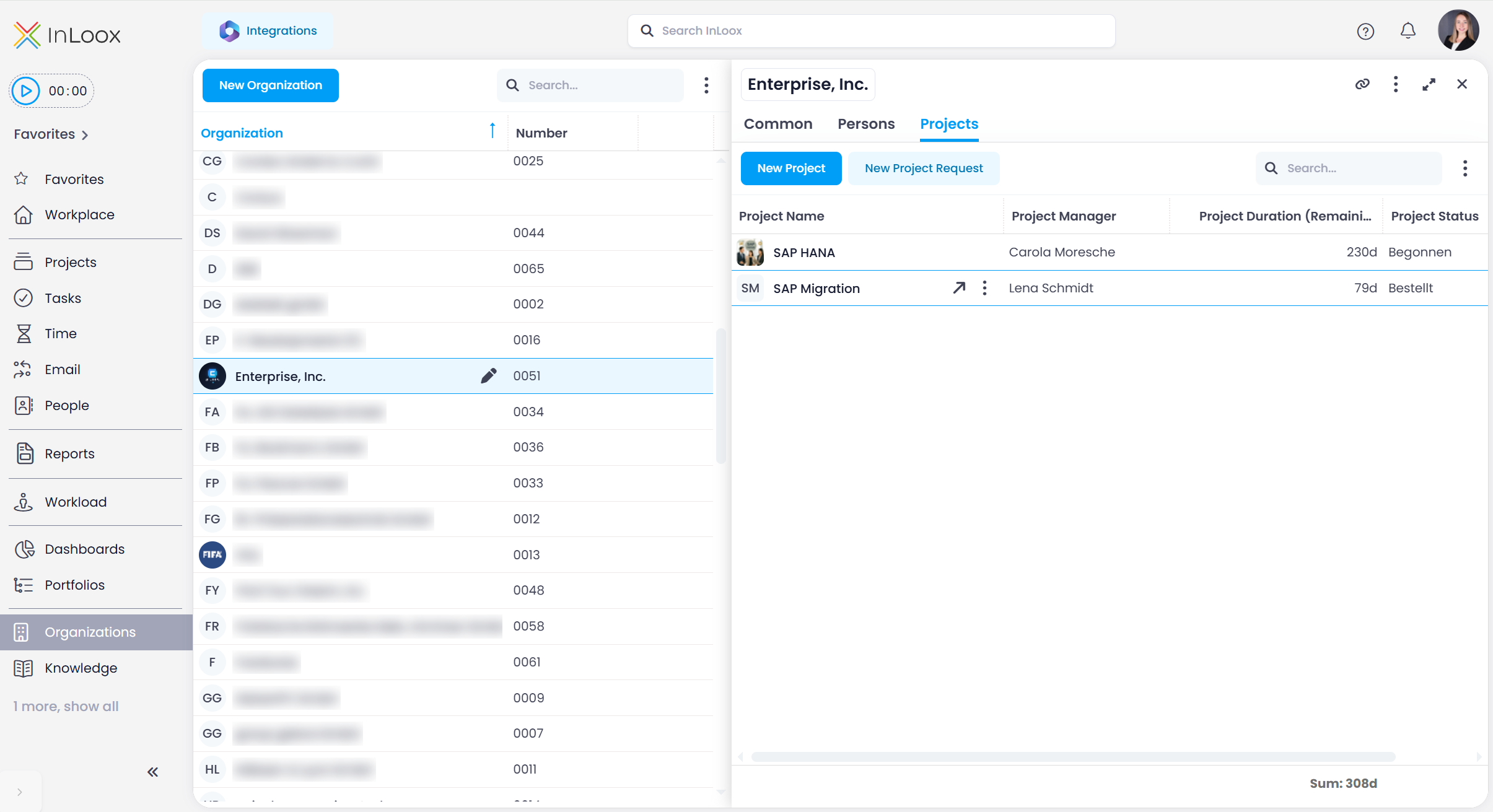
The Projects tab shows all projects that are linked to this organization. You can show or hide columns to display additional project information — for example, the remaining project duration, the project status, or the progress. Use the New Project or New Project Request button to create a project or a project request directly for this organization.
To link an existing project to this organization, use the Customers field on that project's Manage page, see Project Client.