Multi-Editing of InLoox Elements
You can multi-edit (bulk edit) the following InLoox elements:
- Tasks
- Projects
- Time entries
- Planning elements
- Organizations
- People
How to edit multiple InLoox items
- Press Ctrl and click on the elements you want to edit.
- For the selected items, choose the desired action from the menu.
Right-clicking in a list follows Outlook-style selection behavior: if you right-click a row that is already selected, the current multi-selection is preserved and the context menu action applies to all selected items. If you right-click a row that is not selected, only that row becomes selected and any previous selection is cleared.
Task list
In the task list, you can perform the following bulk actions:
- Delete
- Mark as complete
- Assign a resource
- Set a due date
- Edit custom fields
Kanban board
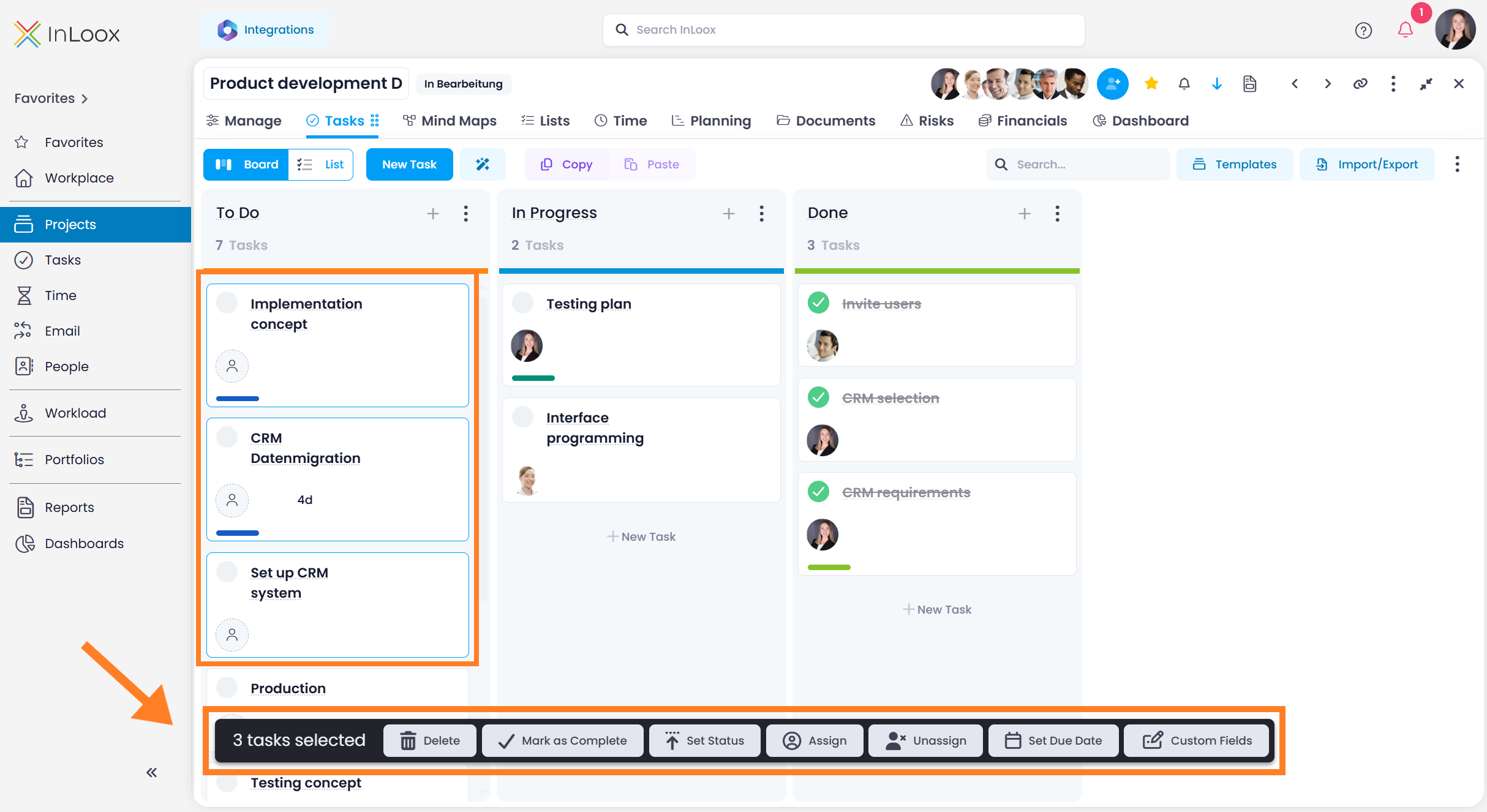
In the Kanban board, you can perform the following bulk actions:
- Delete
- Mark as complete
- Set status
- Assign a resource
- Remove assignment
- Set a due date
- Edit custom fields
To select multiple task cards, hold Ctrl or Shift and click on the cards. Selected cards are highlighted with a blue border. A command bar at the bottom of the screen shows the available actions for the selection.
Project list
In the project list, you can perform the following bulk actions:
- Archive projects
- Change the project status
- Edit custom fields
Organizations list
In the Organizations list, you can perform the following bulk actions:
- Delete
- Edit custom fields
People list
In the People list, you can perform the following bulk actions:
- Delete
- Edit custom fields
Time entries
Time entries list
In the time entries list, you can perform the following bulk actions:
- Assign a resource
- Change the group
- Mark as billable or not billable
- Edit custom fields
Time tracking calendar
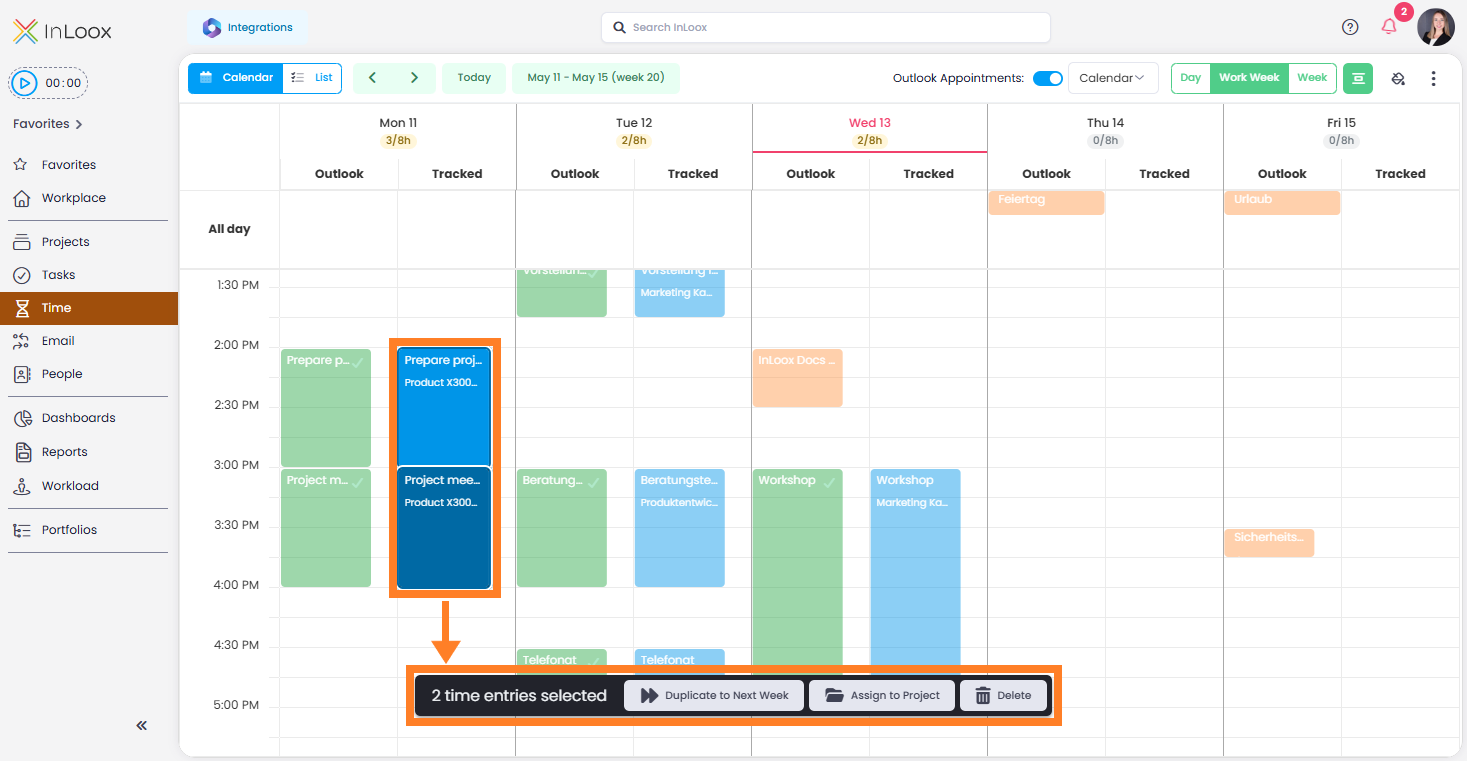
In the time tracking calendar view, you can perform the following bulk actions:
- Duplicate to next week
- Track on project
- Delete
To select multiple time entries, hold Ctrl and click individual entries, or hold Shift and click to range-select.
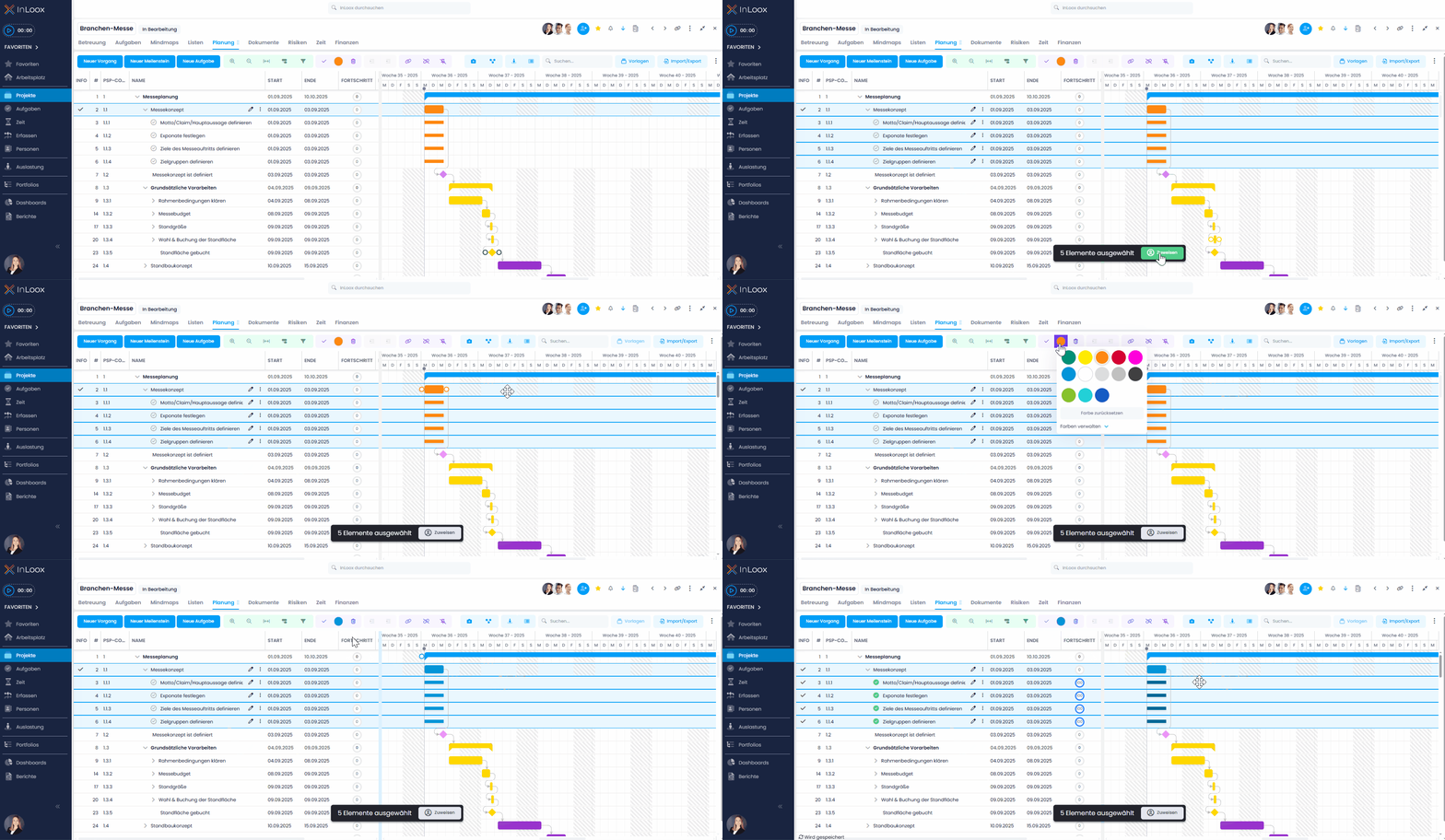
Gantt planning
In the Gantt planning, you can perform the following bulk actions:
- Delete
- Mark as complete
- Assign or change a color
- Assign a resource
- Indent or outdent a level
- Add dependencies between activities
- Remove dependencies between activities
- Remove constraints