Time Tracking
Track your working hours on tasks while on the go. Create time entries, add descriptions, and mark entries as billable — all from your mobile device.
Creating and editing time entries requires appropriate permissions. See InLoox Permissions for details.
Create a time entry for a task
To create a time tracking entry for a task, follow these steps:
- Open the task for which you want to log time.
- Select the Time Tracking tab (tab with the time tracking icon) at the top. If a task has no time entries yet, the section appears empty:
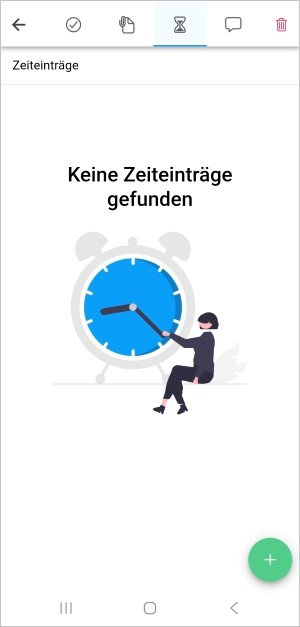
- To create a time entry, tap the green button with the + sign in the bottom right corner.
- Select one of the predefined options: 5 minutes, 10 minutes, 15 minutes, 45 minutes, 60 minutes, or Other duration.
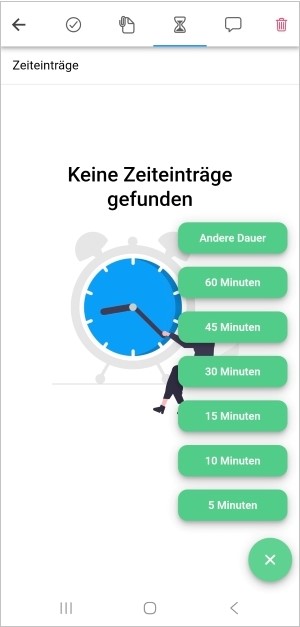
-
A new time entry is created and opens. Enter a name at the top, adjust the duration if needed, or add a description.
-
If needed, you can also toggle the Billable switch in the Billing section and select a different cost category for the time entry.
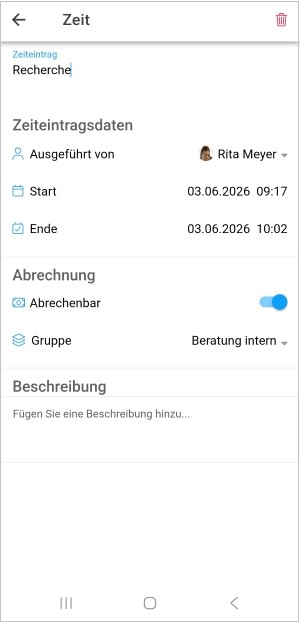
- When you are done, tap the back arrow in the top left corner. The entry is saved automatically.
Adding descriptions to time entries helps you and your team understand what the logged time was spent on — especially useful when reviewing hours at the end of a project phase.
View time entries for a task
- Open the task.
- Select the Time Tracking tab at the top.
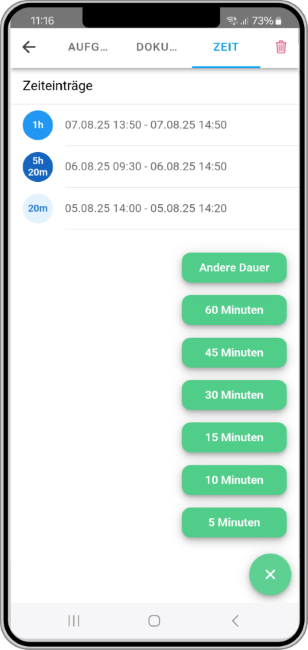
- All time entries for the selected task are listed with their start and end date as well as duration.
For a complete overview of all your time entries across projects, use the time tracking features in the InLoox web app. See Time Tracking for details.