Projects
In the InLoox Mobile App, you can create new projects, duplicate existing ones, and manage project tasks. Project work is primarily task-focused — you define a project name and then create, edit, and delete tasks within it.
View project tasks
You can access a project's tasks through the burger menu or project favorites.
- Tap the burger menu in the upper left corner.
- Under Project Favorites, tap the project you want to view.
- The task list for that project opens, showing all tasks within the project.
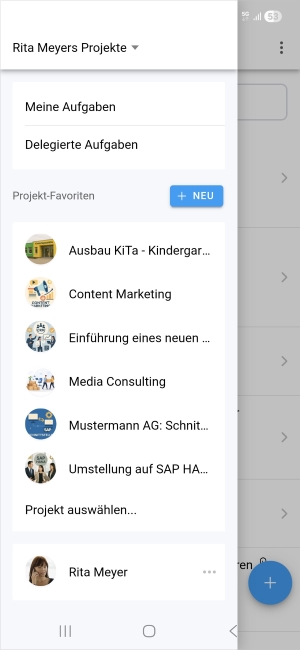
- If you have many project favorites, tap Select project... to open a dialog where you can search for a project by name.
Project favorites
Project favorites give you quick access to the projects you work with most frequently. They appear in the burger menu under Project Favorites.
Project favorites cannot be managed in the mobile app. Mark projects as favorites in the InLoox Web App by clicking the star icon. A project is automatically marked as a favorite for the person who created it.
Create a new project
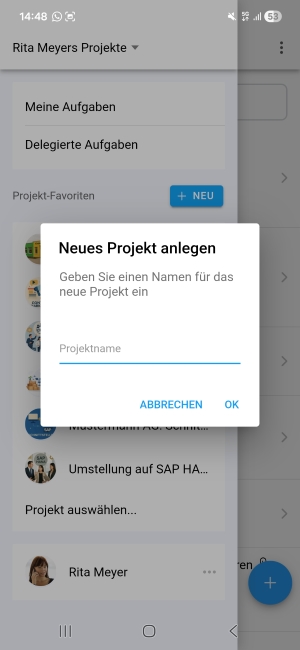
- Open the burger menu (upper left corner).
- Next to Project Favorites, tap the blue + NEW button.
- In the dialog that appears, enter a name for the new project.
- Tap OK.
The task list of the new project opens — it is empty by default. You can then add tasks using the Add task field at the top.
Creating projects requires appropriate permissions. If the option is not available, contact your InLoox administrator.
Duplicate a project
Duplicate an existing project to quickly create a similar one without starting from scratch.
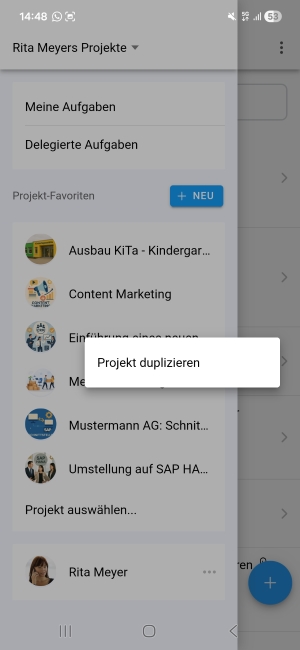
- Open the burger menu and navigate to the project you want to duplicate.
- Tap and hold the project until the context menu appears.
- Select Duplicate project.
- Enter a new project name for the duplicate.
- Tap OK to confirm.
The duplicated project is created. You can then add, edit, or delete tasks as needed.