Installation & Login
The InLoox Mobile App is available for iOS and Android. You need an InLoox account (Professional, Enterprise, Enterprise Plus, or Self-Hosted) to use the app.
Download & Install the app
- Download the InLoox Mobile App from the respective app store:
- Download for iOS (App Store)
- Download for Android (Google Play Store)
- Tap Get (iOS) or Install (Android).
- Wait for the download and installation to complete.
- Tap Open or find the InLoox app icon on your home screen and tap to launch.
Log in to your InLoox account
-
Open the InLoox Mobile App.
-
On the start screen, select one of the two options:
- Sign in to InLoox Cloud — For customers using InLoox Professional, Enterprise, or Enterprise Plus (cloud-hosted versions).
- Connect to InLoox Self-Hosted — For customers with their own on-premise server.
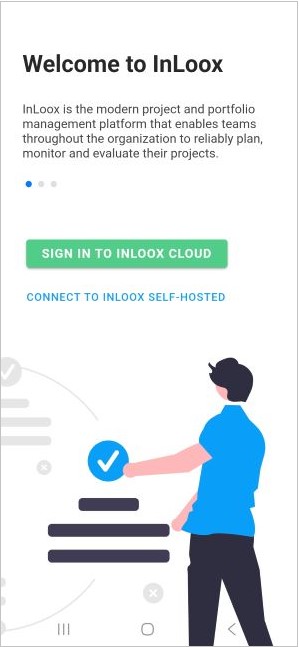
Cloud login (InLoox Professional, Enterprise, Enterprise Plus)
- Tap Sign in to InLoox Cloud.
- You will be redirected to the familiar InLoox login screen.
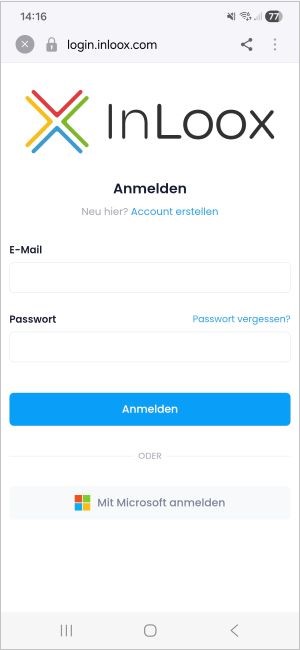
- Log in using one of the following methods:
- Enter your email address and password, then tap Log In.
- Tap Sign in with Microsoft to sign in with your connected Microsoft 365 account.
note
The login works the same way as in the InLoox Web App. The mobile app supports the same login methods as configured in your InLoox Account Settings.
Self-Hosted login
- Tap Connect to InLoox Self-Hosted.
- On the screen that appears, enter the URL of your InLoox Self-Hosted server:
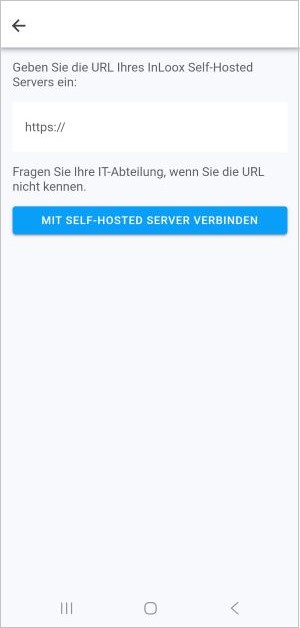
If you don't know the URL, ask your IT department.
- Tap Connect to self-hosted server.
- If prompted, confirm that you trust the server by selecting Yes, I trust this server.
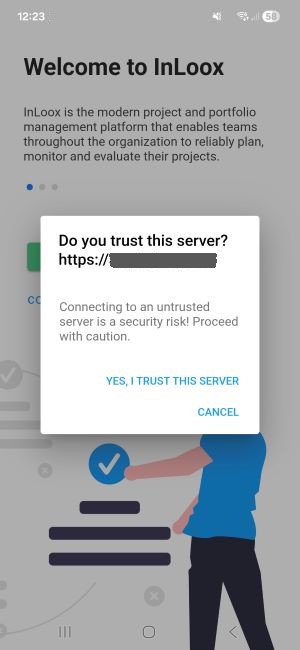
- After confirming, you will return to the original start screen. Tap Sign in to InLoox Cloud.
- You will be redirected to the login page of your own server (not the standard InLoox Cloud login URL). You can verify the correct URL at the top of the screen.
- Enter your credentials on the login screen — it looks the same as the InLoox Web App login.
- Tap Log In.
First start
After logging in, the app displays the My Tasks view by default. This shows your own pending and due tasks — including private tasks without project assignment and project tasks where you are listed as the responsible resource.