Documents & Photos
You can attach images to tasks, take photos with the camera, preview documents, and edit document details.
Uploading, editing, and deleting documents requires appropriate permissions. See InLoox Permissions for details.
Upload images to tasks
Attach images from your device's photo gallery directly to a task.
- Open the task to which you want to attach an image.
- Select the tab with the document icon at the top.
- Tap the green round button in the bottom right corner to upload a photo from the gallery. You may need to select which app to use for this action, such as the device-specific gallery or Google Photos.
- Select one or more images you want to upload.
- Tap OK.
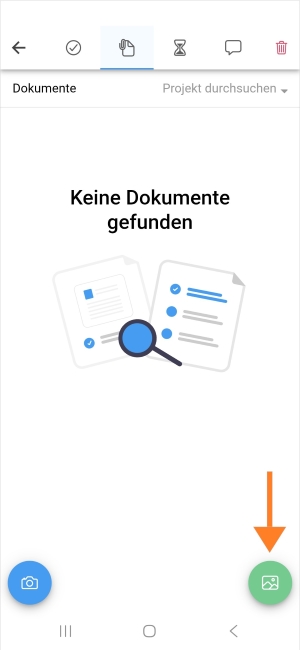
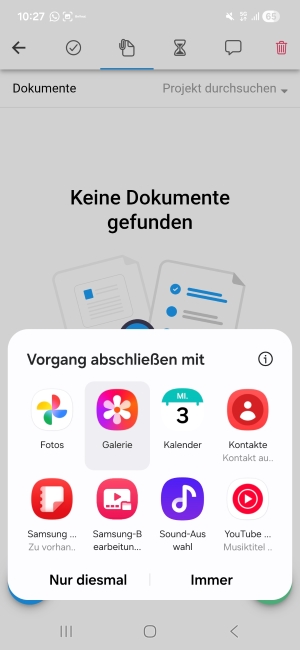
The images are now uploaded to the task. They are also available in the project's general document folder, which you can access via the InLoox Web App.
Take a photo and upload to a task
Capture a photo on-site and link it directly to a task.
- Open the task to which you want to attach a photo.
- Select the tab with the document icon at the top.
- Tap the blue round button with the camera icon in the bottom left corner.
- The camera opens. Take a photo using your device's camera.
- Confirm with OK and tap Upload.
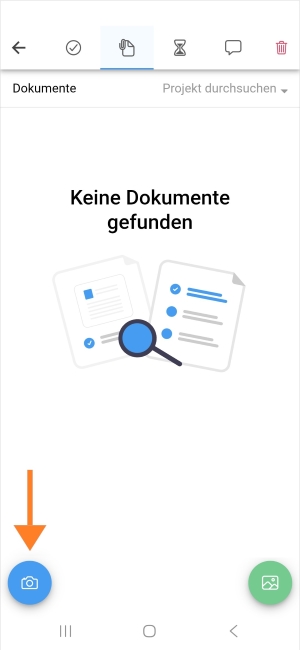
The photo is automatically saved to the project's document folder and linked to the task.
This is especially useful on construction sites or during client visits — capture issues or requirements on-site and your team back at the office can act on them right away.
Preview documents
To view an uploaded image in the task, follow these steps:
- Open a task with attached documents.
- Select the tab with the document icon at the top.
- Tap the cloud icon to the right of the file name to open the preview. Alternatively, you can tap the file name and then tap Open document.
The preview works for images in various file formats as well as PDFs. If you have corresponding apps installed for Microsoft Word, Excel, Outlook, etc., you can also open these files.
Edit document details
Edit the name, folder, description, and custom fields of a document.
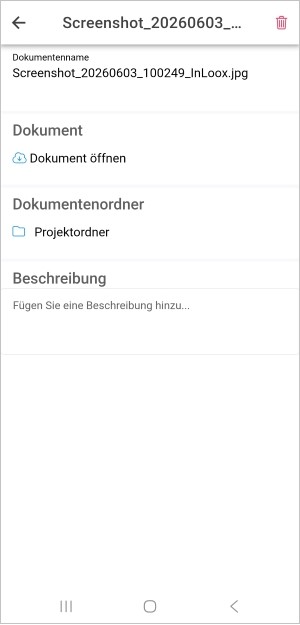
- Open the task containing the document.
- In the Documents section, tap the file name to open the details.
- Modify the following fields as needed:
- Document name — File name of the document
- Document folder — Change the storage location and move the document to another folder. You can also create a new folder:
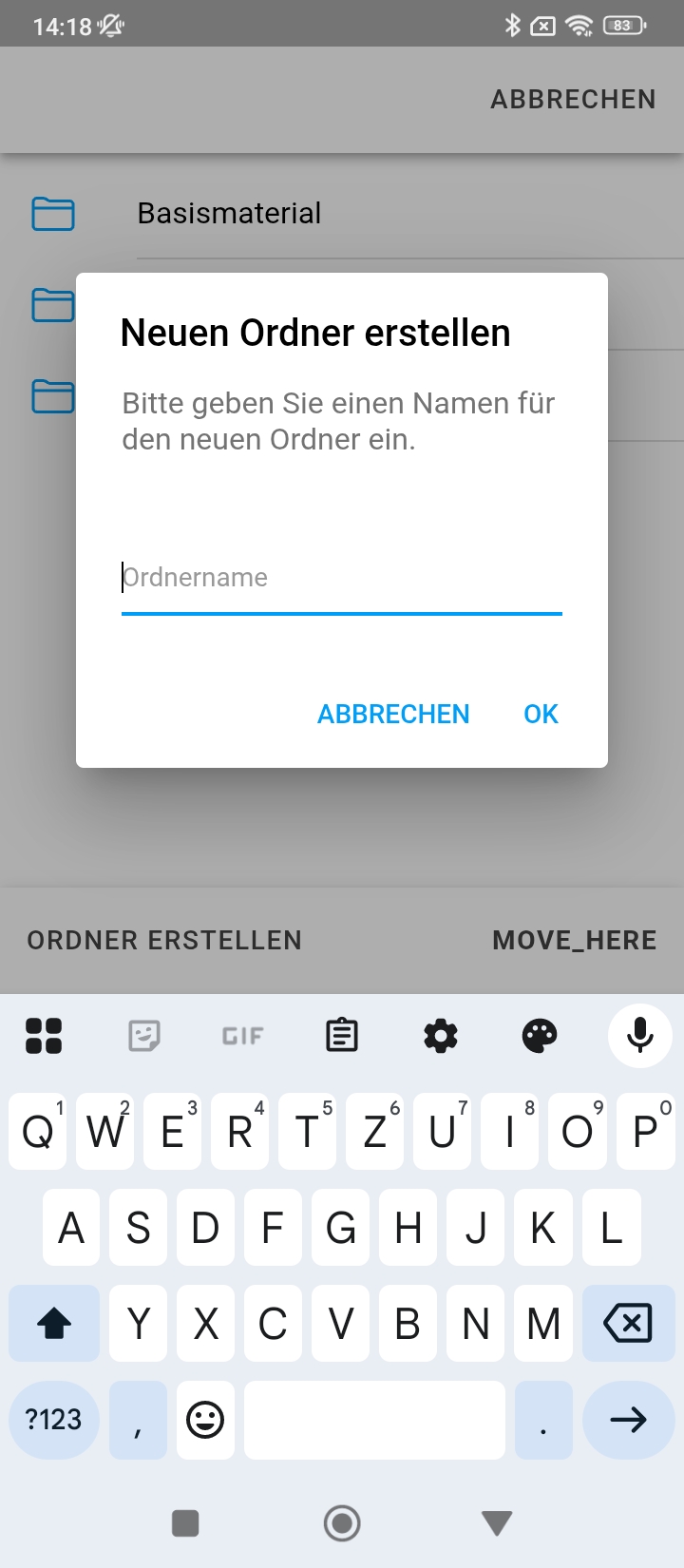
First tap Project folder, then tap Create folder in the bottom left corner. Enter a name and confirm with OK. To move a document, open the desired folder and tap Move here in the bottom right corner.
- Description — Brief description of the document
- Custom fields — Any custom fields configured for documents
The changes are saved automatically.
Delete a document
To delete a document, tap the red trash can icon in the upper right corner. InLoox will ask you to confirm whether the document should really be deleted. Confirm by tapping Delete.