Save, Manage, and Publish Views
After you have customized your view with the columns you need, grouped them, or applied filters, you can save the view for future use.
A view you create is private at first: only you can see it. The person who creates a view is its owner. To make a view available to your colleagues, publish the view.
Save as a New View
To save the view under a new name:
-
Click in the upper-right corner and select Save as New View.

-
Enter the name for this new view and click Save.
Save Changes to an Existing View
Whether InLoox saves your changes to the currently active view automatically depends on the view:
- Your own private view — InLoox saves your changes automatically, without any further action.
- A published view that you own — A hint appears above the list. Click Save This View in the hint to apply your changes for all users.
- A published view of another user — Your changes are only temporary. Click Save as my own view in the hint to save them as a personal copy.
- A default view, and you are not an administrator — Click Save as my own view in the hint to keep your changes in a view of your own.
- A locked view — Your changes are only temporary. The hint reads This view is locked. Your changes are only temporary. Save them as your own view, or unlock the view in Manage Views. Click Save as my own view to keep your changes. For details, see Lock a View.
Click in the hint to dismiss it. Your changes then remain in the list until you select another view, but they are not saved.
You can also save the active view at any time from the menu:
-
Click in the upper-right corner and select Save This View.
-
InLoox saves your changes in the view. If the view belongs to someone else or is locked, InLoox asks you for a name, states why the view cannot be saved in place, and saves your layout as a view of your own.
Manage Views
-
Click in the upper-right corner and select Manage Views.
-
The Manage Views window lists all views available to you in the respective section, for example all project views.
The window groups the views that InLoox provides under Default views and the views you created yourself under Custom views. The number of views of each type is shown at the top of the window.
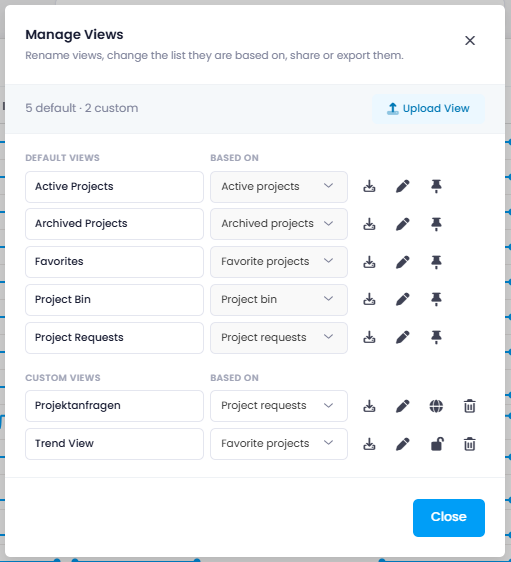
The icon next to a view indicates its current publish status:
- — The view is published to the entire organization.
- — The view is private and only visible to its owner.
- — The view is published to specific people, that is, to selected users, groups, or divisions.
- — You do not have the Publish views permission, so you cannot publish this view. This icon does not mean that the view is locked.
- — The view belongs to another user. The tooltip shows the owner's name.
- — The view is a default view. For details, see Default Views.
The pen next to a view shows whether the view is locked: means unlocked, means locked. For details, see Lock a View.
From this dialog, you can rename, delete, download, lock, and publish views, or upload views as files. Renaming and deleting only works for views that belong to you. See Import & Export Views for uploading and downloading views.
Lock a View
Locking protects a view from being overwritten by accident. While a view is locked, InLoox does not save changes to its columns, filters, or sorting to the view itself — the stored configuration stays intact.
This is mainly useful for your own views: you can adjust columns, filters, or sorting for a moment, for example to look something up, without overwriting the saved view. Locking also protects views that other users rely on from changes that would affect everyone.
-
Click in the upper-right corner and select Manage Views.
-
Click next to the name of the view to lock it. The icon changes to and its tooltip reads View locked — click to unlock.

-
To unlock the view again, click . InLoox then saves your changes automatically again.
Only the owner of a view and administrators can lock or unlock a view. On views that a user may not change, the button is not displayed.
Renaming a locked view keeps the lock. Locking is independent of publishing: you can lock a view whether it is only visible to you, shared with specific people, or available to every user in your InLoox account. You can lock views in every area that provides Manage Views, for example Projects, Tasks, Time, and the lists of your custom entities.
Change the Data Source of a View
Every view is based on a list in InLoox — for example Active projects, My tasks, or All time entries — which determines the entries the view shows. The Manage Views window displays this data source in the Based on column, and you can change it for the views you are allowed to edit.
- Click in the upper-right corner and select Manage Views.
- In the Based on column, select the list whose entries this view should show.
- InLoox saves your selection automatically. If the view is the one currently open in the list, the list immediately reloads with the entries of the new data source.
The available options depend on the section:
- Projects: Active projects, Favorite projects, Project requests, Archived projects, and Project bin
- Tasks: Open tasks, My tasks, My due tasks, Done tasks, and All tasks
- Time: My time entries and All time entries
Views in other sections always show the same list, so they have no Based on column.
The data source of a default view cannot be changed, because default views look the same for every user. Save a default view as a new view if you want to use a different data source. The Based on column is also read-only for views that belong to another user or that you may not edit.
Publish a View
To publish a view, you need the Publish views permission. For details, see Ownership and Edit Rights.
-
Click in the upper-right corner and select Manage Views.
-
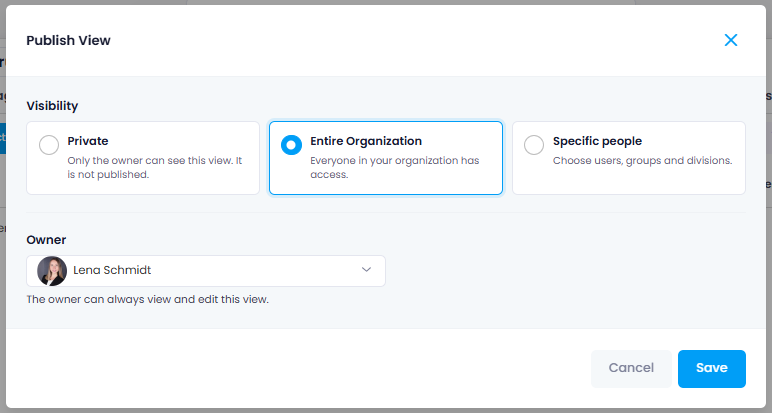
Click the status icon next to the view to open the Publish View window. Depending on the status of the view, this is , , or .
-
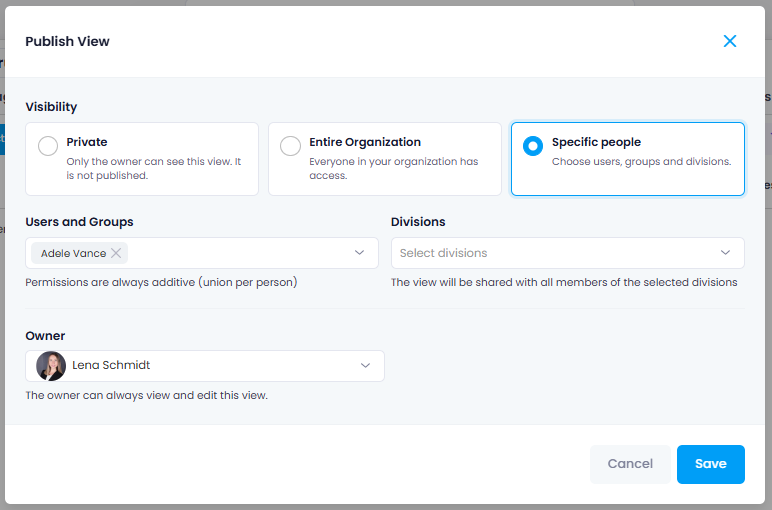
Under Visibility, select one of the following options:
-
Private — Only the owner can see this view.
-
Entire Organization — Everyone in your InLoox account can select and use the view.
-
Specific people — Only the selected recipients can select and use the view. Select the recipients under Users and Groups and Divisions.
-
-
The person who created the view is automatically set as its Owner. Optionally, assign a different owner to hand the view over to a colleague.
-
Click Save.
The owner can always see and edit the view. Everyone in the selected scope can select it in the view drop-down.
Ownership and Edit Rights
The person who creates a view owns it. Owners and administrators may change a view in place — everyone else saves their changes as a personal copy.
Publishing a view additionally requires the Publish views permission, which an owner needs even for a view of their own. Administrators have this permission by default and may change the publish status of any view they can see. They do not automatically see views that other users have kept private.
To hand a view over to a colleague, open the Publish View window and select the new person under Owner.
Default Views
Default views are the standard views of your InLoox account, such as Active Projects or All Tasks. Each default view exists once per account rather than once per user:
- Everyone can select and use them. They are always visible to all users, and their visibility cannot be restricted.
- Only administrators can change them, for example to rename them or to adjust their layout. If you change a default view without administrator rights, InLoox offers to save your changes as your own view.
- Default views cannot be deleted, not even by administrators. In the Manage Views window, default views are marked with .