Import & Export Views
Export
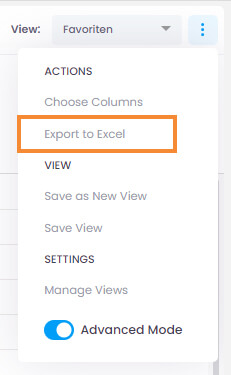
Export to Excel
You can export a view in Projects, Tasks, Time, and People to Microsoft Excel.
- Click in the upper-right corner.
- Select Export to Excel — the view is automatically downloaded as an
.xlsxfile to your device.
Download as JSON
You can download a saved view as a .json file to share it with other users or import it into another InLoox account.
- Navigate to the section where you want to download a view (e.g., Projects for a project view).
- Click in the upper-right corner and select Manage Views.
- In the window that opens, click next to the view you want to download.
- InLoox automatically downloads the
.jsonfile to your device.
Import
Upload a JSON View
You can import a previously downloaded view from a .json file.
- Navigate to the section where you want to upload a view (e.g., Projects for a project view).
- Click in the upper-right corner and select Manage Views.
- In the window that opens, click .
- Your file browser opens — select the view file in
.jsonformat.