Add Columns to Views
In the InLoox sections Projects, Tasks, Time, and People, you can customize views by adding and removing columns.
- Click in the upper-right corner.
- Select Choose columns.
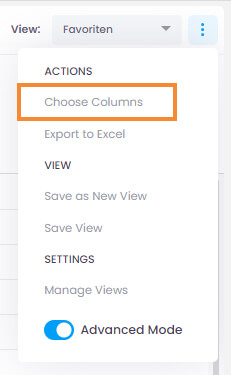
- From the columns menu, choose the column you need or use the search field.
- Drag the selected column into the list.
- To remove a column, simply drag it out of the list and release it.
- If you accidentally remove a column, click the undo button in the green bar at the bottom-left corner.

Advanced column chooser
Hover over an existing column header in the list and click the + icon that appears on its right edge. This opens the advanced column chooser, which organizes all available columns into groups such as Popular, Project, Portfolio, Status, and more. Each column includes a description of the data it contains.
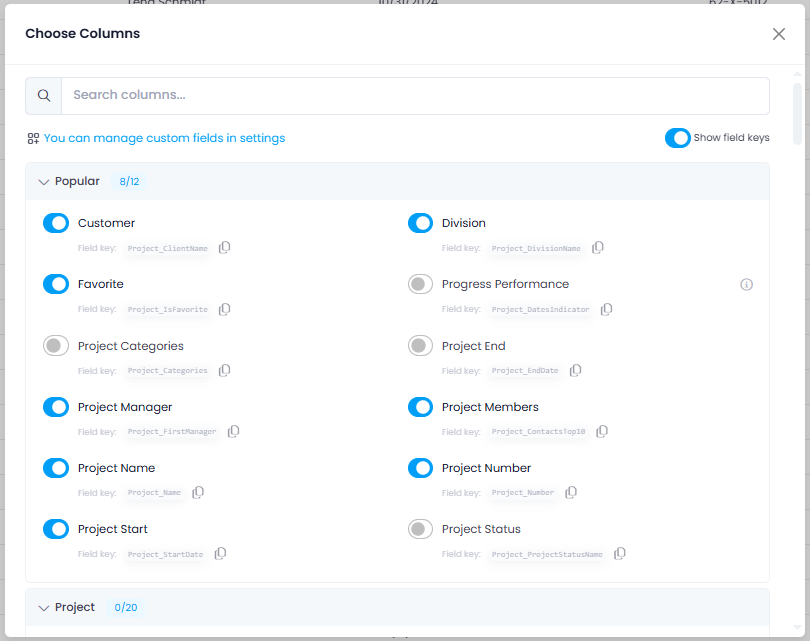
Enable the Show field keys toggle to display the database field key next to each column. Click the copy button next to a field key to copy it to your clipboard — this is useful when configuring dashboards.
tip
For a complete list of all available columns in each InLoox section, see Overview: Columns in Views.