Knowledge
The Knowledge section in InLoox is a shared wiki and knowledge management system where your team can create, organize, and browse articles. It serves as a central repository for work instructions, onboarding documentation, standard operating procedures, best practices, quality guidelines, policies, FAQs, and compliance documentation. Use it to ensure governance adherence, maintain process consistency, and preserve institutional knowledge across your organization.
The Knowledge area is only available in the InLoox Enterprise, InLoox Enterprise Plus, and InLoox Self-Hosted editions.
You need the Read knowledge pages permission to view knowledge articles and the Create, edit and delete knowledge pages permission to create or edit them. These are configured in Account Settings — Permissions.
Knowledge structure
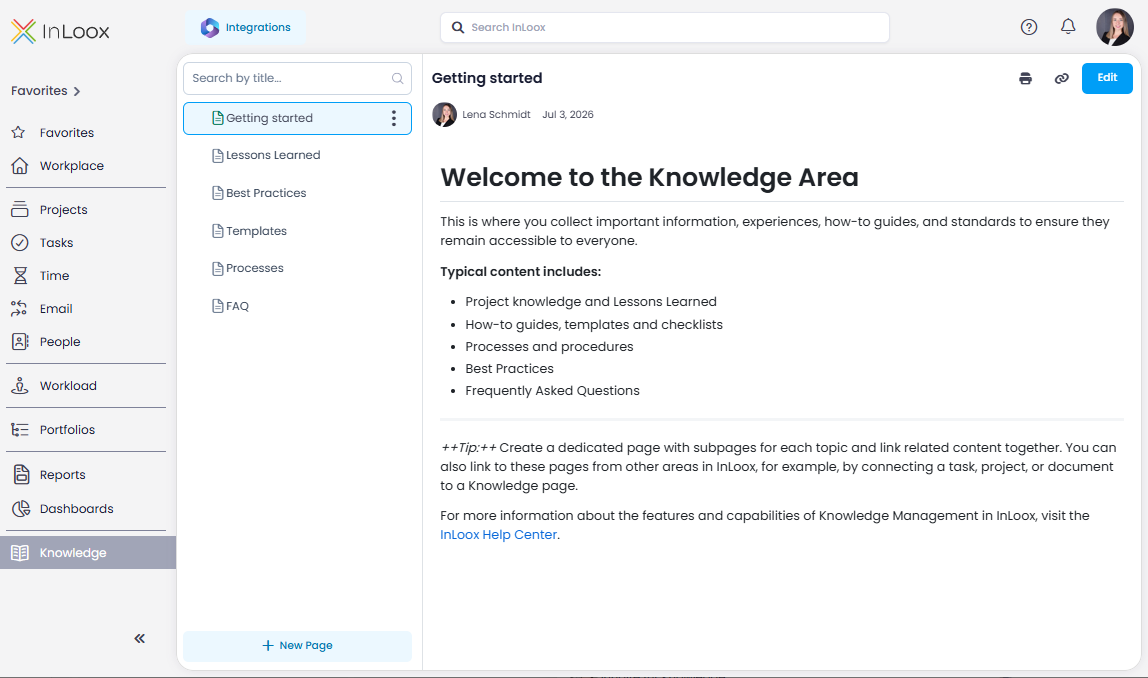
Find the Knowledge section in the left main menu. Pages are organized in a tree — you can nest child pages under any parent page to build a hierarchy. Below the title of each page, you can see who last edited the page and when.
Your account comes with starter pages pre-populated — covering Lessons Learned, Best Practices, Processes, and FAQ. Adapt them to your needs, use them as templates for new topics, or create your own structure from the ground up.
If your account was created before these starter pages were introduced, you can download the content as Markdown and paste it into your Knowledge area. Switch to the code view using the Code toggle in the top right corner of the editor to paste the text:
Managing knowledge pages
Creating a new knowledge page
- In the left navigation, click Knowledge.
- Select the page under which you want to create the new page. The new page will be created as a child of the selected page — if no page is selected, it will be created at the root level.
- Click New Page at the bottom of the navigation panel.

- Enter a title for the page and click Save.

- Write the content of the page in the editor (see below) and click Save.
Editing a knowledge page
- Open the page you want to edit by clicking on it in the tree.
- Click the Edit button in the top right corner.
- Make your changes in the editor. You can format visually (WYSIWYG) or switch to code view using the toggle in the top right corner — useful for pasting content from other wikis or systems. The editor supports formatting options such as headings, bold, italic, underline, lists, code blocks, blockquotes, horizontal rules, images (also via drag & drop), links, tables, and more.

- When you're done, click Save.
Three-dot menu
Right-click or click on any page in the tree to access these options:
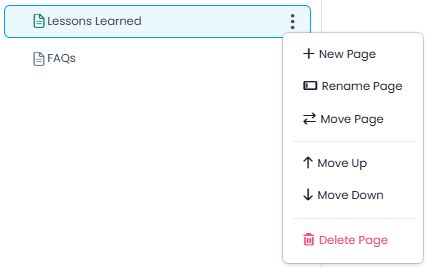
- + New Page — Creates a new child page under the selected page.
- Rename Page — Changes the page title.
- Move Page — Moves the page to a different location in the tree.
- Move Up / Move Down — Reorders the page within its current level.
- Delete Page — Removes the page. Pages can only be deleted when they have no child pages. Deleted pages are not shown in the tree.
Copying a link and printing
In the top right corner of a knowledge page, next to the Edit button, you will find these options:
- Copy link () — Copies a direct link to the page to the clipboard.
- Print () — Opens the print dialog for the page.
Linking knowledge pages from other items
You can link a knowledge page from a project, task, time entry, or other element by using the Linked Items section of that element. See also: Linked Items.
Searching for knowledge pages
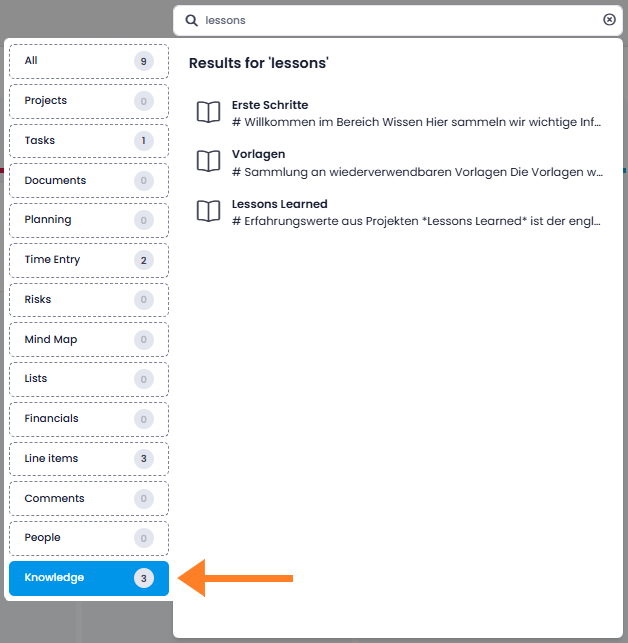
Knowledge pages appear in the global search. InLoox searches the title and description of knowledge pages. Click a search result to open the corresponding page directly.