Emails
The email permissions in the Integration Center let you connect your Microsoft Outlook inbox with InLoox. You can display emails, transfer conversations to projects, create tasks from flagged emails, and keep flags synchronized.
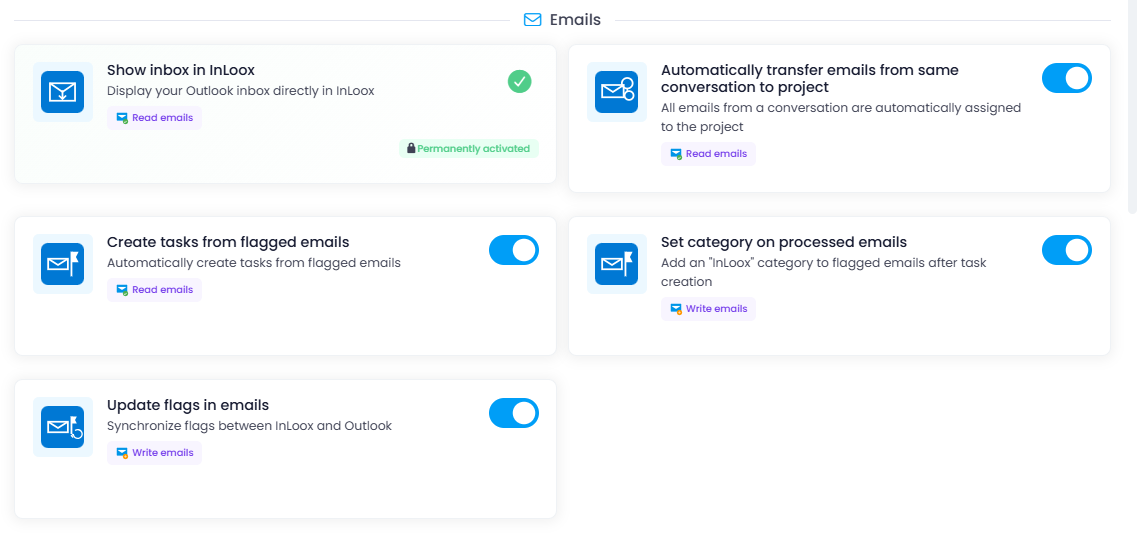
Show your Outlook inbox in InLoox
Permission: Read emails
When you grant this permission, your Outlook inbox is displayed in InLoox. This allows you to work with your emails directly in InLoox and:
- Convert emails into InLoox tasks
- Save emails and attachments as project documents in InLoox
Automatically transfer emails from the same conversation to a project
Permission: Read emails
When you grant this permission, all future incoming and outgoing emails from the same conversation are automatically assigned to the project. InLoox stores them as .eml files in the project's Documents section in the Emails folder. This allows you to review project-related email conversations directly in InLoox.
Create tasks from flagged emails
Permission: Read emails
When you grant this permission and flag an email in your inbox, InLoox automatically creates a task from that email. Simply click on an email in Microsoft Outlook. This makes it easy to work through your inbox and create personal InLoox tasks with just one click.
To turn these personal tasks into project tasks, go to the Workplace section in InLoox and assign them to a project.
Set category on processed emails
Permission: Write emails
If you grant permission to set a category after creating a task by flagging an email in Outlook, the category "InLoox" is automatically added to the Outlook email. This requires the permission "Create tasks from flagged emails". Whenever you convert emails into InLoox tasks by clicking in Outlook, this category is added.
Synchronize email flags between InLoox and Outlook
Permission: Write emails
When you grant permission to update email flags, InLoox keeps this information synchronized with Outlook. Whenever you mark a task as Done in InLoox (if that task was created by flagging an email in Outlook), the corresponding email is also marked as Done in Outlook. This reduces duplicate work and keeps your inbox and InLoox tasks in sync.