Calendar
The calendar permissions in the Integration Center let you connect your Microsoft Outlook calendar with InLoox. You can track time from calendar entries, assign categories after booking, and keep tasks and calendar entries synchronized.
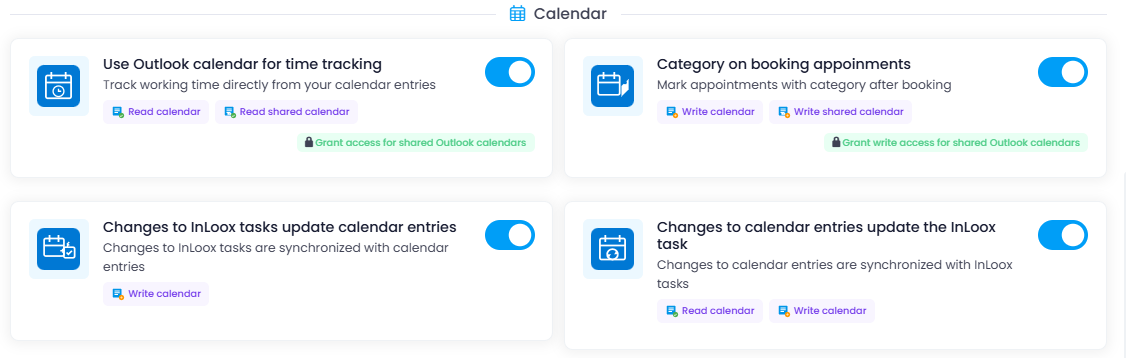
Use the Outlook calendar for time tracking
Permission: Read calendar
When you grant this permission, you can track Outlook calendar entries as working time in InLoox and assign them to projects and project tasks. This simplifies project time tracking and helps ensure that billable hours are recorded correctly.
Mark appointments with a category after booking
Permission: Write calendar
When you grant this permission, InLoox automatically assigns the InLoox category to calendar entries after you book them as time tracking entries. This category helps you identify appointments that have already been logged in InLoox and prevents double bookings.
Changes to InLoox tasks update calendar entries
Permission: Write calendar
When you grant this permission, changes made to InLoox tasks that were created from Outlook calendar entries are automatically synchronized with the corresponding calendar entries. This ensures that the name, start and end dates, and times stay up to date — saving you from manually updating your Outlook calendar.
If a task's start/end dates and times are derived from the assigned planning activity, the task will span the entire planning period in the calendar when synchronized.
Changes to calendar entries update the InLoox task
Permissions: Read calendar, Write calendar
When you grant these permissions, changes made to calendar entries are synchronized with the corresponding InLoox tasks. This ensures that the name, start and end dates, and times of InLoox tasks created from calendar entries stay up to date — eliminating the need to update them manually.