Create a New Account
Free trial account
InLoox offers a free 14-day trial with full access to all features. You can invite an unlimited number of team members to test InLoox together.
After 14 days, the trial account is automatically deactivated — no cancellation required. After 45 days, the account and all data are permanently deleted.
Create one shared trial account for your company and invite your team. This way you can test InLoox together and experience real project collaboration from the start.
Create an InLoox account
You can create an InLoox account in two ways: with email and password or with your existing Microsoft account.
Option 1: Register with email and password
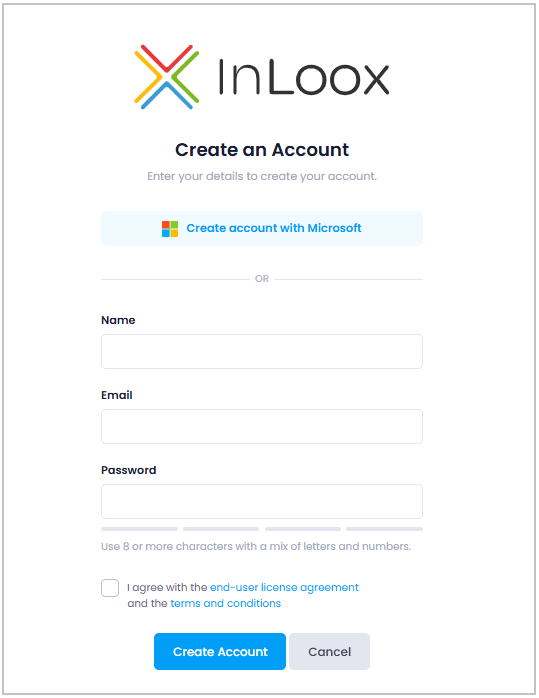
- Open login.inloox.com in your browser. Make sure you are using a current browser version.
- Fill in the following fields:
- Name — Your full name
- Email — Your business email address
- Password — At least 8 characters consisting of letters and numbers
- Check the box I agree with the end-user license agreement and the terms and conditions.
- Click Create Account.
You can connect your Microsoft 365 account at any time later — see Set login method below.
Option 2: Register with Microsoft
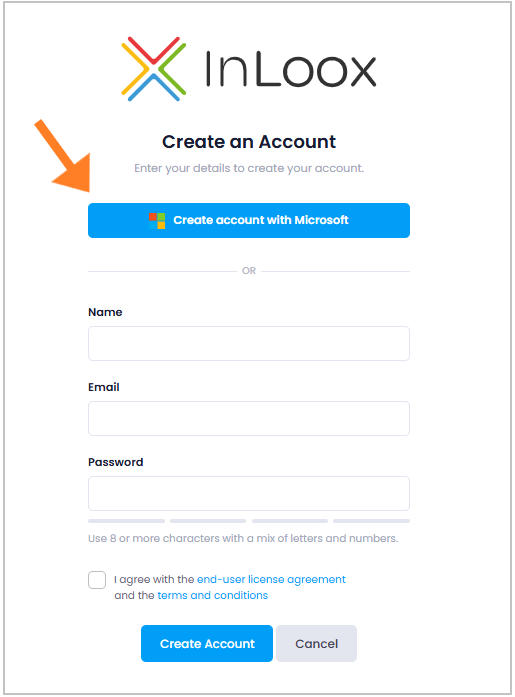
Click Create an account with Microsoft at the top of the registration page, check the license agreement and terms and conditions box, and you will be redirected to sign in with your Microsoft account.
- You are redirected to InLoox at app.inloox.com. A short onboarding questionnaire appears — answer a few questions about your planned number of users, project start date, goals, and how you heard about InLoox. This helps us better understand your requirements.
- After completing the questionnaire, you land in the InLoox interface.
You will receive a confirmation email with your login data immediately. Never share this email with third parties!
- Click the activation link in the confirmation email to unlock all features.
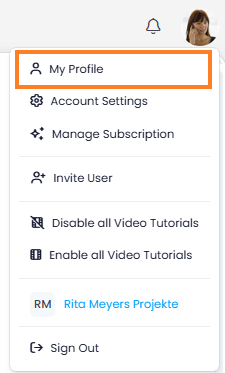
- To verify activation, click your profile picture in the upper-right corner > My Profile. Under Profile Details, it should say VERIFIED next to your email address.
The person who creates the InLoox account automatically receives all administrator permissions. You can change these in the Account Settings.
Set login method
If you registered with your Microsoft account (Option 2), you are already set up to sign in with Microsoft. You can skip this section.
Choose how to log in:
- Email address and password (default)
- Microsoft 365 account
To connect your Microsoft 365 account:
- Click your profile picture > My Profile.
- Open the Settings tab.
- Under Linked Accounts, click Connect.
Make sure you are already logged into your Microsoft 365 account in the browser before connecting. As an administrator, you can also require all users to sign in with Microsoft 365.
If you sign in with email and password, you can additionally secure your account with two-factor authentication via email or authenticator app.
Next step
Now that your account is set up, invite your team to get started together.