Templates for Budgets and Budget Line Items in Project Financials
To use budget line item templates, you must first create financial plan templates or budget line item templates for your InLoox account in the Account Settings. You need admin permissions to access the InLoox account settings.
Using Templates in Project Financials
You can use both financial plan templates and line item templates to quickly create project financials.
Load a Financial Plan Template
- After creating templates in the InLoox account settings, click the Plan tab to load a planned template, or the Actual tab to load an actual-type template.
- Click the Templates button and select the template you want to load.
- You can then further edit the line items of the template as needed. You can also add a line item template by clicking the Templates button above the list of line items.
Load a Line Item Template
- After creating templates in the InLoox account settings, select an existing financial plan and click the Templates button.
- Alternatively, create a new financial plan first, then click the Templates button.
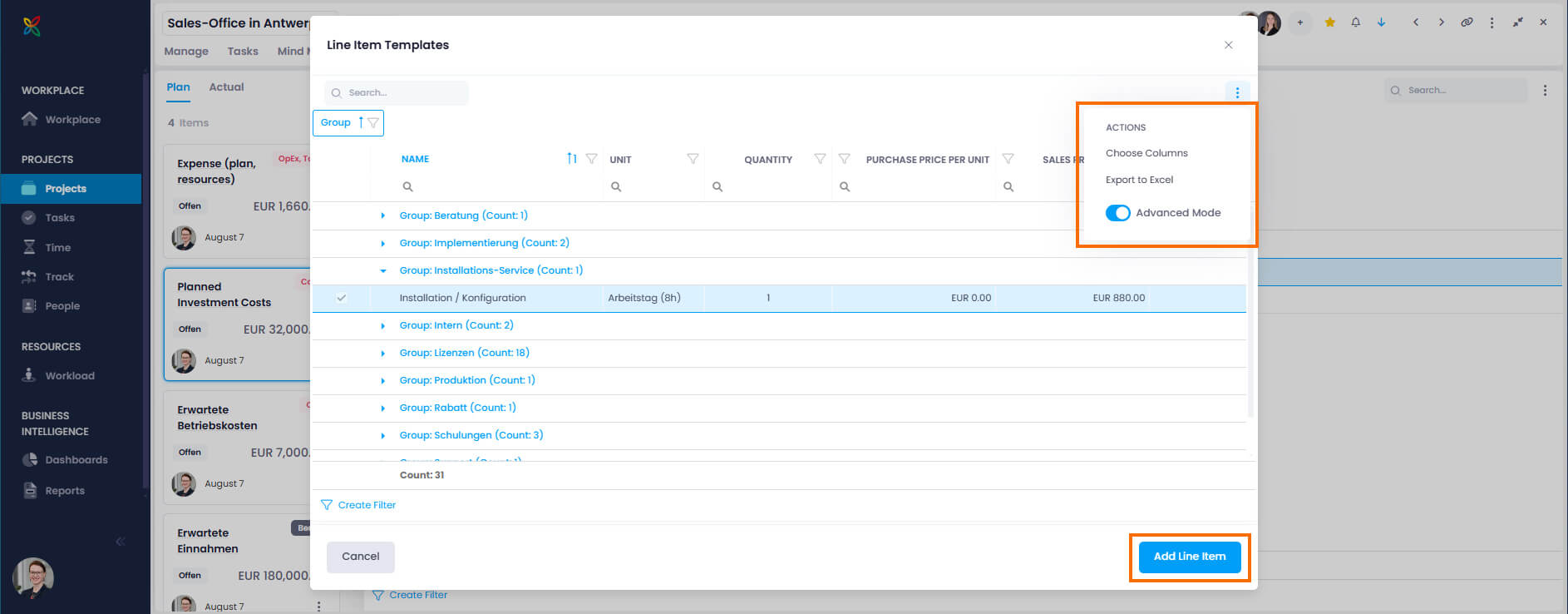
- In the Line Item Templates window, select the budget line item you want to add and click Add Line Item. To add multiple items, hold Ctrl, select the items, and click Add x Line Items.
Managing Templates
In the project financials, you can directly:
- Download templates
- Delete templates (if you are the InLoox account admin)
- Click the Templates button and then Manage Templates.
- Click to download a template.
- Click to delete a template (requires admin permissions).
Save a Financial Plan or Line Items as a Template
You can save an existing plan or a list of line items as a new template:
- Select the plan and click the Templates button.
- Click Save current budget as template.
- Name the new template and click Save.
If you enter a name that is already used by an existing template, a Name already exists dialog appears. Click Overwrite to replace the existing template, or Cancel to keep the existing template unchanged.
The new template now appears in the list of templates. In the InLoox account settings under Organization › Financials, you can further edit this template if you have admin permissions.
The budget status is preserved when you save a financial plan as a template. When you later create a new budget from that template, it will automatically receive the same status that was set at the time the template was saved. If the original status no longer exists, the budget will fall back to the default status.
Sort, Filter, and Group the Line Item Templates List
You can add columns to the templates list:
- Click the Templates button to open the Line Item Templates window.
- Click in the upper-right corner and select Choose Columns.
- Drag and drop the columns you need into your list.
- To group, drag the desired columns into the area above the list.
- To filter, click next to the column name or click Create Filter at the bottom of the list.
- To sort, click inside the column next to its name (ascending, descending, neutral).
To sort, filter, and group the list, you must first enable Advanced Mode via .