Track Emails (since InLoox 26)
The integration of Outlook in InLoox makes it easy to turn emails into tasks or documents and file attachments in InLoox projects — without leaving the platform. Alternatively, you can use the InLoox for Outlook add-in to track emails directly from Microsoft Outlook.
Prerequisites for Emails
To use the email features in InLoox, the following connections and permissions must be configured in the Integration Center:
- Connect your Microsoft 365 account
- Show inbox in InLoox — to display your Outlook inbox in InLoox
Optional Outlook email permissions:
- Automatically transfer emails from same conversation to project — auto-assigns conversation emails to the project
- Use SharePoint Online or Teams for document storage — syncs emails and attachments with SharePoint
- Activate full access to SharePoint sites — required for dynamically creating document libraries
Optional permissions for flagged emails:
- Create tasks from flagged emails — auto-creates tasks from flagged emails
- Update flags in emails — syncs flags between InLoox and Outlook
For details on setting up the Microsoft 365 connection and permissions, see the help article on Integrations.
Overview: Email in InLoox
Click Email in the menu to open your Outlook inbox directly in InLoox. From there, you have several options to navigate and manage your emails:
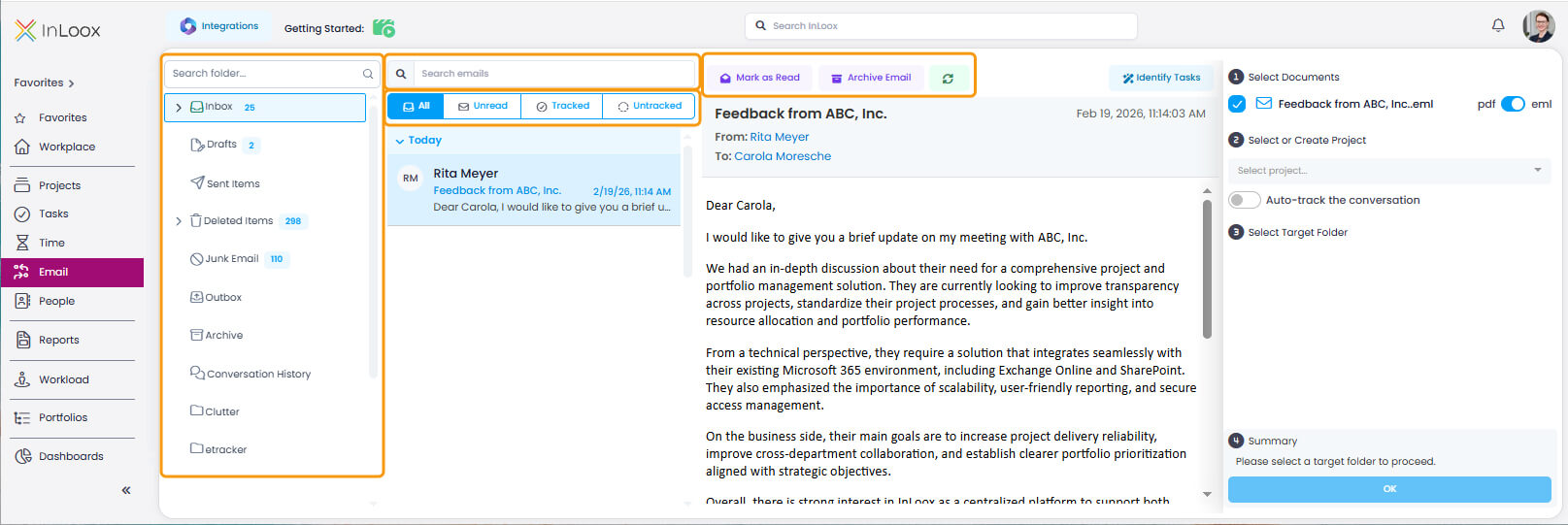
- Search: Use the search fields to find folders and emails.
- Filter: Use the tabs All, Unread, Tracked, and Untracked to filter your inbox view.
- Mark and archive: Mark emails as read or unread, and archive emails to keep your inbox organized.
- Refresh: Click the Refresh button to update the email list with the latest messages from Outlook.
- Adjust view: Resize the folder pane, email list, and preview areas by dragging the dividers between them.
Turn an Email into an InLoox Task
This feature requires enabling AI assistance under InLoox Account Settings >> InLoox AI. InLoox Self-Hosted can use it once a custom model is connected — see InLoox AI.
- Select an email from the inbox.
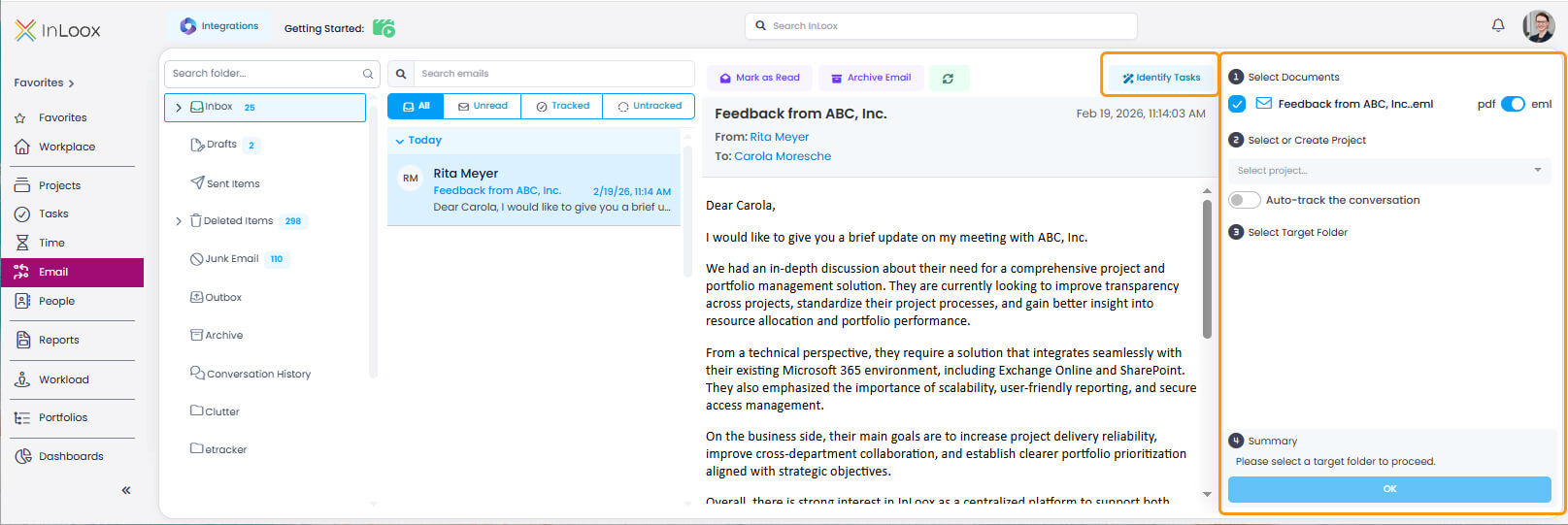
- Click Identify Tasks. The AI Assistant analyzes the email content and suggests tasks.
- Click OK next to a suggested task to open and edit it.
- For multiple tasks in the same email, click Identify Tasks again to process additional suggestions.
This feature is powered by the InLoox AI Assistant. For more details on all AI features — including generating project descriptions and AI-assisted task creation — see InLoox AI Assistant.
File an Email or Attachment as a Document
- Select an email that you want to file in InLoox.
- In the right side panel, choose whether the email should be filed as PDF or as an .eml file. PDF is set as the default.
- If the email contains attachments, check the ones that should be filed together with the email in InLoox.
- In the Select or create project field, select the project in which the email and/or the attachments should be filed. Alternatively, type a project name to create a new project.
If the email subject contains part of an InLoox project number starting with # (e.g., #1234), InLoox automatically suggests matching projects in Select or create project.
- If you want to save every follow-up email as a conversation in InLoox, activate the Auto-track the conversation toggle. These conversations are filed in the project under Documents > Emails and can be viewed by clicking the conversation icon. You can then scroll through the entire email conversation in InLoox. For more information, see the help article on Emails in Documents.
- Select the target document folder in which everything should be filed. Click the Plus button to create new document folders.
Click Initialize if the integration between InLoox and SharePoint Online or your file server is new, or if no document folder structure has been created yet for the selected project. If you want to use a specific SharePoint library, deactivate the Use default location toggle, select the appropriate site and library, and click Connect and initialize folder.
- Click OK. InLoox files everything for further use.
- InLoox displays the filed documents. Click on a document to open it. You can then continue editing and change the details of the document such as name, description, or status, link it with other InLoox items, add comments, open the document in app, open the document folder, or download the document.
InLoox automatically marks all emails that have been filed as documents. Click the Tracked tab to see all emails that have already been filed in InLoox. If an email was filed in multiple projects, InLoox shows the tracking info for each project. Click a project name at the top to open that project in a new browser tab.
After filing emails, you can view and manage them in the project's Documents section. Read the help article on Emails in Documents for details on the list view and conversation view.
Flag Emails in Outlook to Create InLoox Tasks
This feature requires the permissions Create tasks from flagged emails and optionally Update flags in emails in the Integration Center.
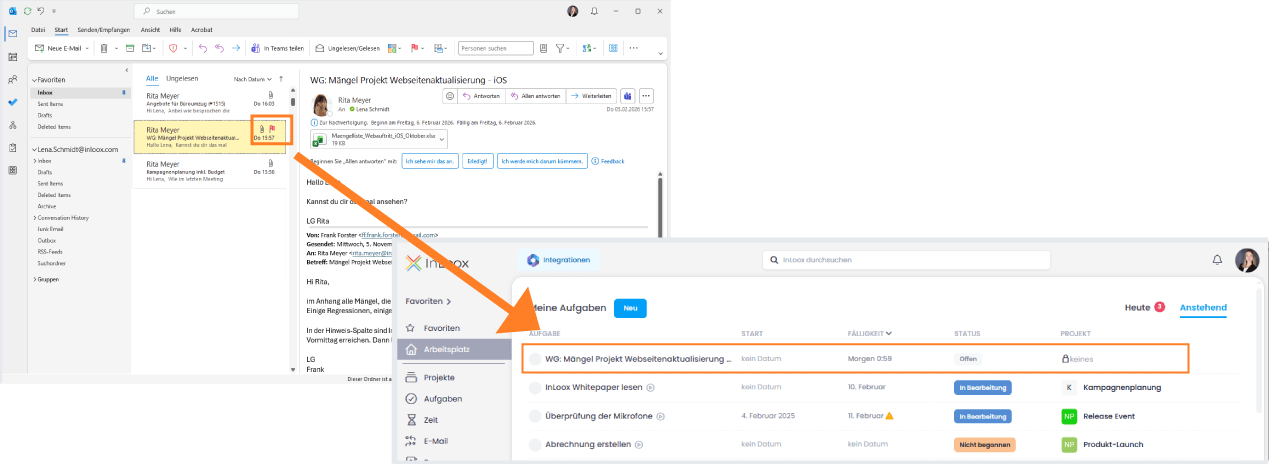
- In Outlook, click on an email to flag it. Right-click to set a due date, for example tomorrow.
- InLoox automatically creates a personal task from this email.
- To edit the task, go to the Workplace in the InLoox menu. Depending on the due date, you will find the task under Today or Upcoming.
- Click on the task to edit it and assign a project if you want to turn it into a project task. You remain assigned as a resource on the task.
- If you have enabled the permission Update flags in emails, InLoox keeps the task status in sync and marks the Outlook email as completed as soon as you mark the InLoox task as done.
For more details on personal tasks, see the help article on the Workplace.