SharePoint Integration
Configure SharePoint Online as Storage Location
To use SharePoint as your document storage, you first need to select SharePoint Online as the storage location in the Account Settings — Documents. Once configured, the following SharePoint features are available in your projects.
Initialize SharePoint Connection
Before you can store documents in InLoox projects, you must initiate the initialization of the SharePoint link:
- Open a project and click on Documents.
- On the left you will see a field for initialization. Either click on the Initialize button to enable synchronization with the SharePoint path specified as the default in the settings. Or deactivate the Use default location slider and enter a valid SharePoint library for this project.

- You can now upload documents to InLoox. These are stored in the corresponding SharePoint or file share folder.
- Click on the Synchronize button to keep all documents in InLoox and on SharePoint/file share up to date via regular synchronization.

Synchronization of Documents and Folders with SharePoint
If you use Microsoft SharePoint for the documents, you can ensure that everything is always up to date with regular synchronization between InLoox and SharePoint.
If you use your own network drive (file share), synchronization will also work. Please note, however, that when you move folders or documents, they are treated as deleted folders and documents and are read as new folders or documents after the move.
You need the InLoox permission Edit documents.
When Should You Synchronize?
We recommend synchronizing regularly, but especially when:
- You add new documents or folders.
- You rename documents or folders.
- You move documents or folders to another folder.
- You delete documents or folders.
- You edit or change documents online.
Open the Documents Folder on SharePoint
In the list of documents in your project, you can directly open the SharePoint folder where the file is stored.
- Click on next to a document and click on Open folder.
- Or mark a document in the list and click on the button Open folder.
Change Document Path
This section only applies to users who use SharePoint Online for document storage.
You need administrator rights to make the following changes.
Since InLoox 11.17, you are able to change the folder path for one particular project.
- Open an InLoox project and go to Documents.
- Click on the button Change path.

- In the window Change document path of this project, enter the new path. You can change the SharePoint site, the SharePoint library and the SharePoint subfolder.
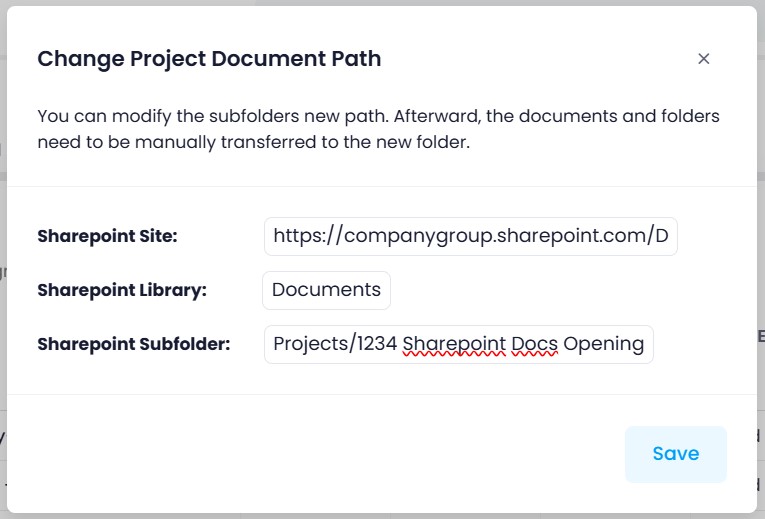
- Click on Save. After changing the path, you will have direct access to your documents as usual.
- Click on Synchronize to make sure that all documents and folders are synchronized with your SharePoint and stay up to date.
For more information on the document settings, see the help article on InLoox Account Settings — Documents.
Display SharePoint Approval Process Data
If you use Microsoft SharePoint Online and have established an approval process for documents there, this data can be displayed in InLoox.
- Open a project and click on Documents.
- Right-click on a column header and then click on Choose Columns. An overview of the columns available in the document view can be found in the help article on list views.
- Drag the following columns into the view: Approval status, Approval request sent by, Approval request answered by, and Approval request assigned to.
- If this data is available in SharePoint, InLoox will now display it.
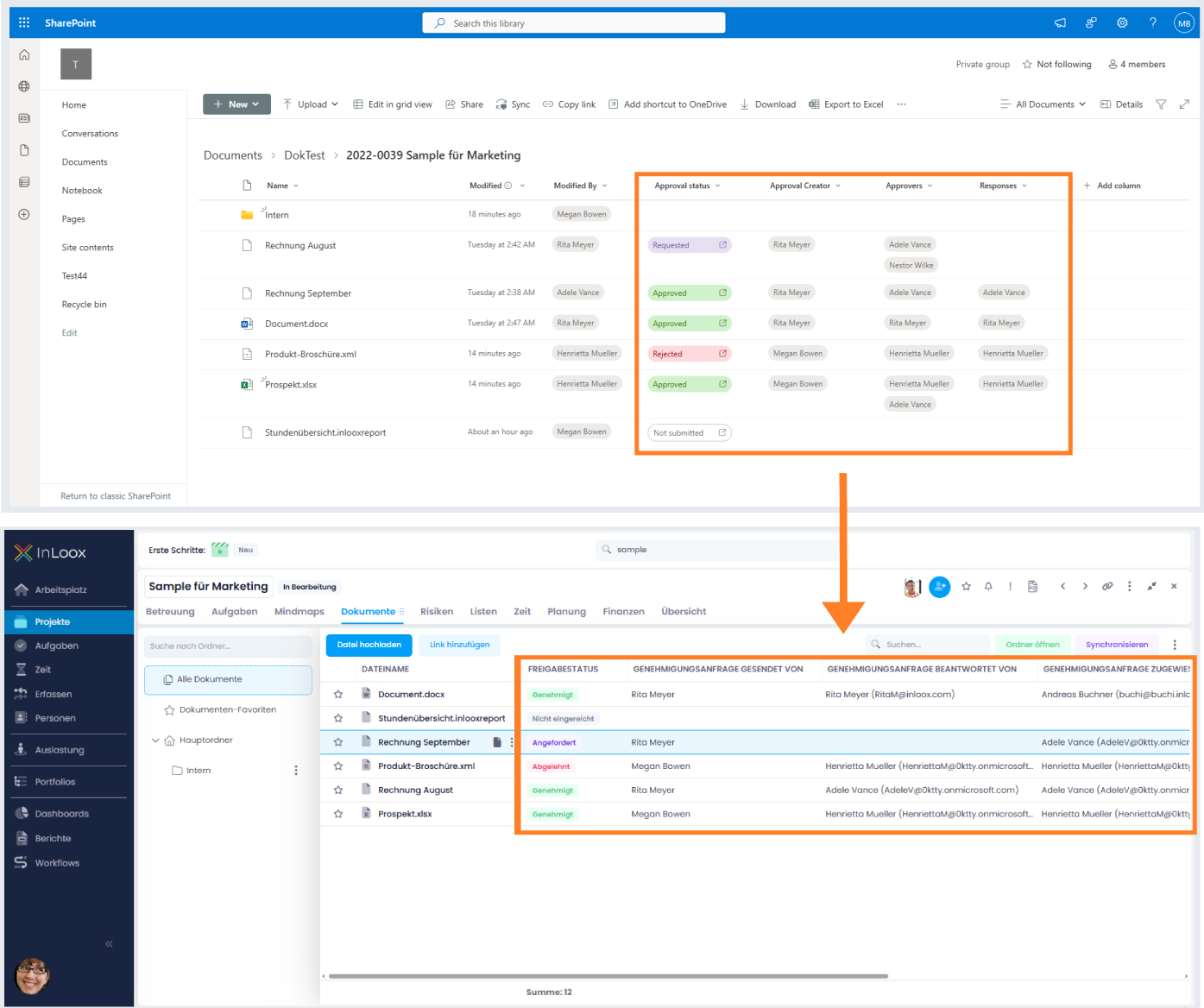
You cannot edit these records in InLoox. InLoox only displays this data; the process itself is set up and edited in SharePoint.
Display SharePoint Version and Sensitivity Label
InLoox can display the SharePoint version number and the sensitivity label of documents stored in SharePoint.
- Open a project and click on Documents.
- Right-click on a column header and then click on Choose Columns. An overview of the columns available in the document view can be found in the help article on list views.
- Drag the Sensitivity Label and/or SharePoint Version columns into the view.
- If this data is available in SharePoint, InLoox will now display it.
You cannot edit these records in InLoox. InLoox only displays this data; the values are managed in SharePoint.