Manage Folders and Move Documents
Create a Folder
To create a new folder, navigate to the folder structure on the left and click the Plus button.

Enter a name for the folder and then click on Save.
The new folder is created immediately, and you can upload files.
You can also create subfolders. Simply hover your mouse over the folder for which you want to create a subfolder. A Plus button will appear there, which you can use to create the new subfolder.
Rename or Delete a Folder
If you want to rename or delete a folder, click on the three vertical dots to the right of the folder. You now have the following options:
- To rename the folder, click Rename folder and enter a new name. Save the new information.
- To delete the folder, click Delete folder. InLoox asks you again if you really want to delete the folder. To confirm, click Delete.

When you delete a folder, all files and hyperlinks that this folder contains are also automatically deleted.
Move a Folder
If you want to change the folder structure in the project documents, you can easily move a folder.
- Click on next to the folder name and then on Move folder.
- Select the target folder and click on Move.
The entire folder including documents will be moved immediately.
Move Documents into Another Folder
In the Documents area in InLoox you can simply drag and drop a document to other folders.
If you want to move several documents at once, multiselect the files (press Ctrl, select all the files you want to move) and right-click on them.
- Click on Move.
- In the window Move to folder, InLoox highlights the current folder in blue.
- Now select the folder you want to move the document into.
- Then click Move.
If a file with the same name already exists in the target folder, InLoox automatically renames the moved file by appending an incrementing number in parentheses — for example, report.pdf becomes report (1).pdf, then report (2).pdf, and so on.
Move Documents from a Task or Planning Element
You can also move documents linked to a task, an activity or milestone directly in the respective element to another folder:
- Open a project in InLoox, go to the kanban board and open a task. Alternatively, go to planning and open a Gantt element (activity or milestone or task).
- In the task you see all the documents that are linked to it. Click on the folder structure icon of the document you want to move to another folder.

- In the window Move to folder, InLoox highlights the current folder in blue.
- Now select the folder you want to move the document into.
- Then click Move.
If you cannot find the right folder destination, you can use the search bar to type in the folder name. InLoox will display the corresponding folders for you to select from.
Delete Orphaned Elements
Orphaned documents and folders are files that still exist in the project but are no longer connected to the active folder structure — for example, because their parent folder was deleted while the files themselves remained in the database. These items are not visible in the normal folder view.
InLoox lets you permanently delete all orphaned documents and folders in one step.
Deleting orphaned files requires administrator rights. This action cannot be undone.
- Open the Documents tab in a project.
- In the toolbar, click the button with the three vertical dots at the top right.
- Select Delete orphaned elements.

- InLoox shows a confirmation dialog with the number of orphaned documents and folders that will be permanently deleted.
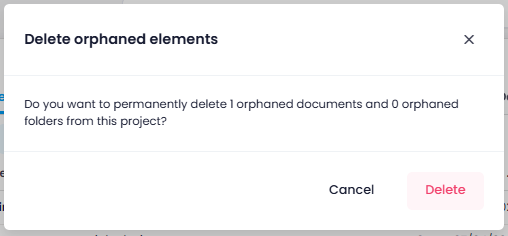
- Click Delete to confirm.