InLoox Desktop Tools
The InLoox Desktop Tools are an optional extension that allows InLoox Web App to access local drives and network file servers. They enable you to open files directly from InLoox in your desktop application and add file links from your desktop application to InLoox Web.
The Desktop Tools enable the following features:
- Open files from a file server directly from InLoox without downloading them (only relevant for InLoox Self-Hosted Edition)
- Add file links to local or network files in InLoox
Installation of the InLoox Desktop Tools
You can download the InLoox Desktop Tools here.
Agree to the request to open the InLoox Desktop Tools and check the box to save this selection permanently:

The first time you start InLoox Desktop Tools, another browser window opens. You may have to log in again in this window. The document will then open directly and you can make changes and save them. These changes are immediately visible to everyone.
Open Files from the File Server
This section is only relevant for InLoox Self-Hosted Edition in combination with a file server as document storage. Your InLoox Self-Hosted server must be running on version InLoox 11.13 or higher.
For the steps described below to work, users must have direct access (read/write permissions) to the file server configured in InLoox. It is therefore advisable to use a network drive as the storage location for the project documents.
Modern browsers generally prevent documents from being opened directly from a local network or directory for security reasons. Therefore, to edit a document, it must first be downloaded before it can be edited. To ensure that all colleagues have access to the changed file, it must be uploaded again after the changes have been made.
With the InLoox Desktop Tools installed, you can bypass this limitation and work with files directly.
Open Files in App
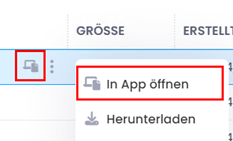
After installing the InLoox Desktop Tools, documents such as Excel or Word files can be opened directly in the respective app. Click on next to the document and then on Open in app.
Open Folder on File Share
If you need to access the folder where the file is stored, click on next to the file and select Open folder from the menu. InLoox directs you straight to the file's folder in your file share.
Desktop Tools version 12.1 or higher is required for this.
Add File Link
InLoox Desktop Tools version 12.5 (November 2025) or higher is required for this.
With the help of InLoox Desktop Tools, users can add file links to locally stored documents in InLoox Web App. This way, you can edit these documents without downloading and re-uploading them to InLoox. This also helps you avoid duplicate files.
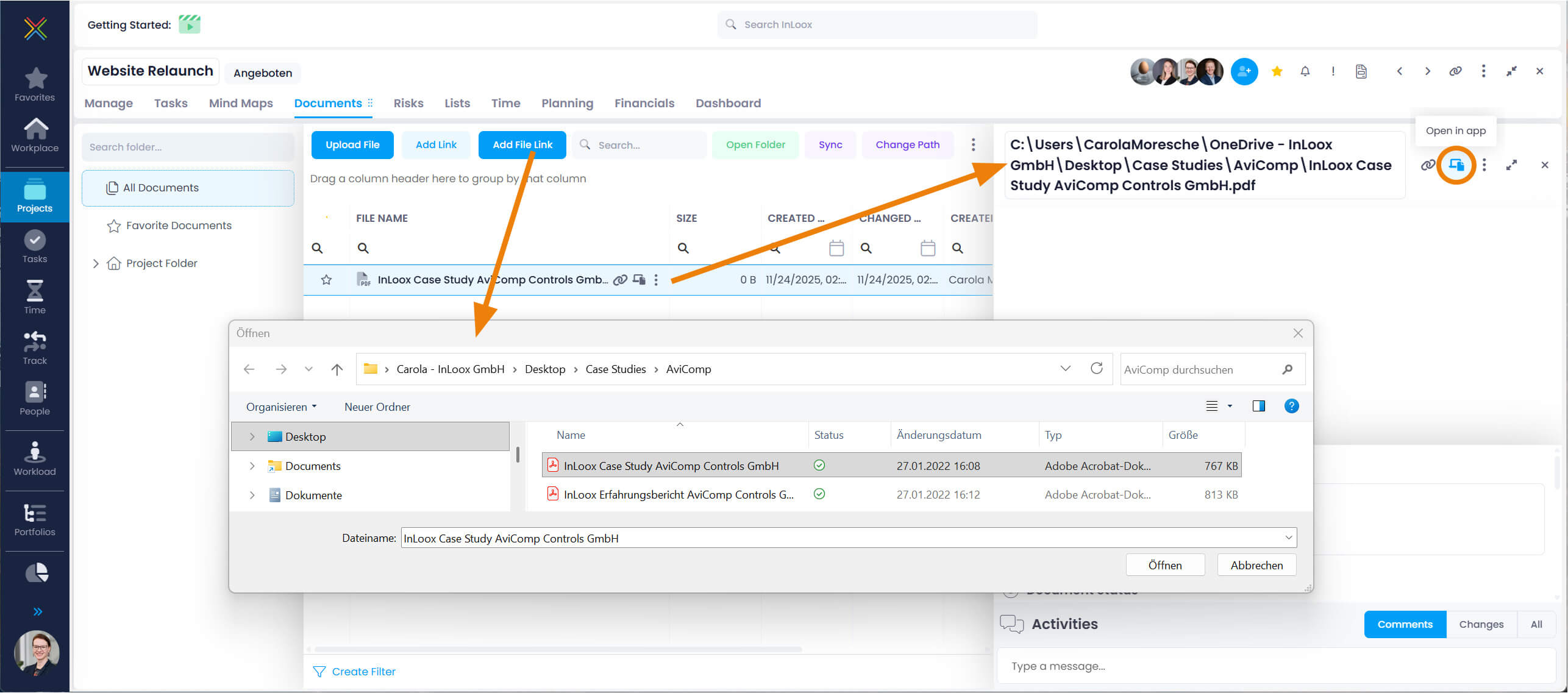
- Open a project and open the Documents tab.
- Click on Add file link. Agree to the request to open the InLoox Desktop Tools and check the box to save this selection permanently.
- InLoox opens your local file area, e.g. Microsoft Explorer, where you select one or several documents. Click on Open.
- InLoox adds these file links to your list of project documents.
- You can open the file by clicking on Open in app, edit and save it without downloading and re-uploading it to InLoox.
Make sure not to rename the file link, as this will change the structure of the file link and break it.