Customize InLoox UI
The InLoox UI is easily customizable, giving you a clean interface tailored to your personal needs. These customizations are personal and do not affect the interface for other users in your account.
You can:
- Customize the main InLoox menu
- Customize the order of the project tabs
- Customize the detail panels for:
- The project's Manage page
- The detailed side panels of tasks, documents, time entries, planning elements, and financial items
- Set up a default layout for your team with UI Profiles
If you do not have read or write permissions for certain InLoox areas (e.g., Reports or Financials), those areas are automatically hidden from your menu.
How to customize the InLoox main menu
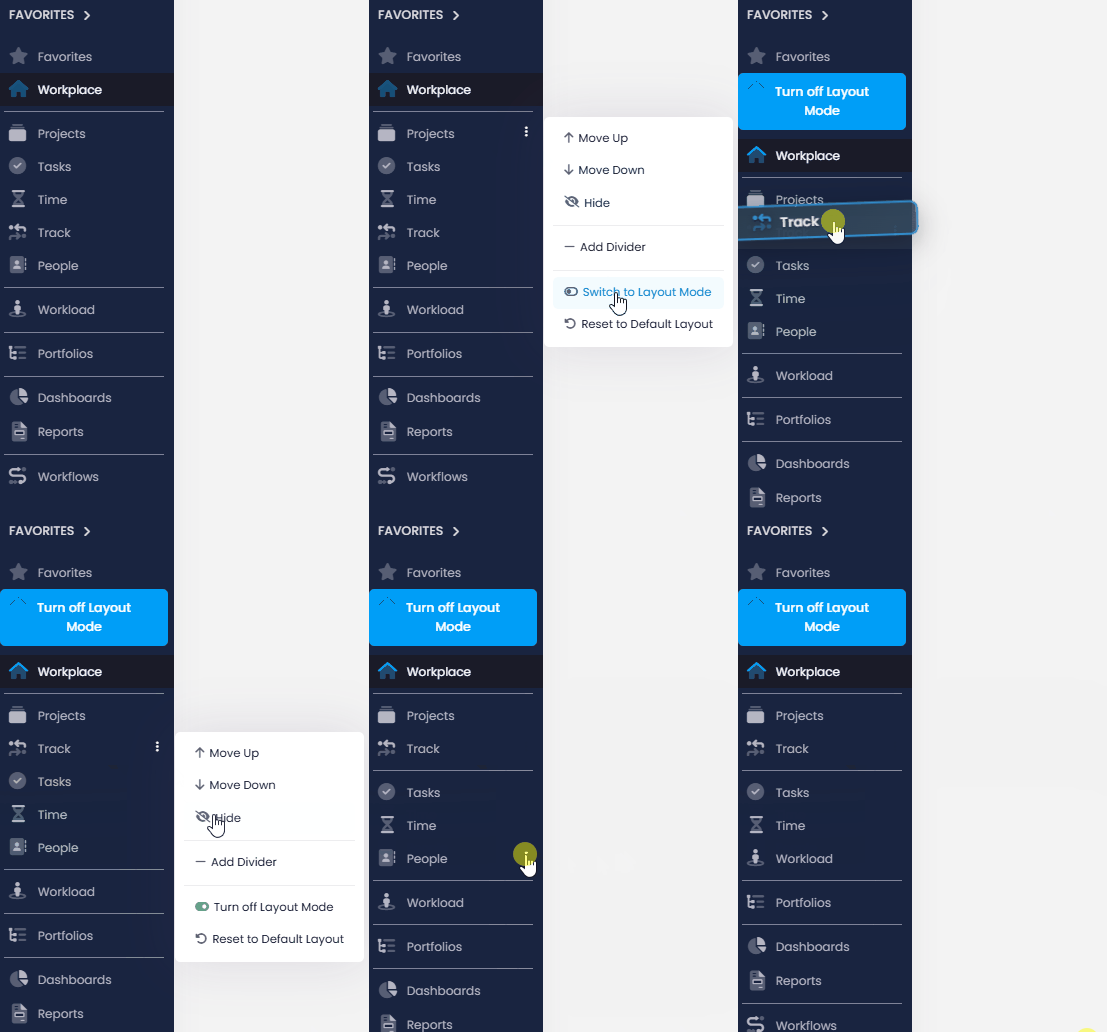
Using , adjust the order of individual menu items by moving them up or down, or move the ones you don't need to the More menu.
Menu items in the More menu are not hidden. Click More at the end of the main menu to open such an area, to search the areas, or to pin an area back to the main menu with .
You can also switch to Layout Mode and then drag and drop items to the desired positions.
To group certain menu items, add a divider.
Click Reset to Default Layout to undo your changes to the InLoox menu.
How to customize the order of the project tabs
- Open a project.
- Simply drag the tabs at the top and place them wherever it suits you.
- To move a tab that you rarely need out of the way, click on the tab, or press Delete while the tab is selected.
The tab then appears in the More menu at the end of the tab bar. Open it there and click to pin it back to the tab bar.

How to customize the detail panels
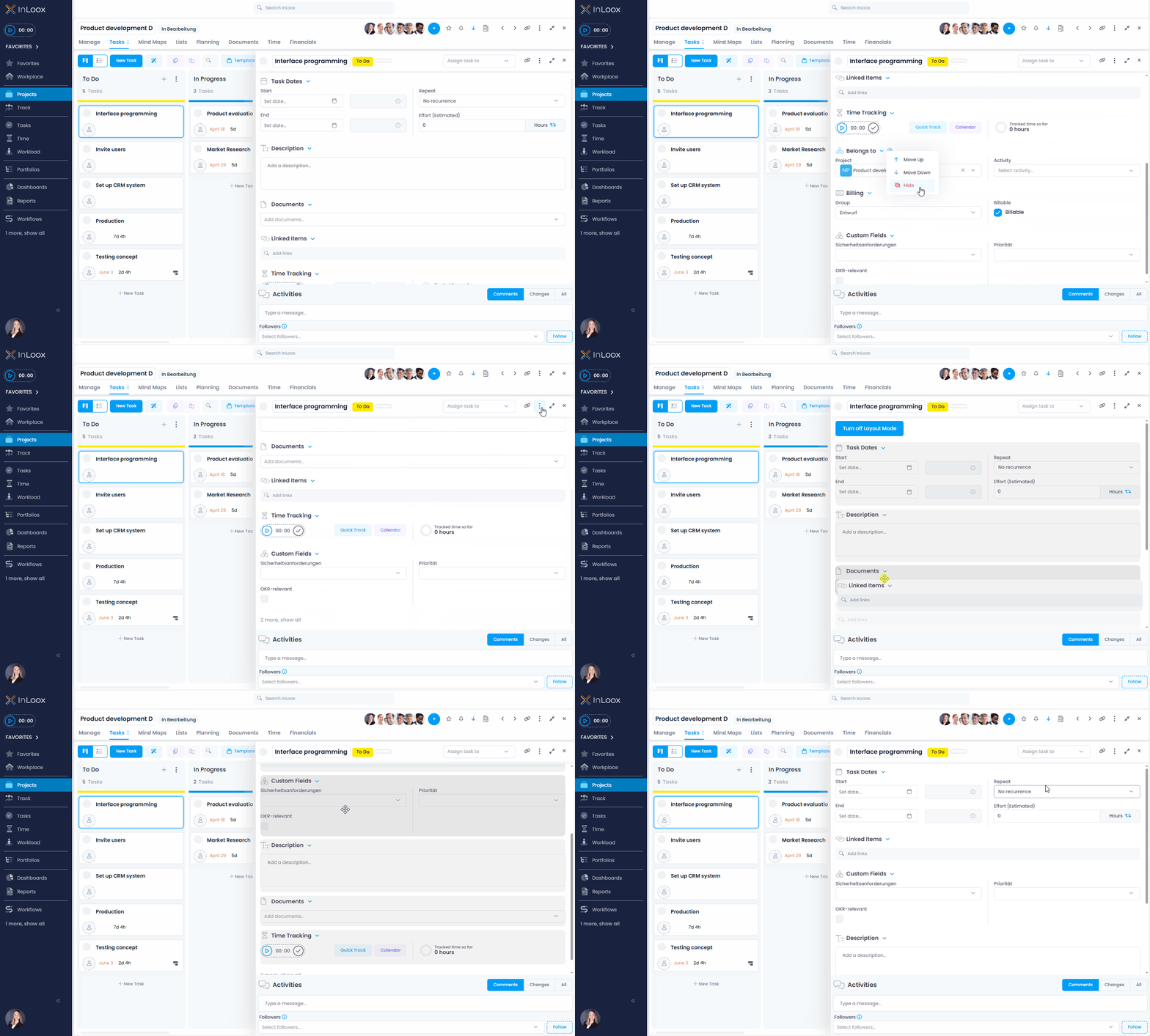
You can customize where details appear in tasks, documents, time entries, planning elements, and financial items — and hide the ones that are irrelevant to you.
- Click (e.g., next to Description) and select Move up, Move down, or Hide.
- Alternatively, switch to Layout Mode to drag and drop each detail to where you want it.
How to set up a default layout for your team
The customizations on this page are personal. As an administrator, you can define which main menu items and which project tabs a group of users sees pinned, and which ones InLoox collects in the More menu. Such a default layout is called a UI profile. For details, see UI Profiles.