Report automation
Report automation (also called scheduled reports) generates a report on a recurring schedule, automatically — for example a weekly project status report every Monday morning. Unlike the rest of Automation, which reacts to triggers (events) on records, report automation is purely time-based.
Opening report automation
From the Reports area, open the report list and click Automation in the toolbar, then Create New Automation. Your existing report automations are listed in the same menu, where you can open one to edit it.
Configuring a report automation
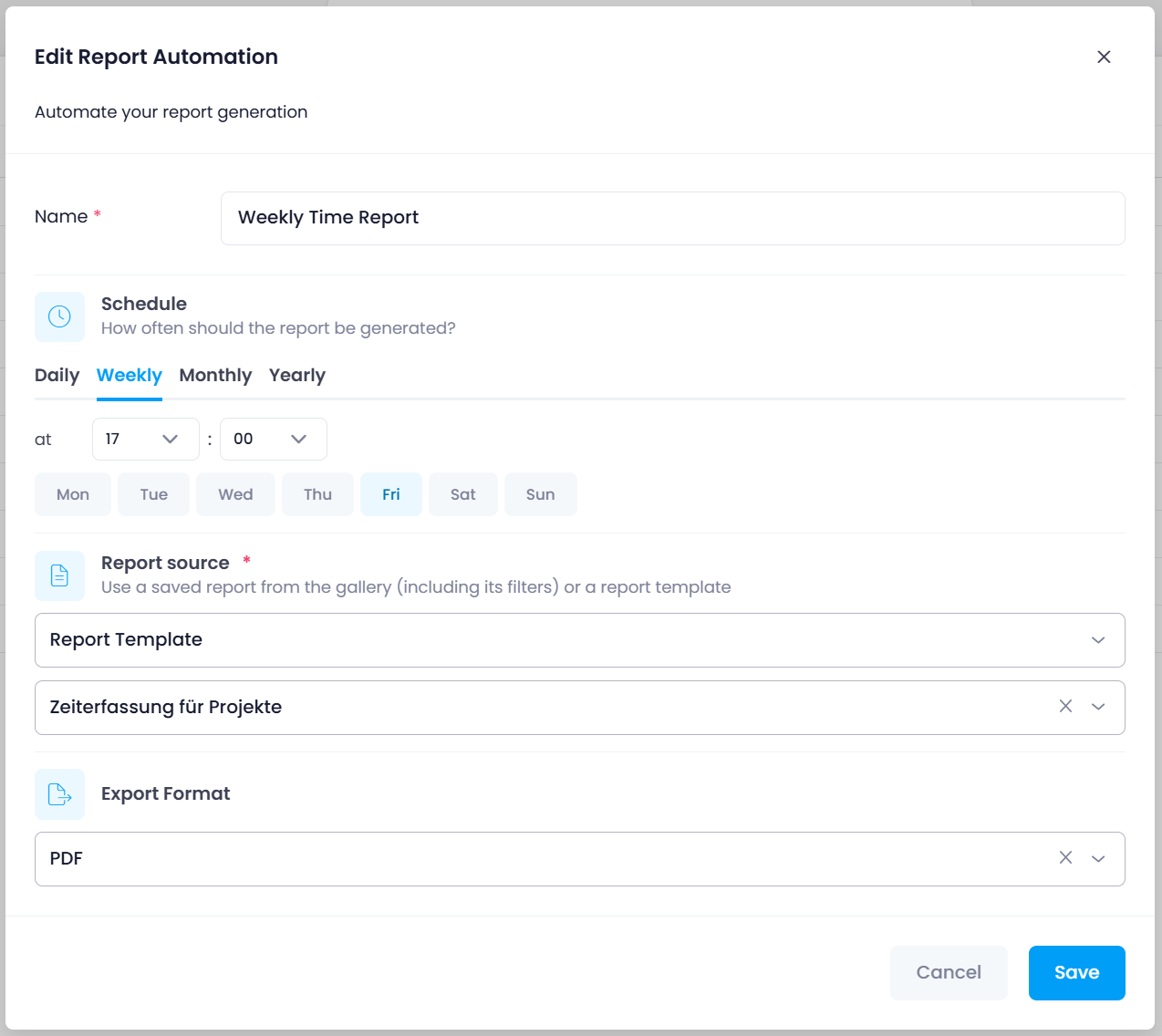
A report automation has a few settings:
| Setting | Description |
|---|---|
| Name | A clear name, for example Weekly Project Status Report. |
| Schedule | How often the report is generated — Daily, Weekly, Monthly, or Yearly. Depending on the selected schedule, additional settings are available: Daily: Choose a time and optionally check Weekdays only (Mon–Fri) to skip weekends. Weekly: Choose a time and select one or more days of the week (Mon, Tue, Wed, Thu, Fri, Sat, Sun). Monthly: Choose a day (1–31) and a time. Yearly: Choose a month, a day, and a time. |
| Report source | Which report layout to generate. Pick a report from the dropdown. Entries are listed alphabetically by name. |
| Export format | PDF, Word (DOCX), or Excel (XLS). |
Running, enabling, and disabling
Once saved, the report automation runs on its schedule and generates the report in the chosen format. You can enable or disable an automation with the toggle switch to pause it without deleting it, just like other automation rules.
Permissions
Report automations follow the same access model as the rest of Automation — see Managing rules.