Managing rules
Once you have created automation rules, you manage them from the area of the entity they apply to. Open Automation in that area to manage them.
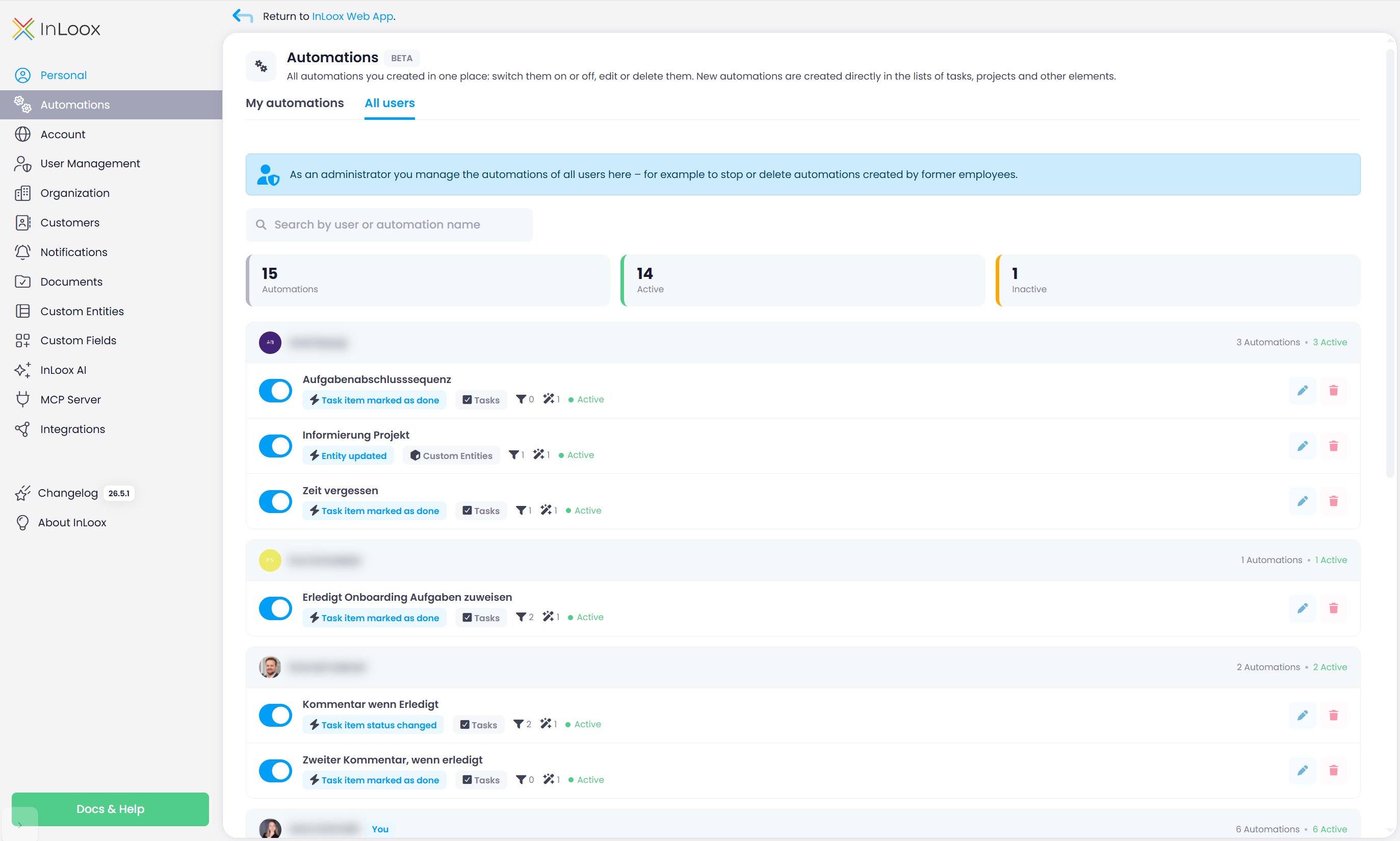
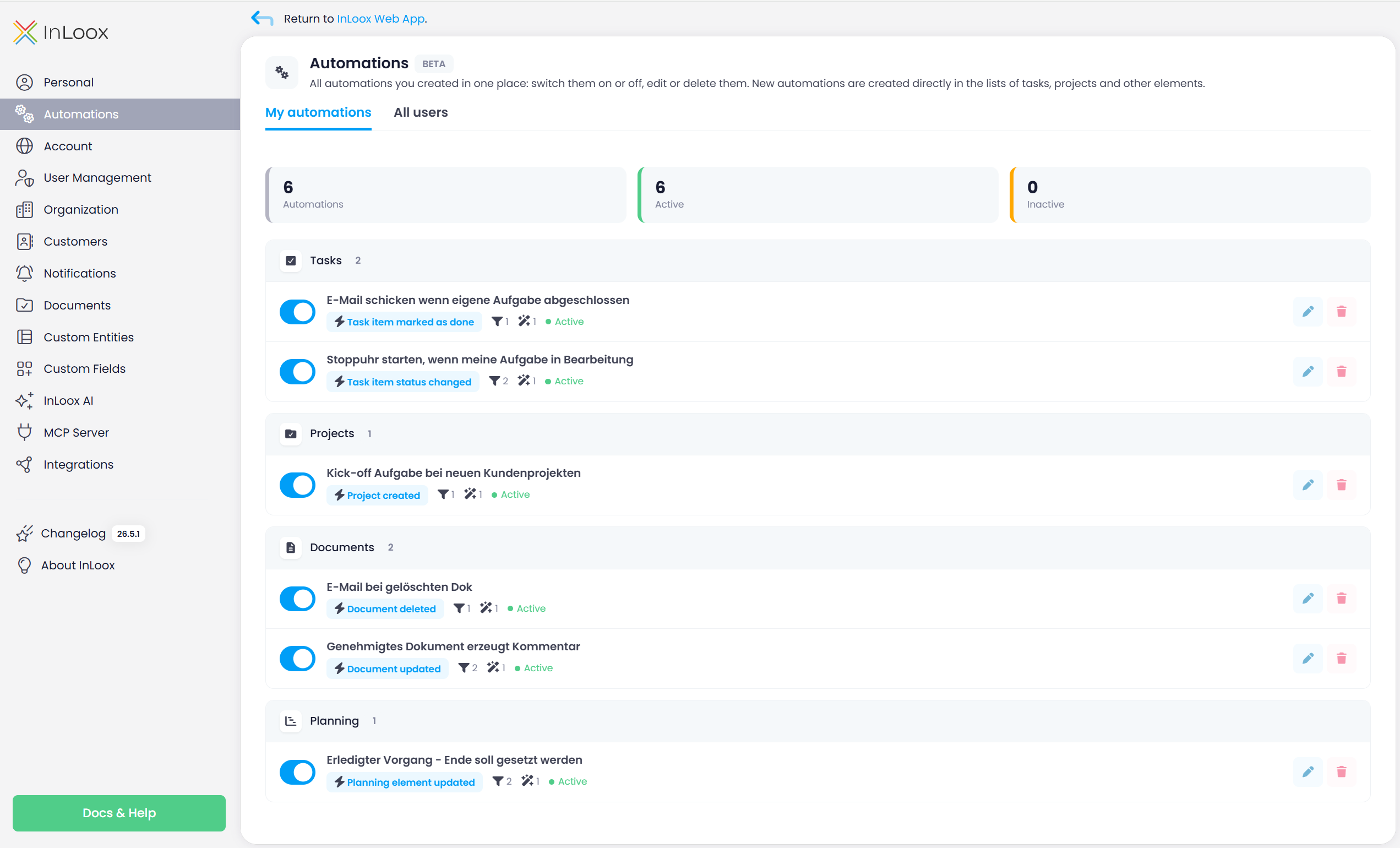
You can also open InLoox Account Settings → Automations to see your automations across all supported areas in one place. The My automations tab lists the rules you created, grouped by type (for example tasks, projects, or documents), with counters for the total number of rules and for active and inactive ones at the top.
View and edit
Open Automation in the relevant area (for example the project list). The menu lists your rules for that entity type. Click the pencil icon next to a rule to open it in the editor, make your changes, and click Save.
Start manual automations
Rules with the trigger Started manually can be started directly from the Automation menu.
- Open a supported list and select one or more records.
- Open Automation.
- Click the play icon next to the manual rule.
InLoox starts one run per selected record and confirms the start with a toast. Check the run result in the run history.
You can only start your own manual rules. The play icon stays disabled if no record is selected, the rule is disabled, or more than 100 records are selected.
Enable and disable
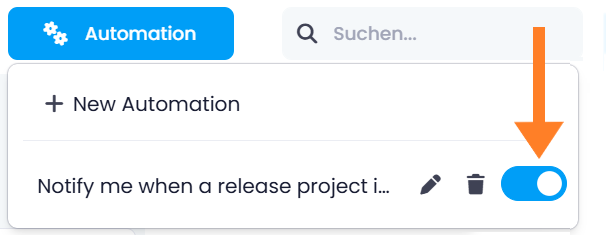
A saved rule is active immediately. You can disable a rule using the toggle switch next to the rule to pause it without losing its configuration, and enable it again later to resume. Disabling is the safe way to temporarily stop a rule from running — for example while you test or reorganize your workflows.
Delete
To delete a rule, click the trash can icon next to the rule. InLoox will ask you to confirm — click Delete to remove the rule permanently. A deleted rule no longer runs and cannot be recovered; recreate it if you need it again.
Permissions and access
Access to Automation is controlled by a dedicated permission and by ownership. Automation itself is included in all InLoox editions — see Overview.
Edit automations permission
Using Automation requires the Edit automations permission. Without it, the Automation button is not available.
This is a global permission — it is not granted per project or per area. A user who has it can create automation rules in every area that supports Automation (tasks, projects, budgets, documents, time entries, planning, line items, risks, people, organizations, and reports).
Within a rule, only triggers, conditions, and actions for data you are permitted to access are available — options for areas you have no permission for are hidden.
Ownership and administrator management
By default, users only see and manage their own automation rules. When you open Automation in an area, the list shows the rules you created there.
Administrators can additionally open InLoox Account Settings → Automations and use the All users tab to edit, enable, disable, and delete the rules of every user.
The tab groups the rules by their owner and shows how many automations each person has and how many of them are active. Search by user or automation name to go straight to a rule — for example to stop the automations of a former employee. If a rule's owner is no longer available as a contact, InLoox lists it under Unknown user.