Analyze InLoox Data in Excel
With the InLoox OData API, you can integrate data from the InLoox database directly into Excel as a data source using Microsoft Power Query. This enables live data analysis and reporting without manual exports.
Prerequisites
Before connecting Excel to InLoox, you need a Personal Access Token (PAT) for authentication. See Create Personal Access Token for step-by-step instructions.
If you follow this guide, the Excel file will contain the token. If you share the Excel file, remove the token beforehand to protect your data.
Connect InLoox OData to Power Query in Excel
Power Query is a technology embedded in Excel that allows you to import external data sources into Excel tables.
- In Excel, go to the Data tab.
- Open the Get Data dropdown menu.
- Select From Other Sources, then Blank Query.
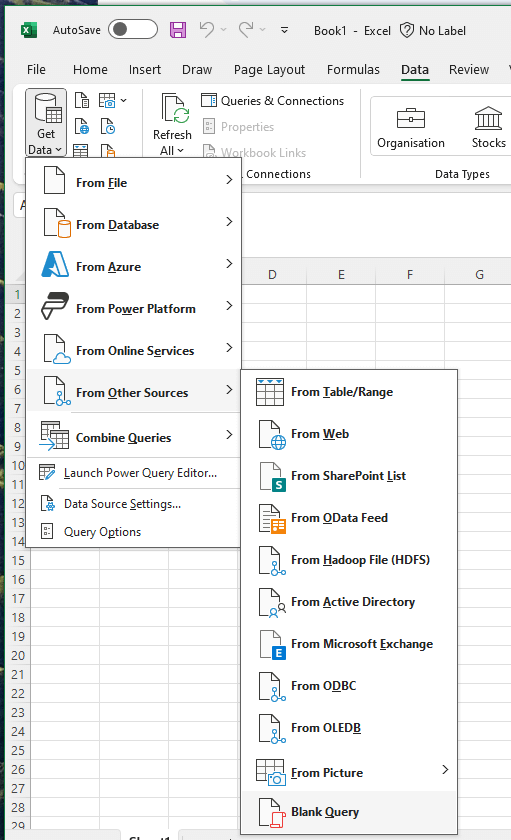
This opens the Power Query Editor in a new window.
- Open the Advanced Editor.

- Enter the following query, replacing
[YOUR_PAT_TOKEN]with your Personal Access Token:
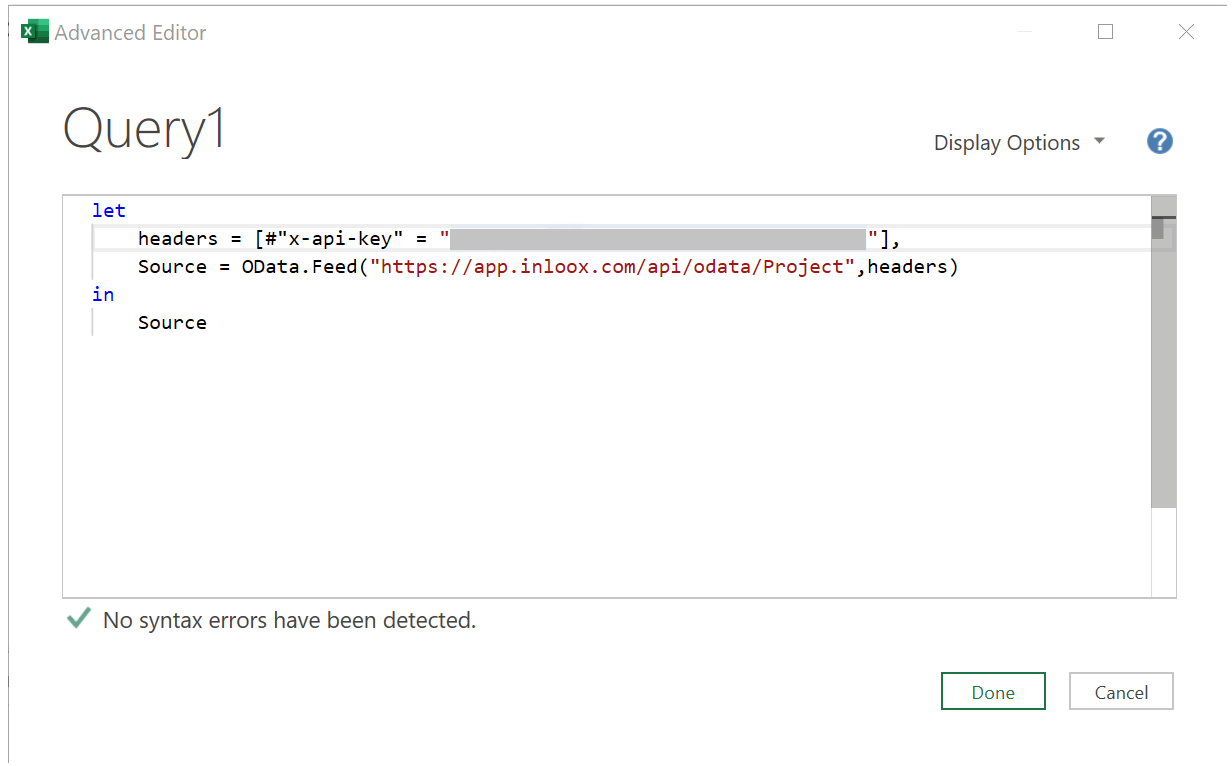
let
    headers = [#"x-api-key" = "[YOUR_PAT_TOKEN]"],
    Source = OData.Feed("https://app.inloox.com/api/odata/Project", headers)
in
    Source
Query explanation:
- YOUR_PAT_TOKEN — Your Personal Access Token
- OData.Feed — The URL of your InLoox account, including the OData API path and an API object (in this example, the list of all projects)
- If you are using InLoox Self-Hosted on your own server, enter the corresponding URL defined by your organization, e.g.,
https://inloox.mycompany.com/api/v1/odata/Project
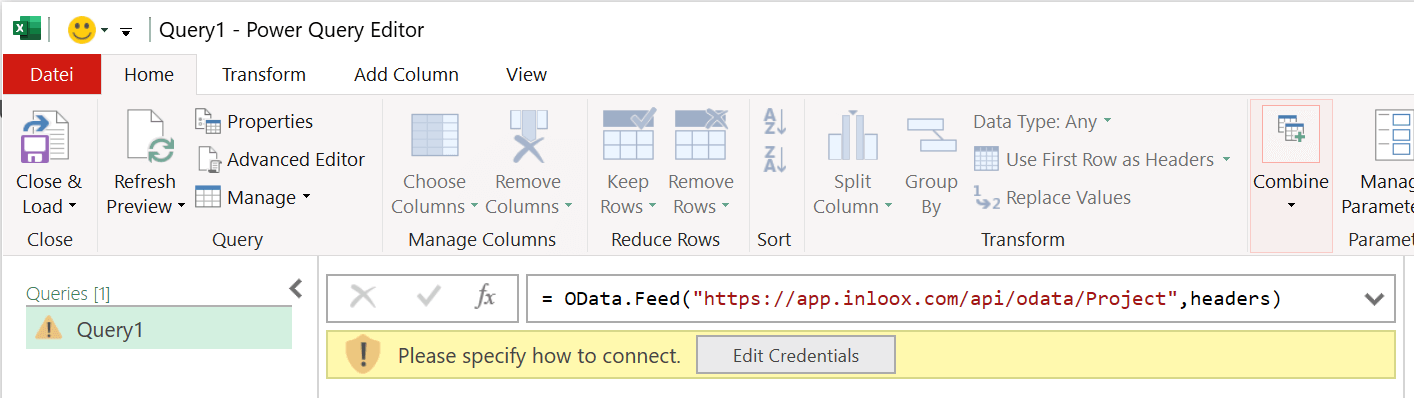
- You will be prompted to specify how the connection to the InLoox API should be established. Click Edit Credentials.
- Select Anonymous with the level set to
https://app.inloox.com/or the corresponding URL for your InLoox Self-Hosted server.
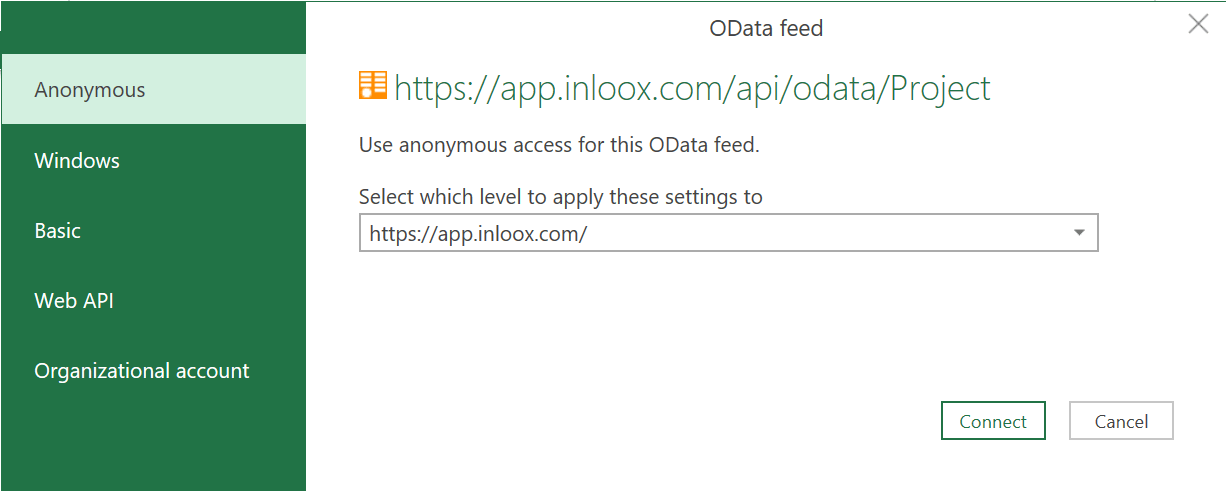
- Click Connect.
A preview of your data will be loaded.
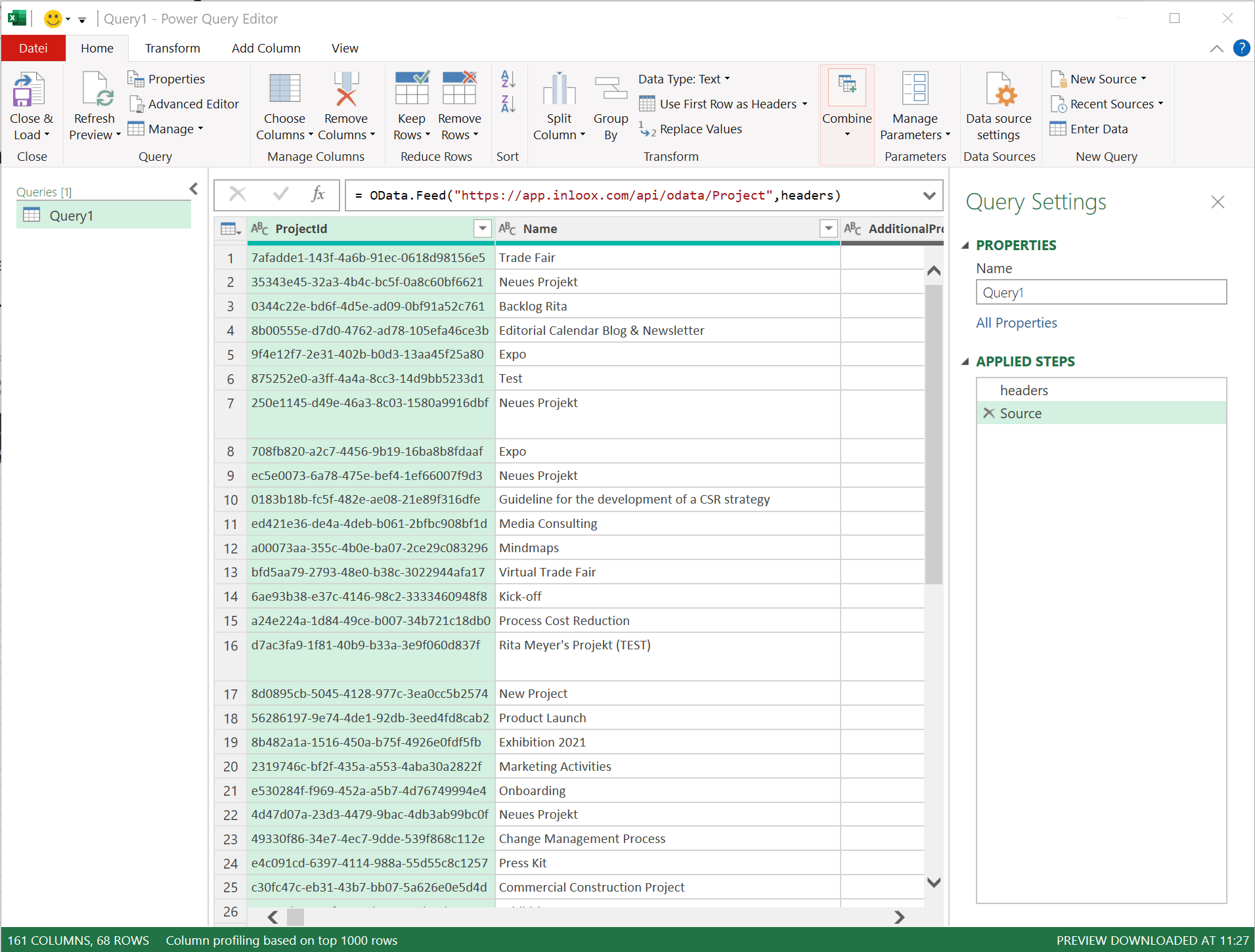
- Click Close & Load in the top left to exit the Power Query Editor and import the queried data into a new Excel table.
Depending on the size of your InLoox database, this query may load a very large amount of data. Apply filters to limit your query and retrieve only the data relevant to your use case. For more information, refer to Microsoft's documentation: Filter data (Power Query).
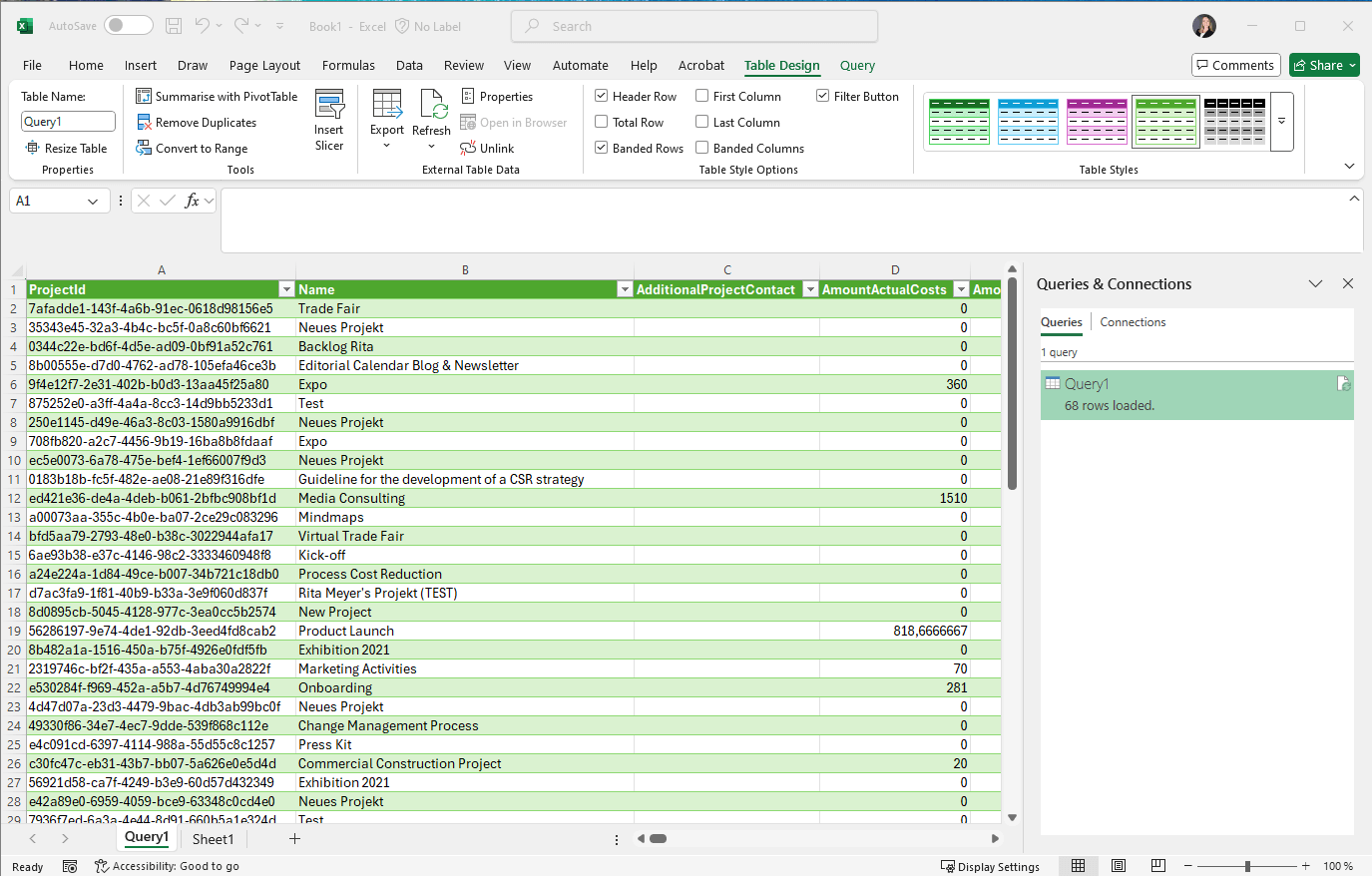
Now you can analyze your InLoox data directly in Excel.