Create tasks and descriptions with AI
These AI features are built into the areas of InLoox you already work in. They are available in every InLoox edition.
The AI Assistant offers several ways to create tasks — directly in a project, from emails in InLoox Web App, or from emails in the InLoox for Outlook Modern Add-in.
Generate project tasks
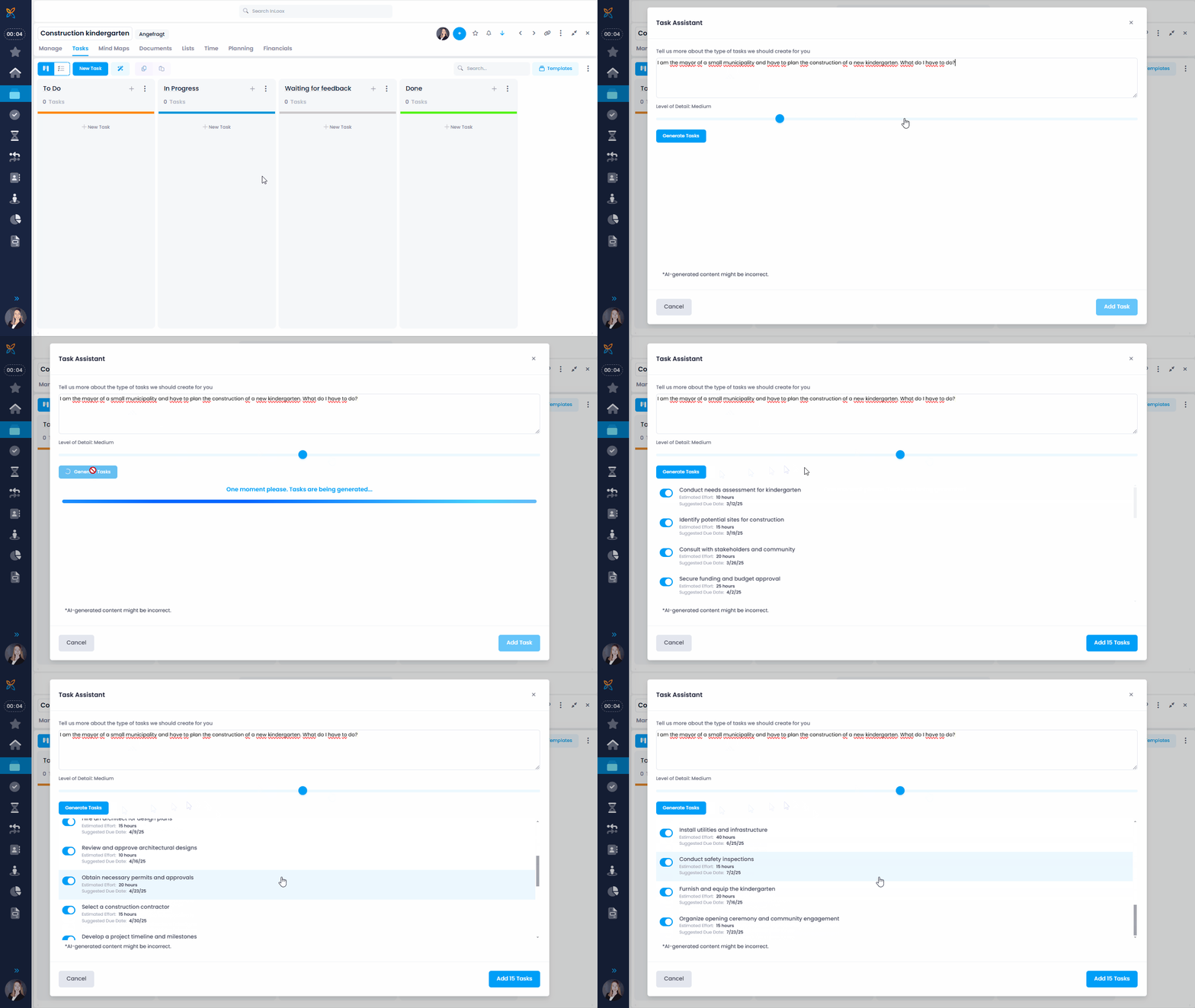
After creating a new project and entering the basic project information on the Manage page, go to Tasks.
- Click the AI Assistant icon (magic wand) next to the New Task button.
- The InLoox Task Assistant opens. Enter your prompt — for example, describe your project, its goal, and the stakeholders involved.
- On the range picker, define how detailed the AI Assistant should break down the tasks:
- Low — 5 tasks
- Medium (stage 1) — 10 tasks
- Medium (stage 2) — 15 tasks
- High — 20 tasks
- Very high — 25 tasks
- Click Generate tasks and the assistant will get to work. The tasks will include names, planned efforts, and due dates.
- Once you have reviewed the generated tasks, select the ones you want to use and click Add Tasks.
- If you're not satisfied, add more details to your prompt or adjust the detail level.
Identify tasks in emails: InLoox Web App
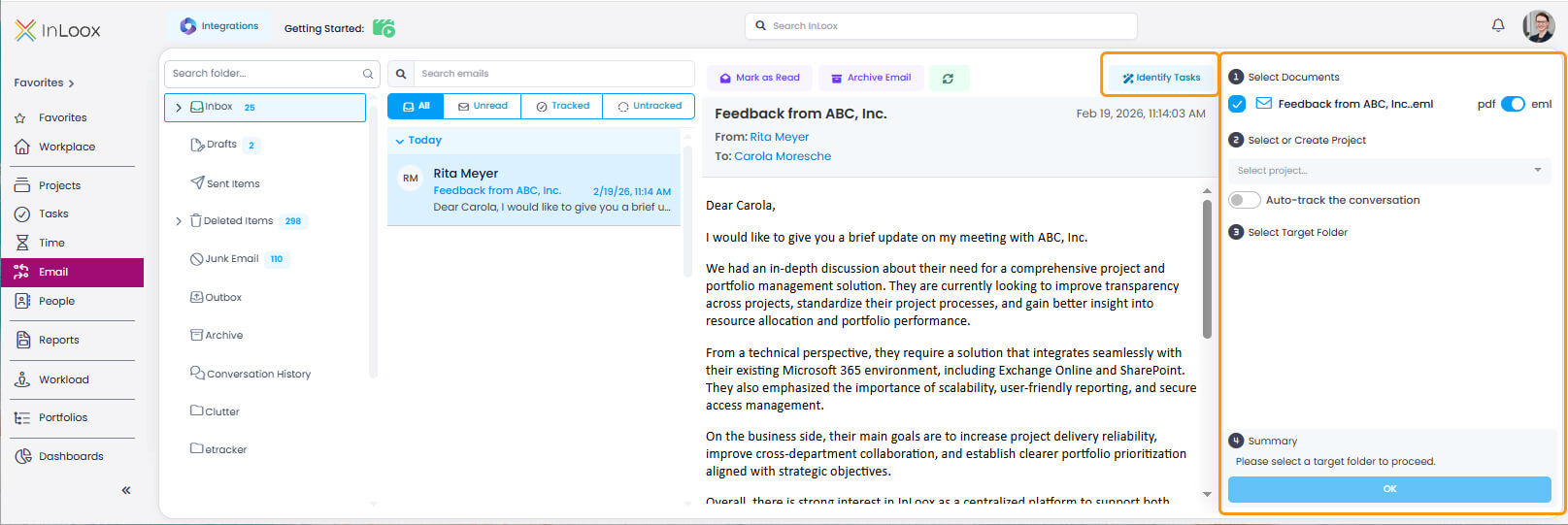
In the Email area of InLoox Web App, the AI Assistant can analyze your Outlook emails and suggest tasks.
- Select an email from the inbox.
- Click Identify Tasks. The AI Assistant analyzes the email content and suggests tasks.
- Click OK next to a suggested task to open and edit it.
- For multiple tasks in the same email, click Identify Tasks again to process additional suggestions.
Identify tasks in emails: Outlook Add-in
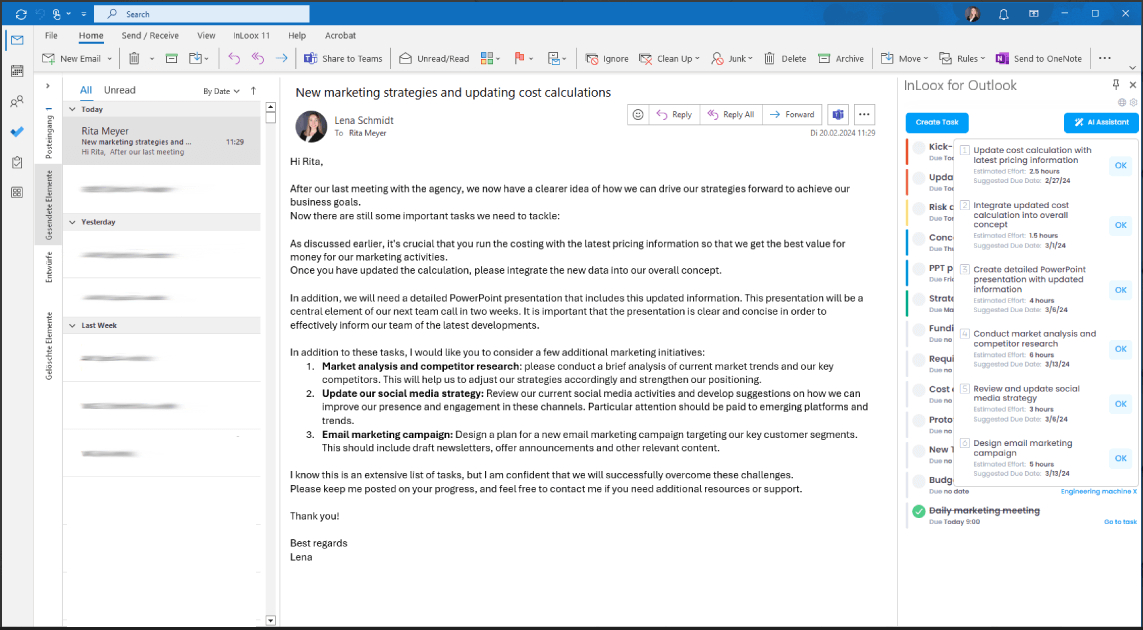
The InLoox AI Assistant in the InLoox for Outlook Modern Add-in can analyze emails that potentially contain multiple tasks.
- Select the relevant email from which you would like to receive task suggestions.
- Click the AI Assistant button. You will receive suggestions for possible tasks, including an estimated effort and a recommended due date.
- To create a suggested task, click the OK button next to it.
- The task now appears in your task list and can be edited with a click.
AI-generated content may be incorrect. Always fact-check the results.
Generate a project description
When starting a project, the project description can outline the goal, scope, time span, and estimated budget. The InLoox AI Assistant can generate a project description based on the key points you provide.
- Create a new project in InLoox or open an existing project, then click the Manage tab.
- Enter your key points in the Description field and click the magic wand icon.
- Click Generate project description. You can also leave the description field blank and let the AI Assistant create a description based on the project name alone.
- If you are satisfied with the result, click Append.
- If not, you can edit the text yourself or click Replace to have the AI Assistant create a new description.
AI-generated content may be incorrect. Always fact-check the results.