AI Chat
In InLoox AI, you ask questions about your project data, have the AI draft content for you, and work with agents — assistants prepared for recurring tasks. InLoox AI has its own area in the main navigation. You can also open the chat as a panel on the right-hand side, so it stays open while you keep working elsewhere in InLoox.
AI assistance must be allowed for your InLoox account, and your administrator must have enabled the Use InLoox AI permission for you in User Management. See InLoox AI and Permissions.
InLoox AI, with AI chat, AI agents, and AI drafts, is currently available as a beta. Every action in InLoox AI consumes credits — for example a chat reply or an agent run. Each user has a monthly included volume. Whether the AI pauses once it is used up or keeps working as paid usage is set by your administrator. During the beta phase, only the included volume applies: once it is used up, the AI pauses until the first of the next month. See Budget. In InLoox Self-Hosted, InLoox AI requires a connected custom AI model, see Connect a Custom LLM. AI usage is neither billed nor limited there.
Open InLoox AI
In the left navigation, click InLoox AI. The area is split into two parts:
- On the left, your conversations, the Search conversations field, to start a new conversation, and Agents at the bottom.
- On the right, the current conversation. A new conversation opens with a start screen: type your question into the input field at the bottom, click one of the suggested questions to send it directly, or start one of your agents.
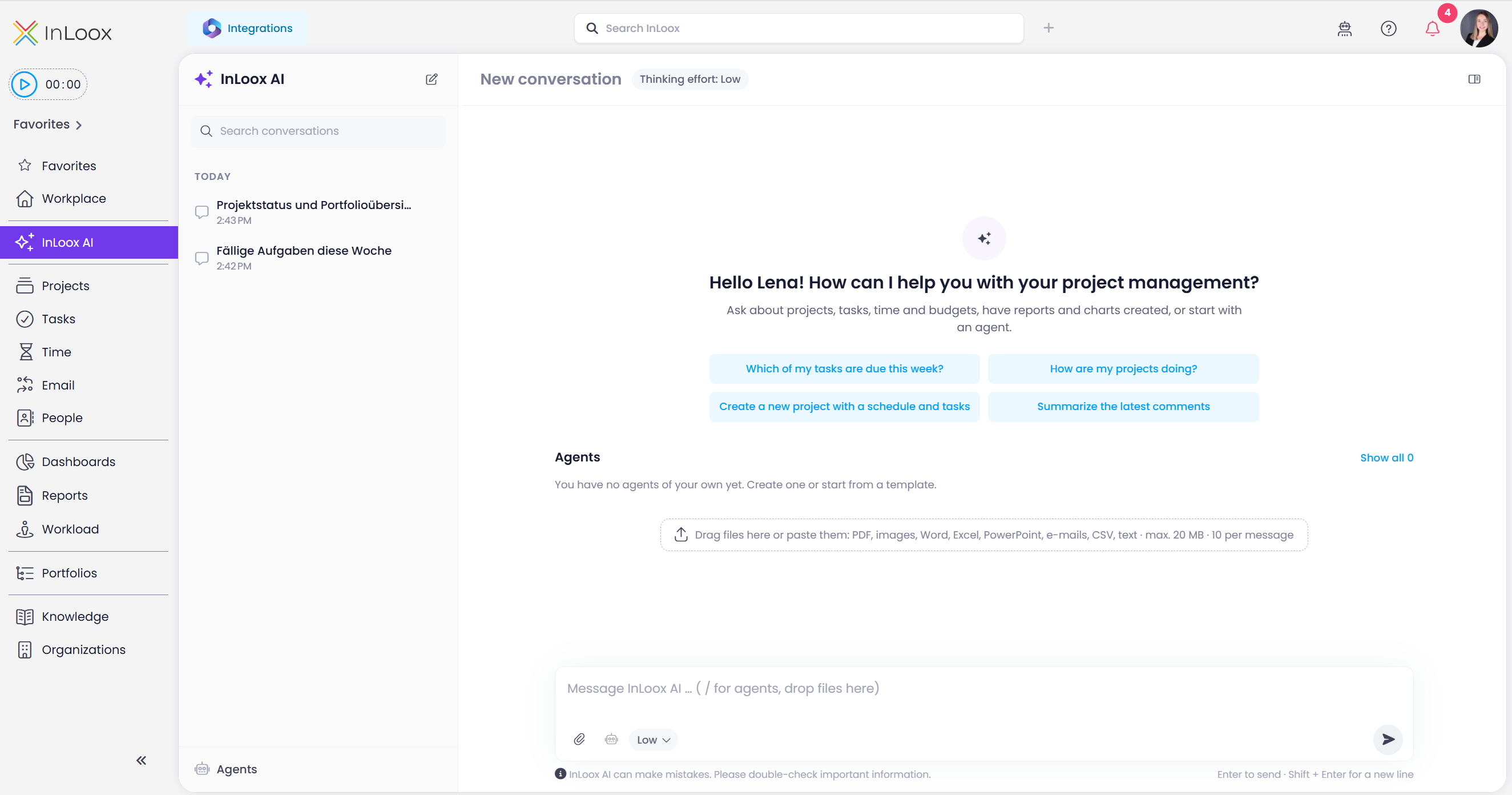
AI-generated content may be incorrect. Fact-check every result — the answers in the chat as well as the drafts, before you apply them. The permanent notice below the message input points this out as well: InLoox AI can make mistakes. Please double-check important information.
Open the chat as a side panel
To keep the chat at hand while you work in another area, click Open in side panel at the top right of a conversation. The chat then moves to a panel on the right-hand side.
Alternatively, you can open the AI panel from anywhere in InLoox with Ask InLoox AI in the header.
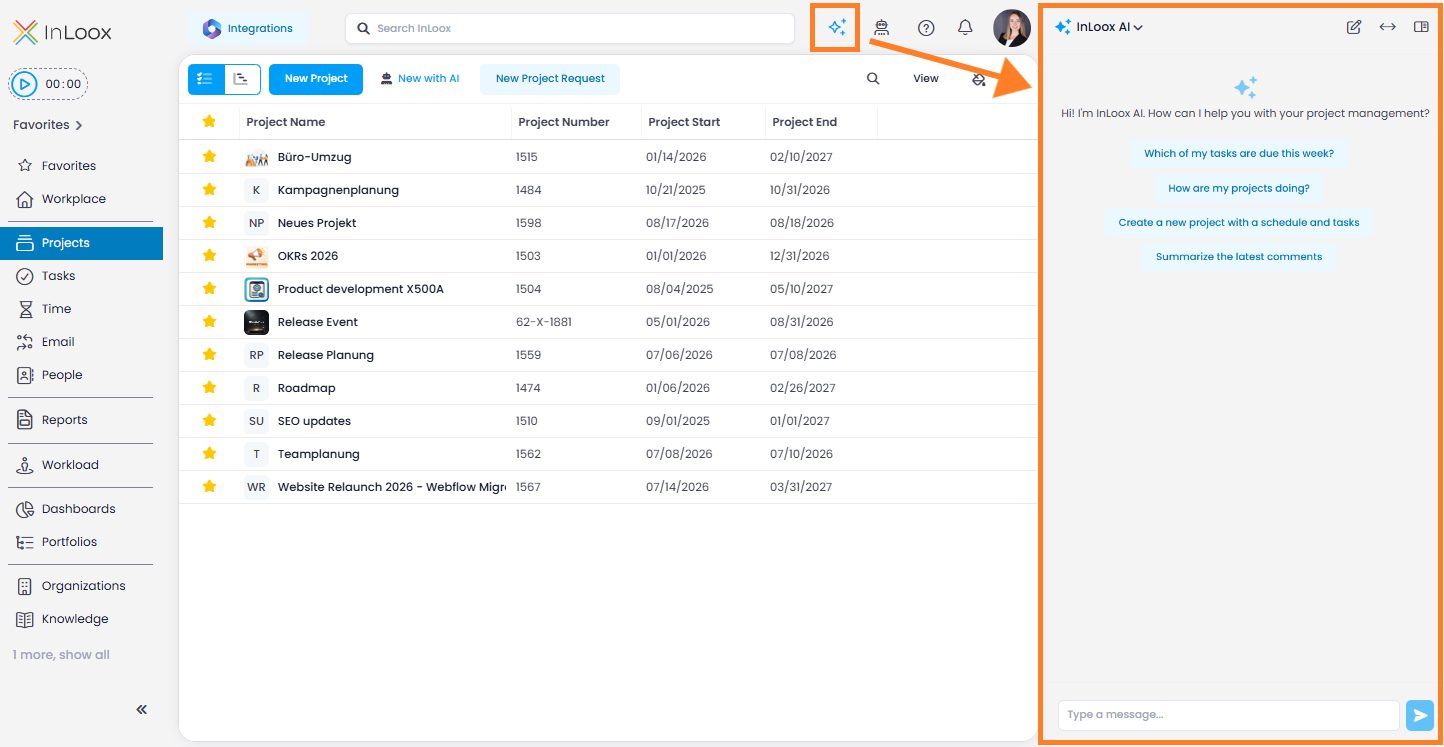
These controls sit at the top right of the panel:
- — starts a new conversation.
- — moves the chat back to the InLoox AI area.
- — changes the width of the panel. Each click switches to the next of three widths.
- — closes the panel in the browser. In InLoox for Windows, use .
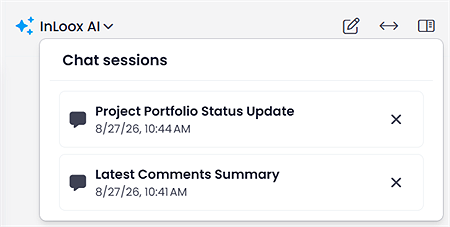
In the panel, click InLoox AI at the top to open the Chat sessions dropdown with your previous conversations:
Ask questions about your project
The chat has access to your project data. You can ask it to:
- Summarize the current project status
- List open or overdue tasks and their assignees
- Provide insights on resource utilization or budget consumption
- Search for information across the project
- Find facts documented in project descriptions, tasks, or comments
- Create reports and charts from your data
- Draft content such as comments, task descriptions, or planning items
Ask about custom entities
If your account uses custom entities, the chat can answer questions about their entries too:
- Count entries per type, per project, or per responsible person — for example How many contracts per project?
- List the documents and filed e-mails that belong to one entry
- Report the changes and comments made to one entry
- Report how many entries of each type a project has when it summarizes the project status
Only the entries your user is allowed to read are counted and listed.
Ask about project roles
You can also ask which projects a person works in and in which role — for example In which projects is Anna a manager? The chat knows the role names used in your account: the standard roles Managers, Team, Customers, Partners, and Additional, and the names your administrator configured for the additional roles under Account Settings > User Management. If a role name is unknown, the chat lists the roles that are available. For more information, see Project Members.
Follow along while the AI answers
While the AI works on an answer, Research shows how many lookups it has made so far. Click it to see each step.
You don't have to wait until the answer is finished:
- To add something or change direction, type your message and press Enter. This interrupts the running answer, and the AI continues with your addition.
- To stop the answer, click the stop button next to the input field or press Esc.
Add files to your question
You can add files to your message so the AI can include their content in the answer. Click below the input field, drag the files into the chat, or paste them.
AI Chat reads PDF files, images, Word documents (.docx, .doc, .rtf, .odt), e-mails (.msg, .eml), PowerPoint presentations (.pptx), Excel workbooks (.xlsx), CSV files, and text files. You can add up to 10 files per message, each up to 20 MB.
- Add one or more files to your message.
- Each file appears as a chip with Reading … while InLoox reads it.
- You can send your message as soon as the upload is finished. Reading can continue in the background.
- When reading is done, the chip shows the file size. If reading fails or times out, the chip shows that the file could not be read. Remove the file and upload it again.
How Excel workbooks are read
AI Chat reads every worksheet of an Excel workbook the way it looks in Excel: as a grid with row numbers and column letters. Every value keeps its position, so the AI recognizes a title above a table, label and value pairs, a header that spans two rows, sections, and total rows. It also sees merged cells, the formulas behind calculated cells, and the Excel tables of a worksheet. Dates reach the AI in a uniform format (YYYY-MM-DD), so day and month cannot be mixed up.
When you attach files in AI Chat, these limits apply:
- PDF files: AI Chat reads text from the first 200 pages.
- Excel files (
.xlsx): AI Chat reads at most the first 500 rows and the first 40 columns of the used range of each worksheet, and up to 50 merged ranges, 50 formulas, and 50 Excel tables per worksheet. If a worksheet was read only in part, the AI says so in its answer. - Excel, Word (
.docx,.odt), and PowerPoint (.pptx) files: the file may unpack to at most 200 MB and contain at most 10,000 package entries.
If a file exceeds these limits, it cannot be read completely or is rejected. An Excel workbook without any cell values is also reported as unreadable — the chip shows that the file could not be read.
Open attachments in the chat
If a chat message contains attachments, click the file to open it:
- Images and PDF files open in a new browser tab for preview.
- Other file types download to your device instead of opening in a tab.
Word documents, Excel workbooks, and e-mails also show a page preview in the chat. PowerPoint presentations show a placeholder instead.
Set thinking effort per conversation
The thinking effort controls how thoroughly the AI reasons before it answers. Next to the message field, a button shows the current level, for example Low. Click it to choose the level for the current conversation:
- Low — fast answers to simple questions.
- Medium — a balance of speed and depth.
- High — thorough reasoning for complex tasks. Answers take longer and use more tokens.
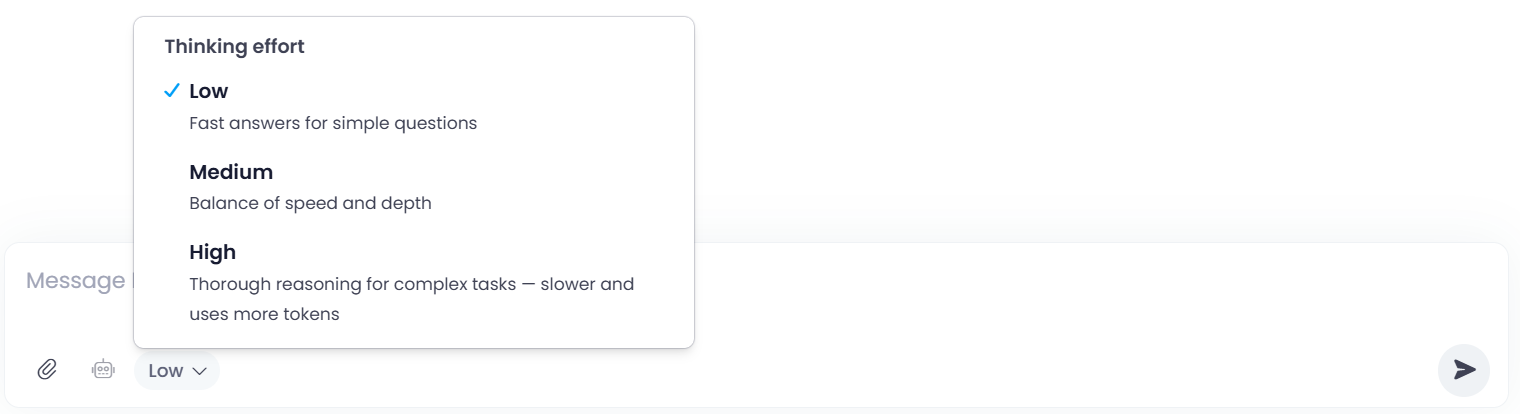
For a Custom LLM, you choose from the levels your administrator defined in Account Settings > InLoox AI.
The selected level is shown next to the conversation title. It applies to that conversation and stays selected when you return to it. If no levels are configured, the chat does not show the button and the model decides the effort automatically.
Manage your conversations
Your conversations are listed in the left column of the InLoox AI area, grouped by date. Pinned conversations stay at the top under Pinned. To find a conversation, type into Search conversations. Click a conversation to continue it.
Start a new conversation for each new topic or task. Every conversation carries its own context, so a focused chat gives you more precise answers than one long chat that mixes several subjects.
A new conversation appears in the list right away as New conversation. You can switch to another conversation while the answer is still being generated — InLoox finishes it in the background and then names the conversation automatically.
Click next to a conversation to:
- Pin — keep the conversation at the top of the list.
- Rename — give the conversation a title of your own.
- Delete conversation — remove the conversation.
The open conversation offers the same actions at its top right: to pin it and to delete it. To rename it, click next to its title.
Share a conversation
You can share a conversation with colleagues — for example to work on a question together or to show how you arrived at a result.
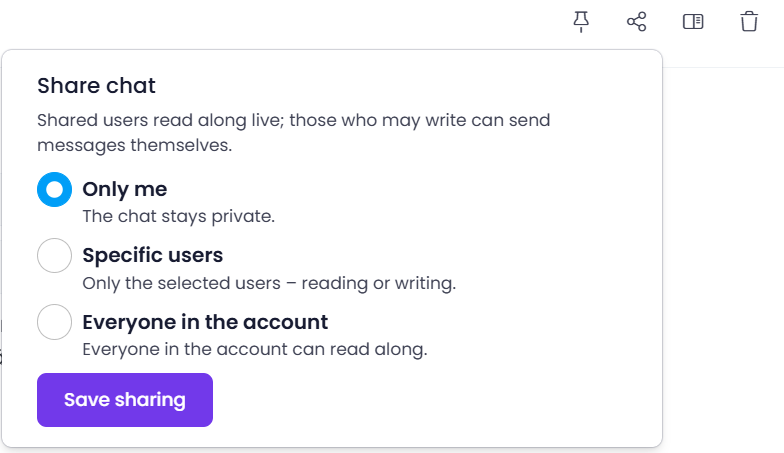
- In the open conversation, click Share chat at the top right.
- Choose who can access the conversation:
- Only me — the conversation stays private.
- Specific users — only the users you select, each with read or write access.
- Everyone in the account — everyone in your InLoox account can read along.
- Click Save sharing.
The people you share with find the conversation in the left column of their own InLoox AI area, with your name under its title, and follow it live. Those with write access can send messages themselves. Those with read access see the note You can only read along in this chat.
You can also pass on the address of the open conversation from the browser's address bar. It opens exactly that conversation, as long as the conversation stays shared.
More with InLoox AI
- AI Agents — use ready-made agents for recurring tasks or create your own.
- Review and apply AI drafts — let the AI create tasks, planning, and projects, and review the drafts before anything is saved.