Require Two-Factor Authentication
Administrators can require all users of an InLoox account to have two-factor authentication (2FA) enabled when logging in to InLoox. Users who log in via Microsoft 365 are automatically exempt from this requirement.
How to enable mandatory two-factor authentication
- Open the InLoox Account Settings and navigate to the User Management menu item.
- Switch to the Advanced tab.
- Under Authentication, activate the toggle Two-factor authentication required for InLoox Login.
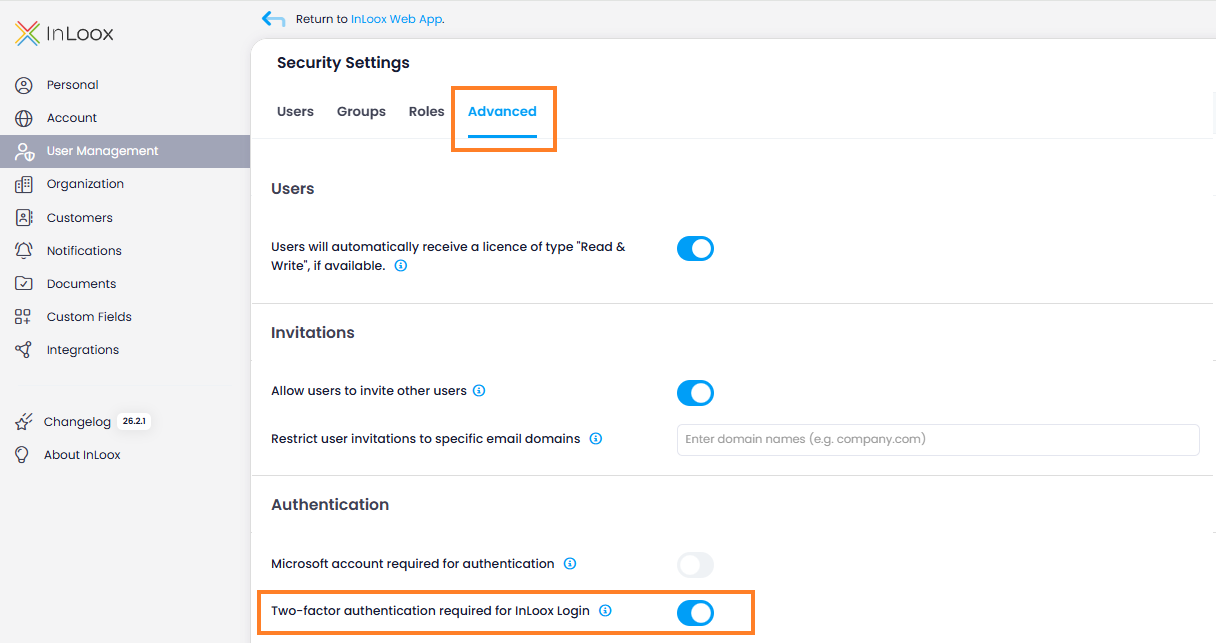
The toggle Two-factor authentication required for InLoox Login is only available when Microsoft account required for authentication is not active. Both settings are independent — activating one does not activate the other. To use the two-factor authentication requirement on its own, ensure the Microsoft account requirement is turned off first.
What happens when a user has not enabled two-factor authentication
If this setting is active and a user attempts to log in without two-factor authentication enabled and without a Microsoft 365 account, access is blocked. The user sees an error page with instructions to enable two-factor authentication in their InLoox profile settings.
For details on how users set up 2FA, see Two-Factor Authentication.