Require Microsoft 365 Login
Administrators can restrict the login for all users of an InLoox account to their Microsoft 365 account. This means that users can no longer use the conventional combination of email and password, but must log in to InLoox exclusively via their Microsoft 365 account.
All affected users must have an active Microsoft 365 account. Each user can connect their Microsoft 365 account in their profile settings — see Connect Microsoft 365 Account.
How to set up mandatory Microsoft 365 login
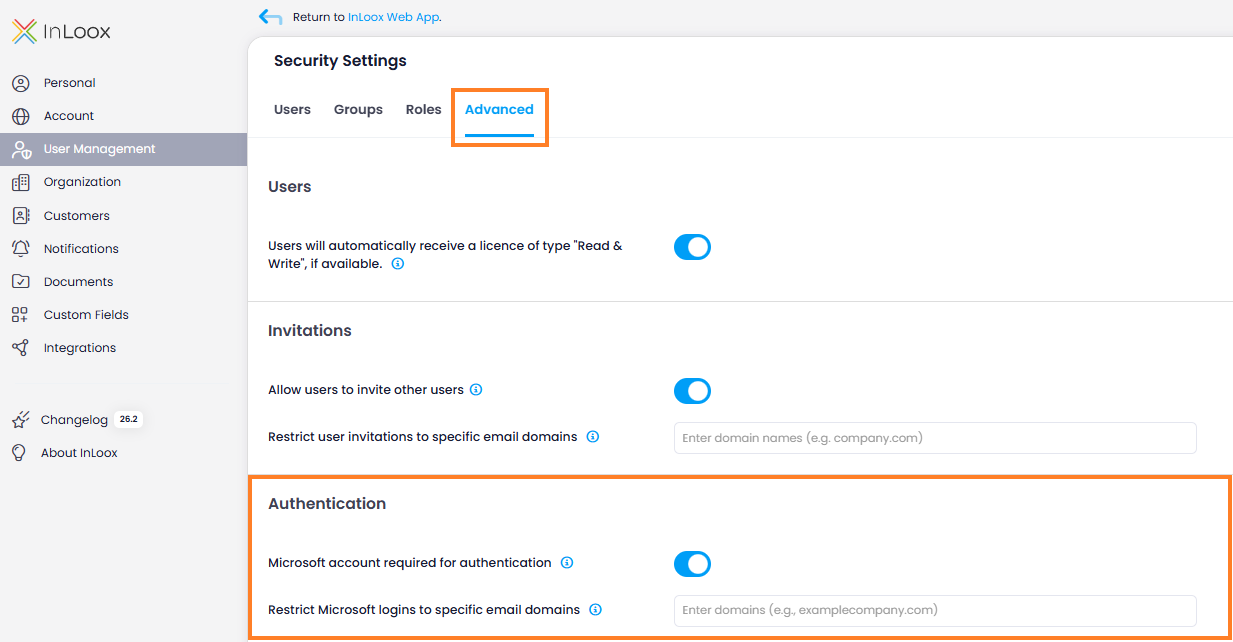
- Open the InLoox Account Settings and navigate to the User Management menu item.
- Switch to the Advanced tab.
- Under Authentication, activate the toggle Microsoft account required for authentication. This specifies that all users must log in to InLoox exclusively with their Microsoft account.
This setting does not apply to administrators.
It can take up to approximately 10 minutes for the change to take effect.
Domain restriction
When Microsoft account required for authentication is active, an additional field Restrict Microsoft logins to specific email domains appears. Here you can enter one or more domains to restrict which Microsoft accounts are allowed to log in. If no domain is specified, all Microsoft accounts are permitted.
Two-factor authentication
When Microsoft account required for authentication is not active, a second toggle Two-factor authentication required for InLoox Login is available. This allows you to require users who do not log in with a Microsoft account to set up two-factor authentication. Learn more in the Require Two-Factor Authentication help article.