Notifications
InLoox notifies you about changes in your projects, tasks, time entries, Gantt plans, risks, and reports via email and the Notification Center.
Which notifications exist and who receives them?
| Area | What? | Who? |
|---|---|---|
| Projects | Changes to master data (start/end date, status, name, deletion) | Project manager |
| Projects | Changes to project members | Added/removed project member |
| Projects — Comments | Creation and deletion of comments | Project manager, followers, @mentioned person |
| Projects — Documents | Upload and deletion of documents | Project manager |
| Tasks | Changes to master data | Creator, delegator, current resource, follower |
| Tasks | Completion | Creator, delegator, current resource, follower, project manager |
| Tasks | Change of resource | Creator, delegator, previous resource, new resource, follower |
| Tasks | Deletion | Creator, current resource, follower, project manager |
| Tasks — Comments | Creation | Creator, delegator, current resource, follower |
| Tasks — Overdue | End date/time exceeded | Current resource, follower (every hour) |
| Tasks — Due | End date is today | Current resource, follower (daily at 6 AM) |
| Tasks — Beginning | Start date is today | Current resource, follower (daily at 6 AM) |
| Milestones and activities | Changes to master data | Project manager, follower |
| Milestones and activities — Comments | Creation | Planning creator, followers, @mentioned person |
| Time entries — Comments | Creation | Current resource, @mentioned person |
| Risks — Comments | Creation | Current resource, @mentioned person |
| Reports | Creation | Person who generated the report |
The person who makes a change does not receive a notification about that change — except for the person who created or delegated the task.
Enable or disable notifications
In your personal settings, you can enable and disable notifications for different areas. By default, all notifications are enabled.
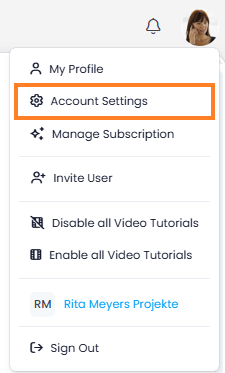
- In InLoox, click on your profile picture in the upper-right corner.
- Click on Account Settings.
-
Click on Personal.
-
Under Which notifications should we send you?, deactivate the slider for the areas you no longer want to receive notifications for.
Available options: Projects, Projects: Comment added, Projects: Documents added/removed, Tasks, Tasks: Comment added, Tasks: Start changed, Tasks: Due date changed, Tasks: Overdue today, Tasks: Due today, Tasks: Starting today, Time entries, Time entries: Comment added, Milestones and activities, Milestones and activities: Comment added, Risks, Risks: Comment added, Report generated.
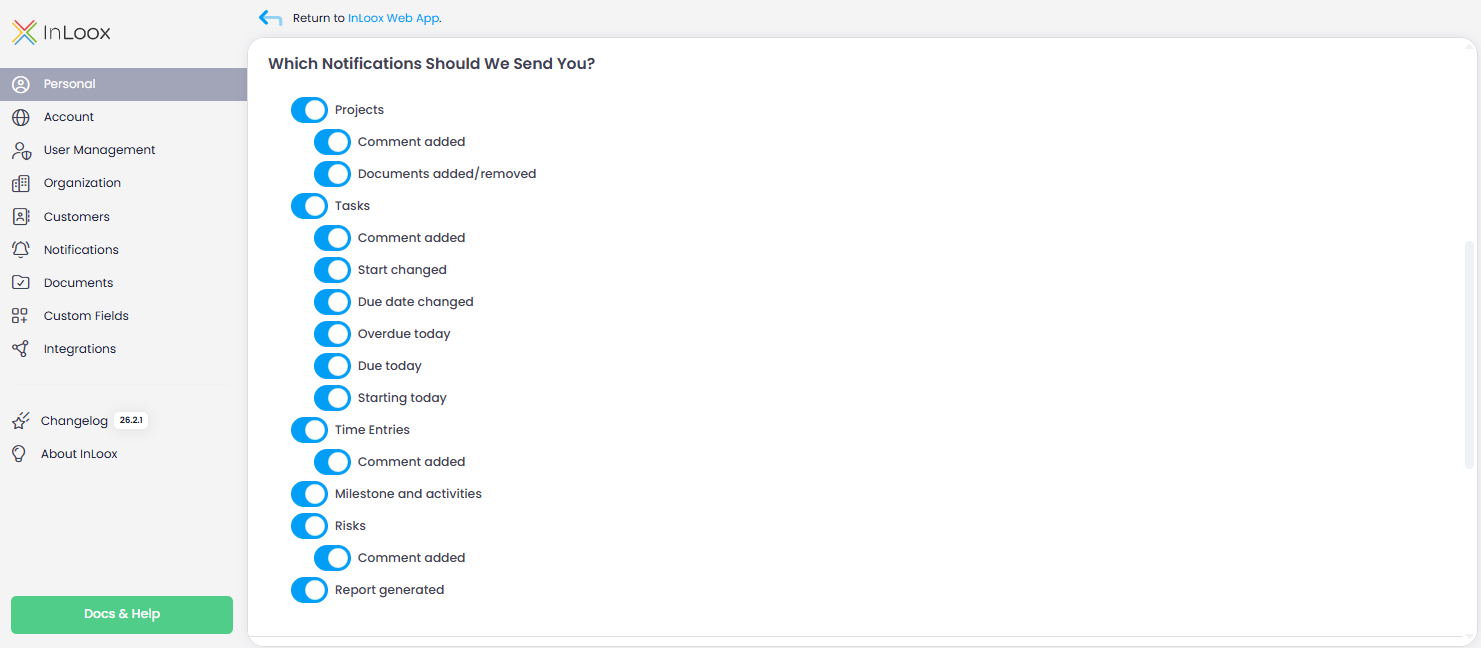
If you have activated notifications under Which notifications should we send you? but set the frequency to Never, the "Never" frequency takes priority and you will not receive any notifications.
Notification frequency
Every InLoox user can set a personal e-mail notification frequency. The personal setting takes priority over the account default set by an administrator.
This frequency setting applies to e-mail notifications only. Instant channels such as the Notification Center are always delivered instantly regardless of this setting.
- In InLoox, click on your profile picture in the upper-right corner.
- Click on Account Settings.
- Click on Personal.
- Under Notifications, select the frequency: Account default, Never, Instantly, Hourly, Daily, or Weekly.
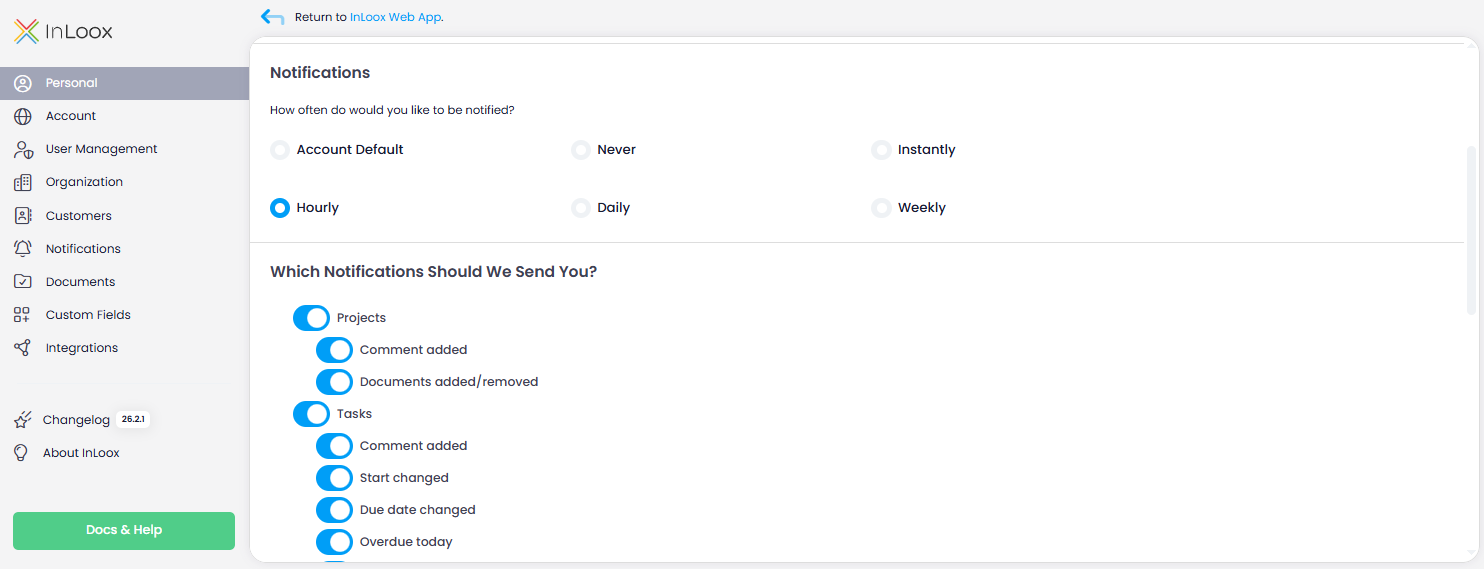
For the Daily and Weekly frequency settings, notifications are sent at 8:00 AM server time. In InLoox Cloud, this is 8:00 AM UTC. In InLoox Self-Hosted, the time depends on your server settings.
Some notifications are set by default and their frequency cannot be adjusted:
- Tasks starting today and tasks due today — one-time notification every morning at 6 AM.
- Overdue tasks — notification at the next full hour after the task becomes overdue.
- Administrative notifications (e.g., user invitations) — always sent immediately.
Administrators can configure the default notification frequency, customize the email header, and manage notifications for external contacts. See Notification Settings for details.
Notification Center
Next to your profile picture, shows the number of unread notifications. Click to open the Notification Center where you can:
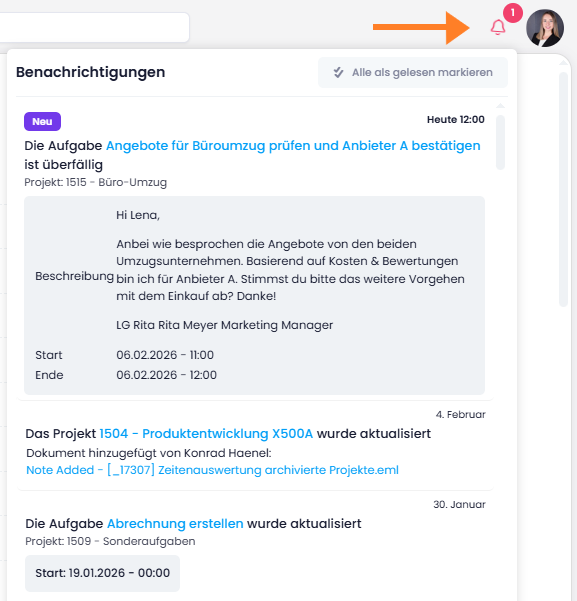
- Read your notifications
- Mark notifications as read
- Open the related project, task, document, or other item directly
Email notifications for tasks that are due today are sent around 6 AM regardless of your frequency setting.
Send a test notification
You can send a test notification to verify that the configuration is working correctly. See Send a test notification in the admin notification settings for instructions.