Notifications
Administrators can configure notification settings that apply across the entire InLoox account. For personal notification preferences, see Notifications.
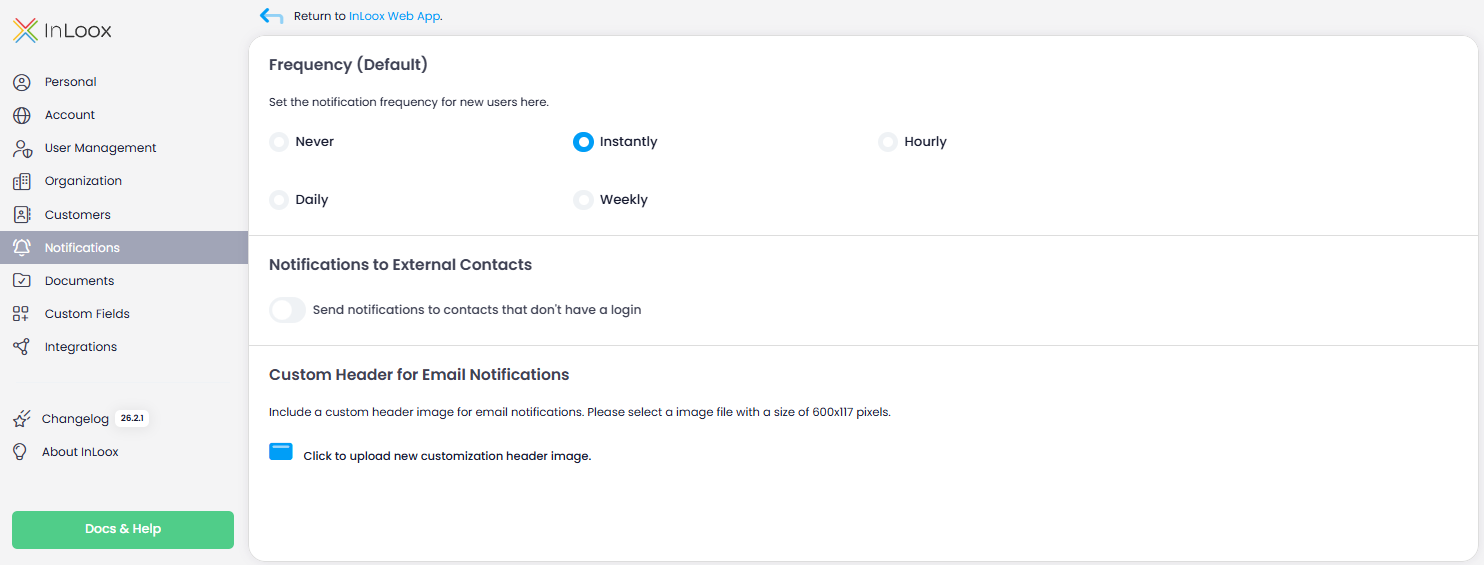
Default notification frequency
Set the default e-mail notification frequency for all users. Individual users can override this setting in their personal notification preferences.
- In InLoox, click on your profile picture in the upper-right corner.
- Click on Account Settings.
- Click on Notifications.
- Under Frequency (Default), set the frequency: Never, Instantly, Hourly, Daily, or Weekly.
Customize the email header
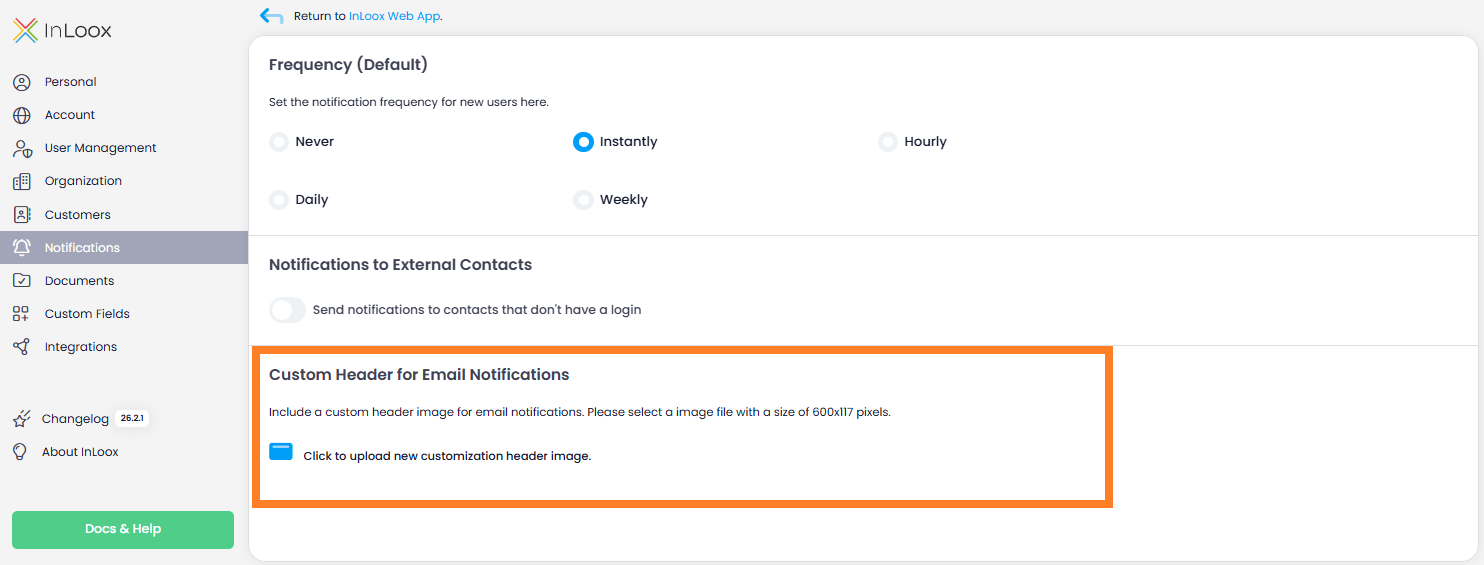
You can upload a custom image for the email header of notification emails:
- In InLoox, click on your profile picture in the upper-right corner.
- Click on Account Settings.
- Click on Notifications.
- Under Custom Header for Email Notifications, upload a PNG file (600×117px).
This feature is only available in the InLoox Enterprise and InLoox Self-Hosted editions.
Disable notifications for external contacts
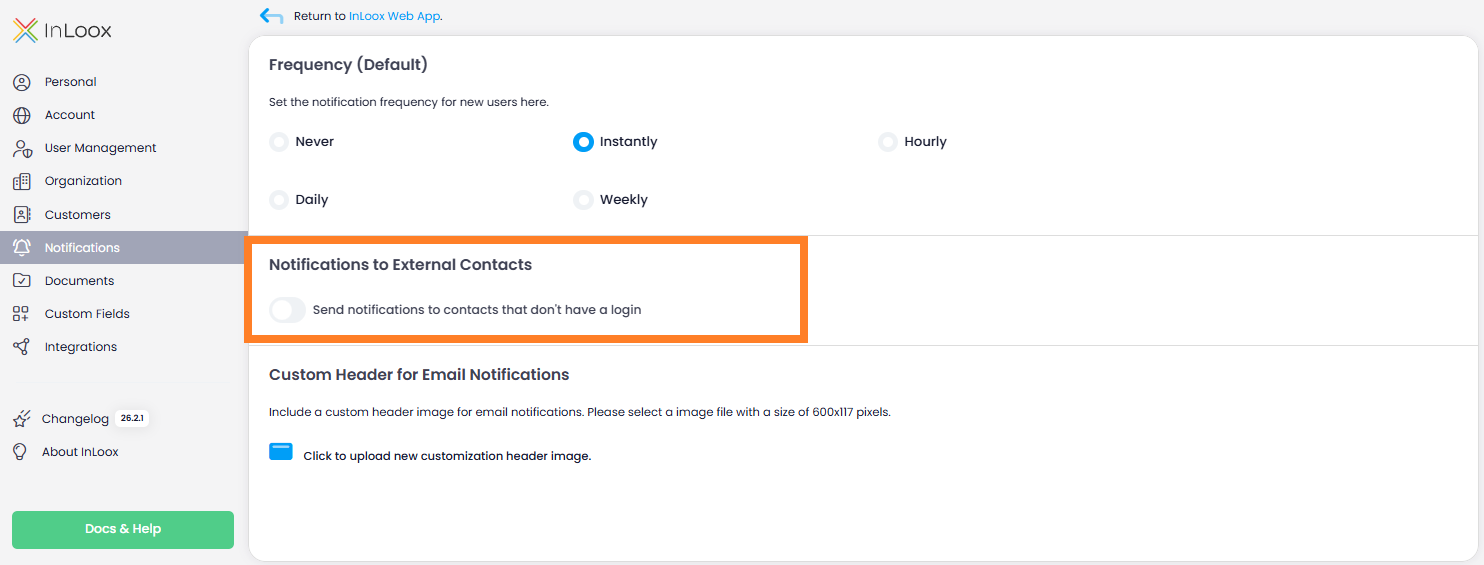
You can deactivate notifications for people who are listed as contacts in your InLoox account and may have tasks assigned to them, but do not have an InLoox login.
- In InLoox, click on your profile picture in the upper-right corner.
- Click on Account Settings.
- Click on Notifications.
- Under Notification to external contacts, disable the slider.
Send a test notification
If you are not sure whether the notification configuration for your InLoox account is correct, you can test it.
- In InLoox, click on your profile picture in the upper-right corner.
- Click on Account Settings.
- Click on Personal.
- Under Send test notification, click Send test notification.
- Check your inbox for the notification email. Also check your spam folder.
If everything is configured correctly, you should receive the test notification shortly.
If you do not receive the test notification, contact your InLoox administrator or a person with admin rights and ask them to verify the notification configuration.
Troubleshooting:
- Check your spam folder.
- Contact your InLoox administrator. For InLoox Self-Hosted, the administrator can check the server event log for configuration errors. For InLoox Cloud accounts, check the event logs for errors.
- Check the configuration of your SMTP server. Learn how to configure OAuth authentication for SMTP mail delivery with Microsoft 365/Exchange Online.
- If no errors are found on your end, contact InLoox Support by sending a ticket. The system responsible for sending notification emails may be blocked.