MCP Server
The MCP Server area in Account Settings controls whether AI assistants — for example Claude or ChatGPT — can read the InLoox data of your account through the Model Context Protocol (MCP). MCP access is read-only, and every request is limited to the data the signed-in user is allowed to see.
You need administrator permissions for your InLoox account to configure the MCP Server.
To connect an AI assistant, each user additionally needs the user permission Allow access for AI assistants via MCP. See Permissions.
Enable the MCP server
- In InLoox, click your profile picture in the upper-right corner.
- Click Account Settings.
- In the left menu, click MCP Server.
- On the General tab, enable the Enable MCP server slider.
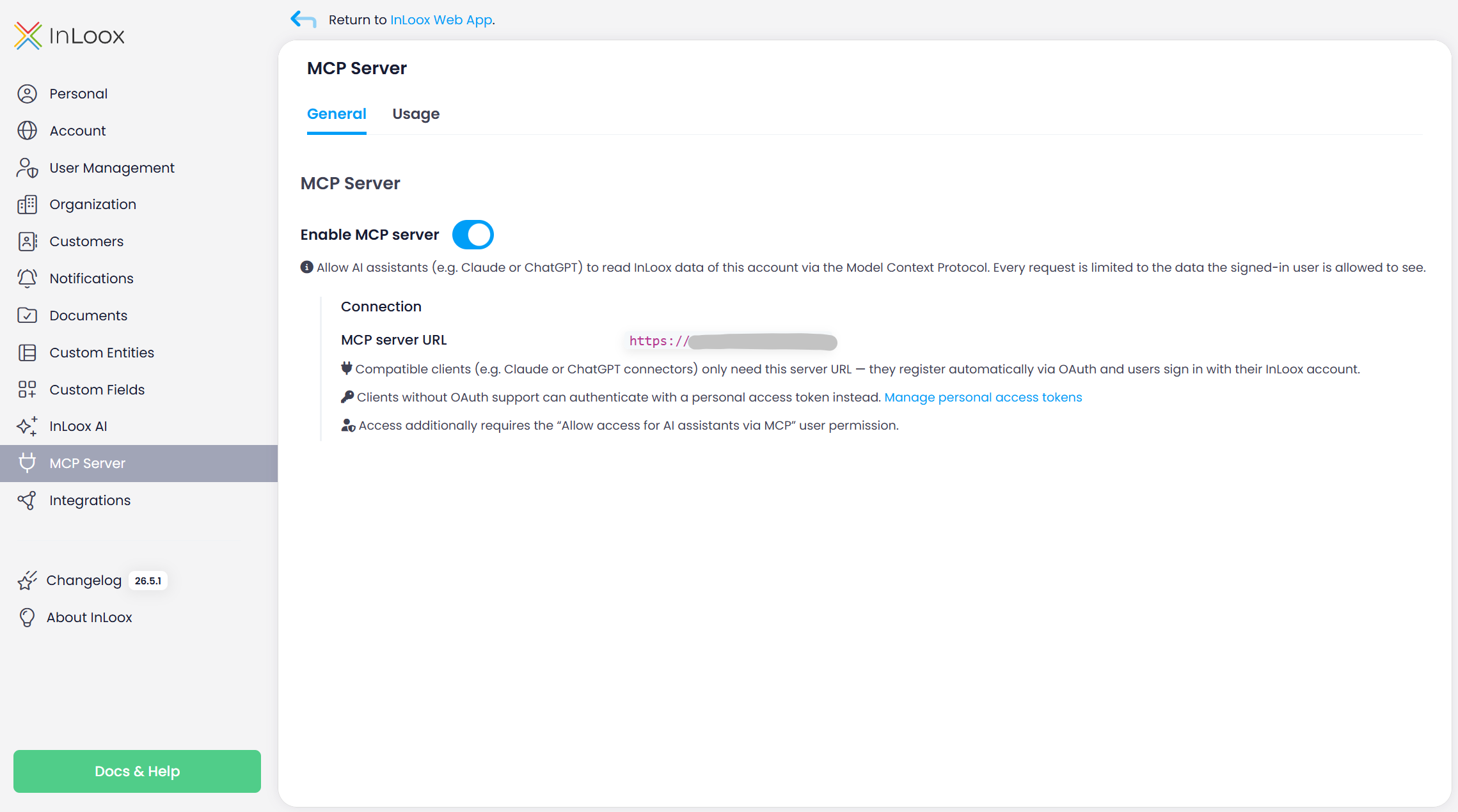
If the MCP server is disabled, InLoox blocks all MCP requests for the account.
Connect an AI assistant
Once the MCP server is enabled, the Connection panel shows the MCP server URL of your account. Copy this URL and enter it in the AI assistant:
- Clients with OAuth support — Compatible clients, such as the Claude or ChatGPT connectors, only need the server URL. They register automatically via OAuth, and each user signs in with their own InLoox account.
- Clients without OAuth support — These clients authenticate with a personal access token instead. See Create Personal Access Token.
Every user also needs the user permission Allow access for AI assistants via MCP. Without it, InLoox denies the connection even when the MCP server is enabled for the account. See Permissions.
Review MCP usage
Open the Usage tab to see how much the MCP server is used. You can group the report by user and by tool to find out who works with AI assistants and which tools are called most often.