Tasks
In the Tasks tab of the organization settings, administrators define account-wide settings for tasks: the default effort for newly created tasks and the task statuses used in the Kanban.
Default Effort
You can set the default effort for newly created tasks across the InLoox account. InLoox assigns this effort when no other effort is specified.
- In InLoox, click on your profile picture in the upper-right corner.
- Click on Account Settings.
- Click on Organization.
- Open the Tasks tab.
- Under Default effort, adjust the following settings:
- Private tasks — Default effort in hours for new private tasks.
- Project tasks — Default effort in hours for new project tasks.
- Effort from activity duration — When turned on, tasks created under an activity in the Gantt planning use the duration of the parent activity as their effort.
- Tasks in the planning — Default effort in hours for tasks created in the Gantt planning. This field can only be edited when Effort from activity duration is turned off.
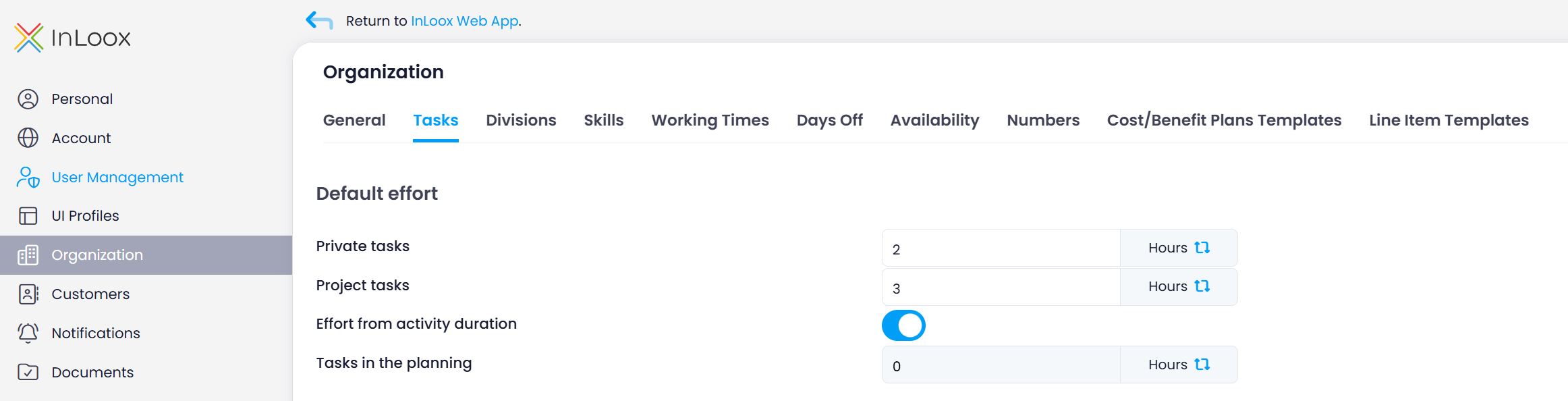
The default effort applies to newly created tasks. Existing tasks are not changed.
Task Statuses
You can define the task statuses, which are also used as column names in the Kanban, centrally for the entire InLoox account.
The following four statuses are stored as default:
- Not started
- In progress
- Blocked
- Done
The order corresponds to the order of the Kanban columns. The lowest task status corresponds to the last Kanban column and is defined as "done" by InLoox, regardless of the name.
Changes to the task status are not applied to existing projects! They only take effect when a new project (new or changed Kanban column) or a new task is created.
Add a task status
- In InLoox, click on your profile picture in the upper-right corner.
- Click on Account Settings.
- Click on Organization.
- Under the Tasks tab, click New under Task Status to add a status.
- In the Add task status window, enter the new name in the Task status name field.
- Click Save.
Now you can select a color for this new status. Click on the color field and either use the color picker or enter RGB, HSL, or HEX values.
Edit a task status
- In InLoox, click on your profile picture in the upper-right corner.
- Click on Account Settings.
- Click on Organization.
- Under the Tasks tab, click in the name field of a status under Task Status and type the new name.
- Or change the color by clicking on the color field and selecting a new color.
- Click Enter to confirm the entry.
Change the order of task statuses
- In InLoox, click on your profile picture in the upper-right corner.
- Click on Account Settings.
- Click on Organization.
- Under the Tasks tab, click and hold the six-dot icon to the left of a status under Task Status, then drag it to a different position.
The last position always corresponds to the status "done", regardless of how the status is named.
Delete a task status
- In InLoox, click on your profile picture in the upper-right corner.
- Click on Account Settings.
- Click on Organization.
- Under the Tasks tab, click the red trash can on the right under Task Status to delete a status.
- Confirm the deletion by clicking Yes.
Use a task status
The new task status can now be selected by all InLoox users in your account for the project tasks in the Kanban.
- In the cross-project task list, you can show the Status column, filter it and group the task list by it.
- In the reports, the Task Status record is also available.
- In the dashboards, you can use the task status for data visualization.