Microsoft Outlook Settings
The following settings only take effect if your InLoox account is connected to Microsoft 365. The connection is established in the Integration Center. There, you can connect your Microsoft 365 account and manage access to Microsoft Outlook, calendar, and other Microsoft 365 services.
For details on what you can do with the Microsoft Outlook integration, see Emails and Calendar. If you use the InLoox Outlook Add-in, see the InLoox for Outlook documentation.
To use the Microsoft Outlook settings, you must first connect InLoox to Microsoft 365 in the Integration Center.
Mark processed Microsoft Outlook items - set InLoox category
When you file a Microsoft Outlook email or appointment in InLoox as a task, document, or time tracking entry, Microsoft Outlook automatically assigns the category "InLoox".
This way, you can see in Microsoft Outlook at a glance which emails and appointments you have already processed in InLoox.
- In InLoox, click on your profile picture in the upper-right corner.
- Click on Account Settings.
- Click on Organization.
- Under the General tab, activate the slider at Set InLoox category on processed Outlook items under Outlook settings.
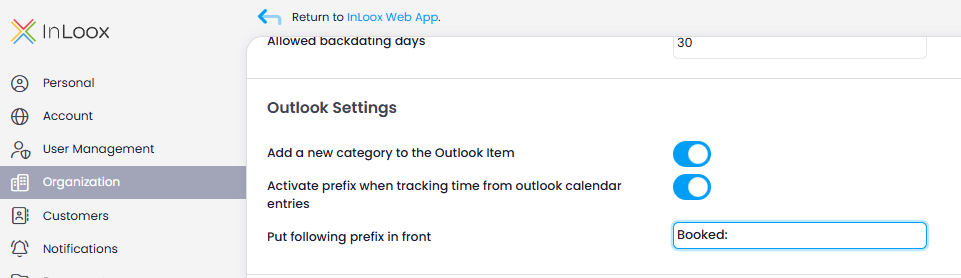
- After you have filed an email or appointment in InLoox, the category will now appear in Microsoft Outlook.
- In Microsoft Outlook, click Categorize in the menu under Categories and then click All categories.
- Now you can set the color of the "InLoox" category.
These settings apply to all users of the InLoox account.
You can also manage this setting per user in the Integration Center under Emails with the Set category on processed emails toggle.