Documents
If you are using InLoox Self-Hosted, enter either the path of the file server or the URL of your Microsoft SharePoint Online during the installation process. You cannot change the document storage later via the InLoox settings.
If you use InLoox in the cloud (editions InLoox Professional, InLoox Enterprise, or InLoox Enterprise Plus), you can either store your documents in the InLoox Cloud or use Microsoft SharePoint Online.
Select document storage - InLoox Cloud or Microsoft SharePoint Online
- Click on your profile picture in the upper-right corner of InLoox.
- Click on Account Settings.
- Click on Documents.
- Select the InLoox Cloud as the storage location for your documents.
- Or enter the URL of your company's SharePoint Online.
If you have previously connected your Microsoft 365 account, the available SharePoint sites will be displayed in a drop-down menu from which you only need to select.
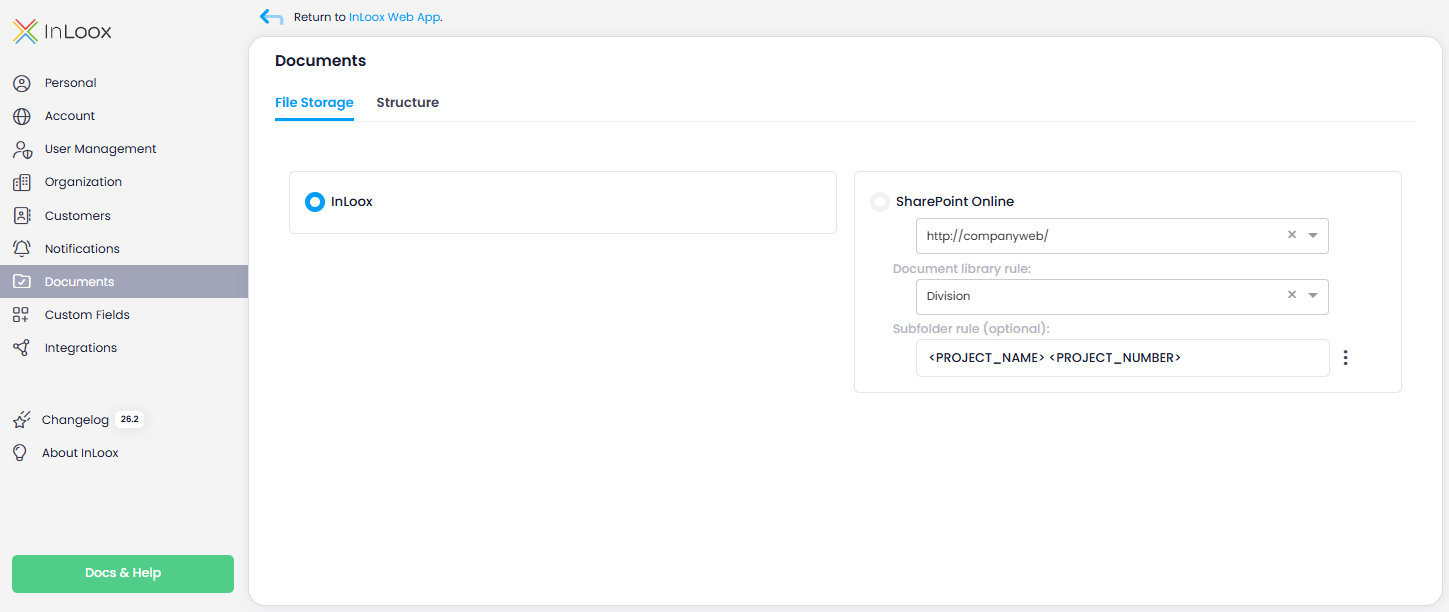
SharePoint Online - document library and subfolder rules
The following rules only apply if you use SharePoint Online as your document storage.
Rule for document library
After entering the URL of SharePoint Online as the document storage for the base path, you need to define the rule for the document library.
- Click into the Rule for document library field.
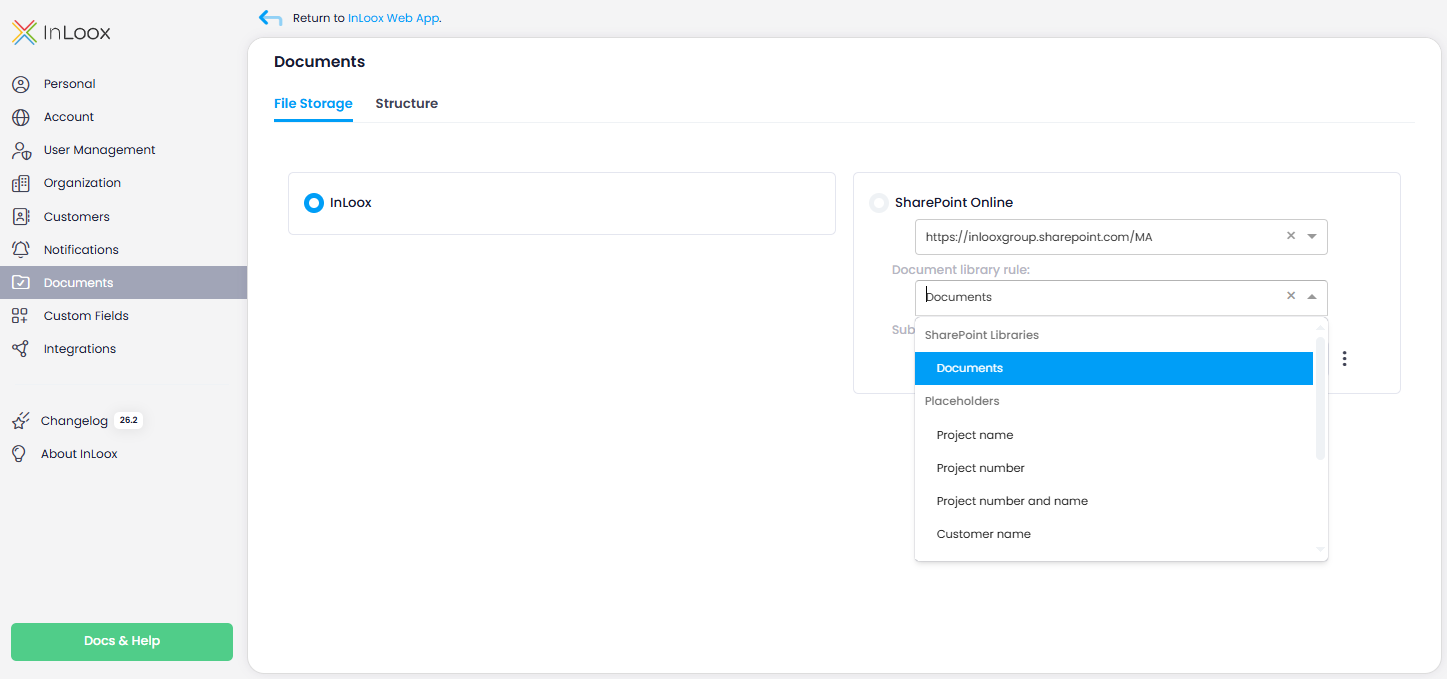
- Select one of the dynamic placeholders from the dropdown. Available placeholders:
- Project name
- Project number
- Project number and name
- Customer name
- Customer number
- Customer number and name
- Division
- Division tree
- Current year
Example: If you select Division, a folder with the department name (e.g., Marketing) is created under the specified SharePoint path. For this rule to work, your projects must be assigned to a division on the manage page.
Rule for subfolders
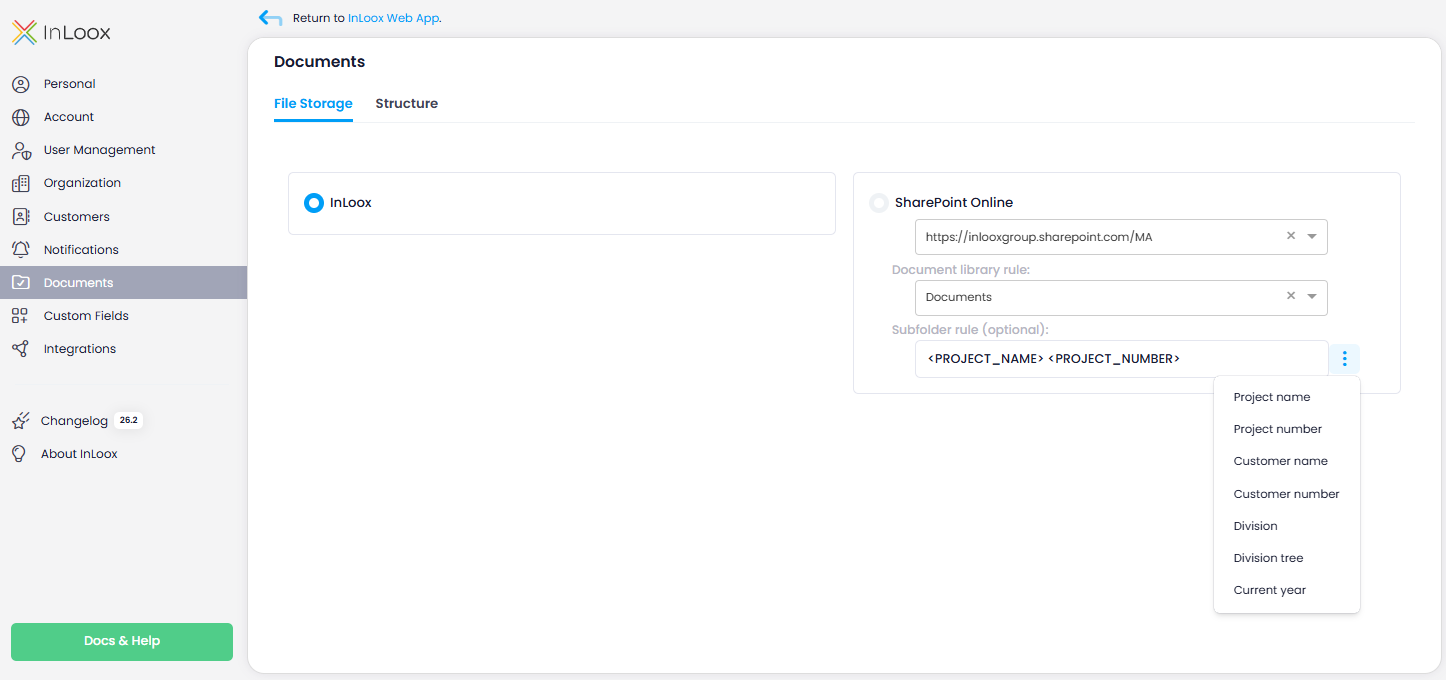
Optionally, you can also define a rule for creating subfolders. For example, if you want the subfolder structure to be based on the current year, select the dynamic placeholder Current year.
- Click on next to the Rule for subfolders (optional) field.
- Select a dynamic placeholder, e.g., Current year. Available placeholders:
- Project name
- Project number
- Customer name
- Customer number
- Division
- Division tree
- Current year
- Separate further subfolders with
/and select another dynamic placeholder.
Example: <CURRENT_YEAR>/<PROJECT_NAME><PROJECT_NUMBER> creates the structure: 2026/Project name Project number.
Folder path and structure
The SharePoint root path, the rule for the document library, and — optionally — the rule for the subfolder are combined to form the URL structure:
<ROOT PATH>/<DOCUMENT LIBRARY RULE>/<SUBFOLDER RULE>
Example: If your SharePoint root path is https://contoso.sharepoint.com/sites/inloox, the document library rule is Division, and the subfolder rule is <CURRENT_YEAR>/<PROJECT_NAME>, the resulting path would be:
https://contoso.sharepoint.com/sites/inloox/Marketing/2026/Website Relaunch
If no subfolder rule is configured, the path ends at the document library:
<ROOT PATH>/<DOCUMENT LIBRARY RULE>
If you do not configure a subfolder rule, make sure that at least one of the other path components — the document library rule or the SharePoint site — is project-individual. Otherwise, all projects will store their documents in the same location and cannot be distinguished.
Changing the document library
If you use InLoox Self-Hosted, you cannot change the document library in the InLoox settings.
If you use InLoox Professional, InLoox Enterprise, or InLoox Enterprise Plus, you can:
- Switch from InLoox Cloud to SharePoint Online — This change does not apply retroactively. Documents in the InLoox Cloud must first be downloaded and saved locally. Documents are not automatically transferred.
- Change the SharePoint URL — This change takes effect when new project documents are added for the first time. Existing subfolders are not deleted or renamed.
Structure rules for additional subfolders
The following rules apply to both SharePoint Online and the InLoox Cloud.
You can create additional, differentiated subfolders according to rules. For example, if you always need an "Orders" folder for projects in the Sales department, you can define a rule for automatic creation.
- On the Documents settings page, click on the Structure tab.
- Click on New to create a new rule.
- Enter the name of the folder (e.g., "Orders"). InLoox creates the rule.
- In the Field column, click the arrow and select the parameter that triggers the rule (e.g., Division).
- Enter the division name in the Rule column.
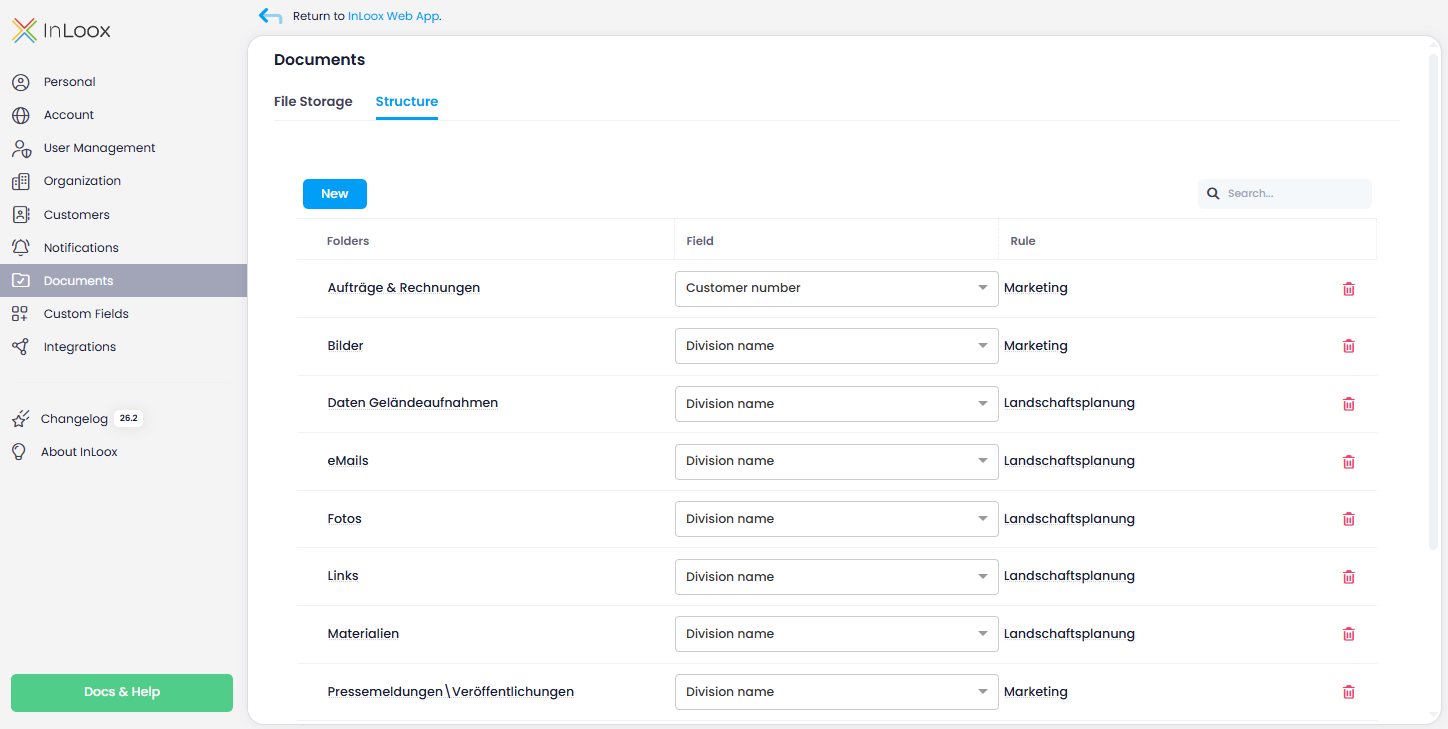
The expression must match the name exactly. If the department is "S-Sales", the rule will not apply if you only enter "sales".
To edit a rule, click in any input field and make your changes. To delete a rule, click the red and confirm by clicking Delete.
Changes do not apply retroactively. A rule change only takes effect when you store another document in a project to which this rule applies.