Distribution of User Licenses
In the InLoox Settings, go to User Management. There, you can see how many user licenses are available for your account, how many have already been distributed, and which type of license has been assigned to whom.
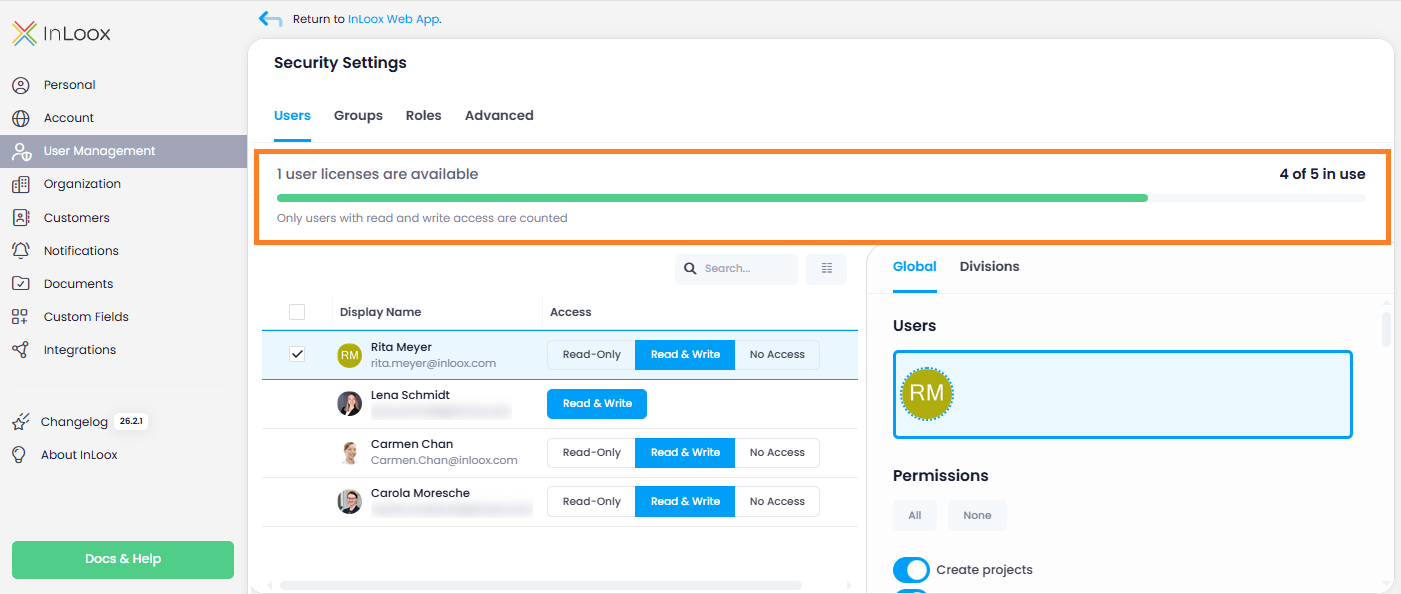
You can also revoke assigned user licenses and redistribute them to other users.
Types of InLoox licenses
The following license types are available in every InLoox edition:
| License Type | Access Permissions | Additional Information |
|---|---|---|
| Read-Only | Person has reading permissions only. | This license type is free of charge in all InLoox editions. When all paid "Read & Write" licenses have been assigned, additional invited persons receive "Read-Only" licenses. Reading permissions can be restricted via the permissions settings. |
| Read & Write | Person may have reading and writing permissions. | This is a paid license type. It is automatically distributed to all invited persons if Automatic license distribution is activated. Once all purchased licenses are distributed, invited persons receive "Read-Only" licenses. |
| No Access | Person has no InLoox license and cannot access the account. | People without access are still listed as contacts and can be reassigned a license by the account administrator. |
Automatic license distribution
When you activate automatic license distribution, every person invited to your InLoox account automatically receives a license as soon as they accept the invitation. This is practical when the number of purchased licenses matches the actual number of users, and helps avoid additional administrative work.
- In InLoox, click on your profile picture in the upper-right corner.
- Click Account Settings.
- Click on User Management.
- Switch to the Advanced tab.
- Activate the slider next to Users will automatically receive a licence of type "Read & Write", if available.
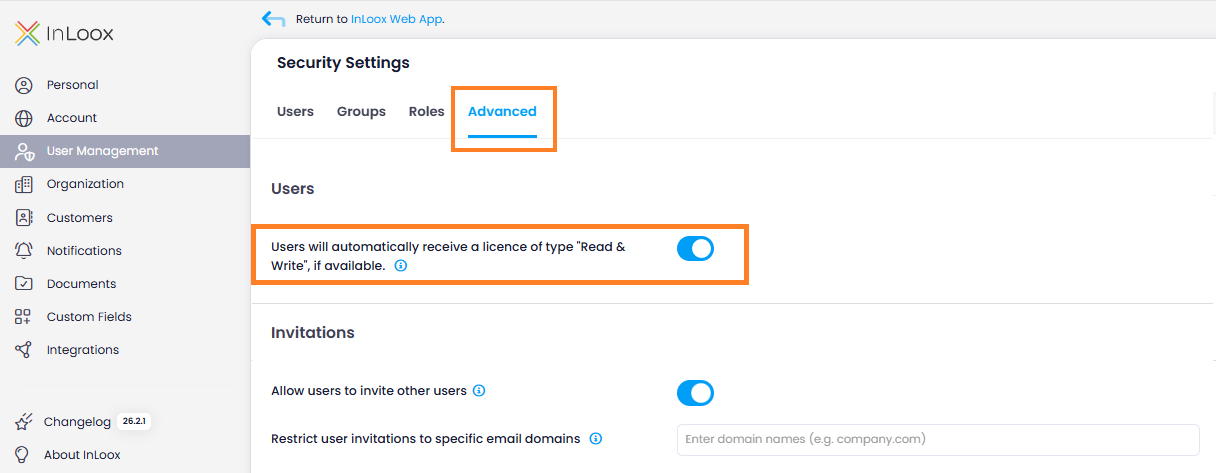
In a self-hosted account, click Query License Certificate in the Advanced tab to refresh the license certificate. After a successful refresh, InLoox shows the date and time of the last refresh directly below the button.
Make sure the person who should receive a license has also been invited to the InLoox account.
Distribute user licenses manually
- In InLoox, click your profile picture in the upper-right corner.
- Click Account Settings.
- Click User Management.
- In the search field, enter the name or email address of the person who should receive a user license and select them from the drop-down menu.
- The person now appears in the list. Click on Read & Write to assign the license.
If the person does not appear in the list, make sure they have received the InLoox invitation email (see the invitation steps above).
Remove a user license
- In InLoox, click your profile picture in the upper-right corner.
- Click Account Settings.
- Click User Management.
- In the search field, enter the name or email address of the person whose license you want to remove.
- The person appears in the list. Click No Access to revoke the license.
License limit exceeded
If more Read & Write licenses have been assigned than are included in your purchased plan, users attempting to log in will see a "License limit exceeded" error page. The page displays how many licenses are exceeded and the following message:
An administrator needs to reduce the number of Read & Write licenses in the permission settings.
To resolve this, an administrator must open Account Settings → User Management and set some users' licenses to Read-Only or No Access until the number of assigned Read & Write licenses no longer exceeds the purchased quantity.