Custom Fields
Custom fields are an easy way to individualize your InLoox account. You can create custom fields for:
- Projects
- Tasks
- Mindmap nodes
- Planning
- Time
- Documents
- Risks
- Financials and (Budget) Line Items
- People
- Organizations
Types of Custom Fields
You can select from the following types:
- String — for free text input.
- Datetime — for date values.
- Integer — for whole numbers.
- Decimal — for numbers with decimal places.
- Boolean — a checkbox for yes/no values.
- List — a dropdown with predefined values to choose from.
- Currency — for monetary amounts.
- Multi-Select — for tagging items with multiple values from a predefined list. Values are displayed as tags and can be filtered in list views, but not used for grouping.
- Range — a slider for selecting a numeric value within a defined minimum and maximum.
- Person — a people picker for selecting one or more persons from your InLoox contacts. Values are displayed with the person's profile picture and name. When creating the field, you can enable Allow Multiple Persons to let users select more than one person. Persons entered in custom fields do not receive notifications.
Key behaviors:
- By default, a custom field is always visible. You can set a specific display rule to control when it appears.
- By default, a custom field is unlocked for editing. You can enable write protection to restrict who can edit it (available since InLoox 12.4).
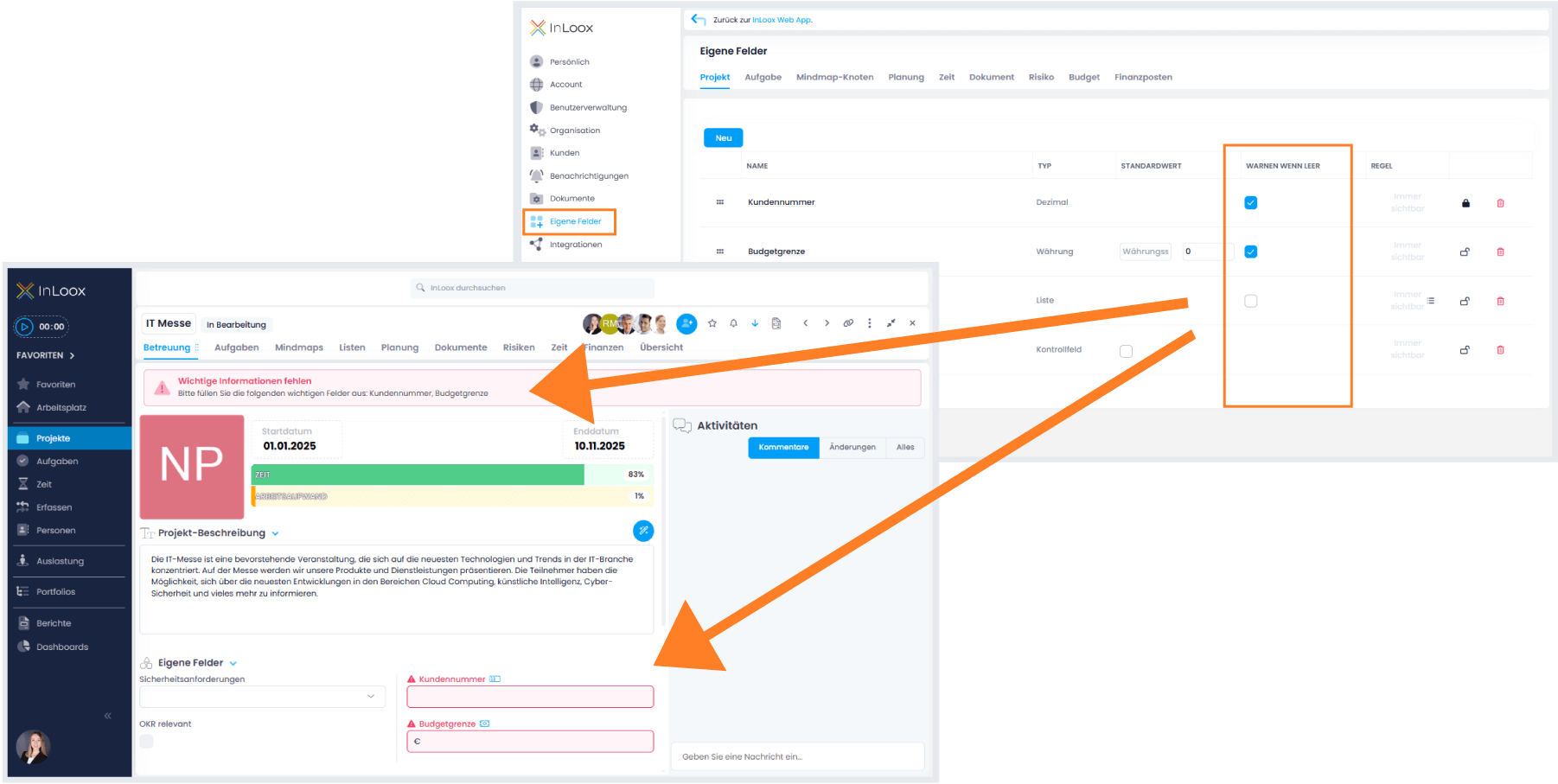
- By default, a custom field is optional. You can make it mandatory so that users are warned when it's left empty (available since InLoox 12.4).
To create custom fields, you must have admin permissions for your InLoox account. Custom fields are only available in the InLoox Enterprise, InLoox Enterprise Plus, and InLoox Self-Hosted editions.
Organize custom fields into sections
You can group custom fields into named sections. Sections help you structure the side panel so that related fields are displayed together under a clear heading.
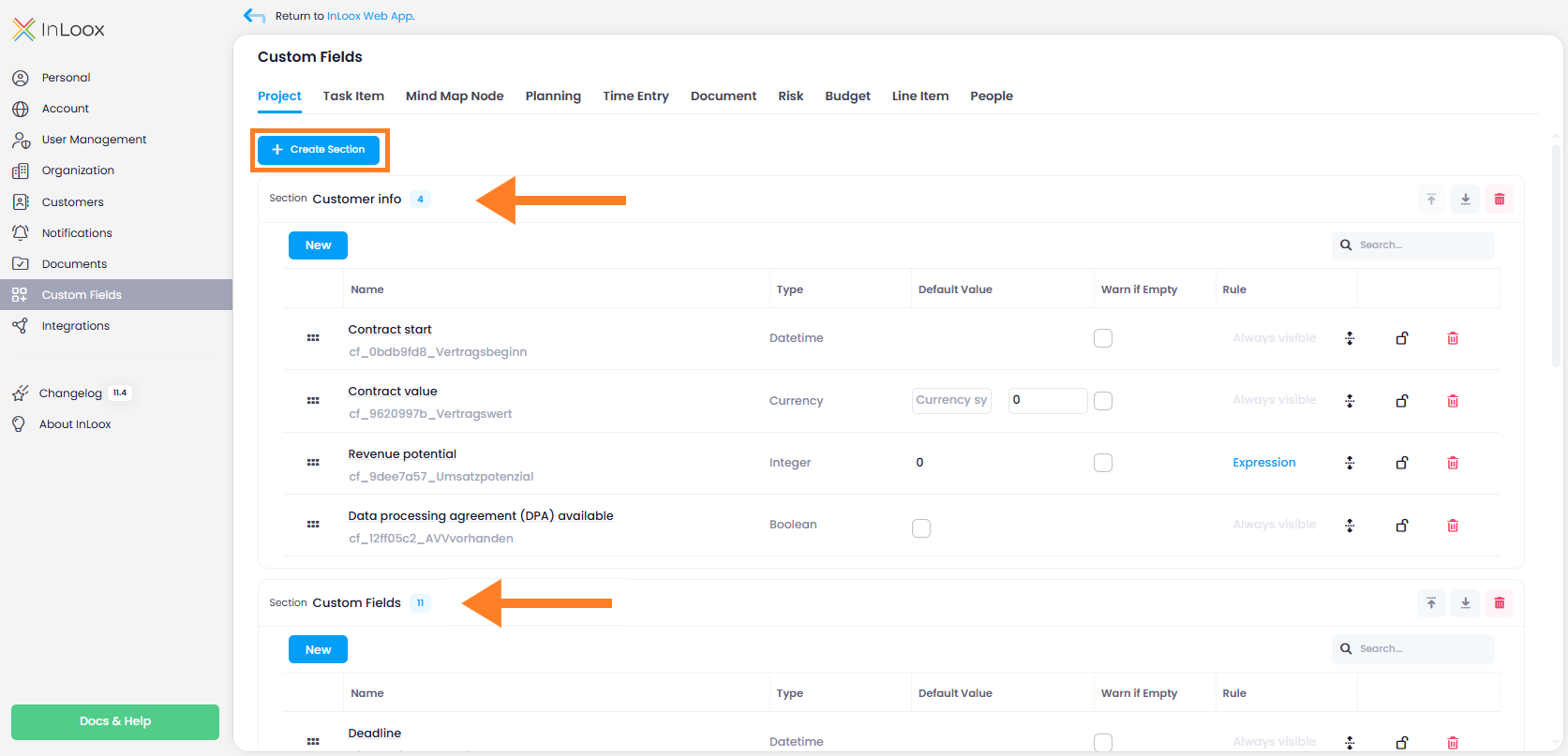
To manage sections, go to Account Settings > Custom Fields and select the desired area (e.g., projects or tasks):
- Create a section — Click + Create Section and enter a name.
- Rename a section — Click directly on the section name and type the new name.
- Reorder sections — Click the arrow buttons on the right side of a section header to move it up or down.
- Delete a section — Click on the right side of the section header. Custom fields within the section are not deleted but moved to the default section.
To manage custom fields within sections:
- Move a field to a different section — Click the move icon on the right side of the field. In the Move to Section dialog, select the target section and click Move.
- Reorder fields within a section — Click and hold the drag handle (six dots) on the left side of a field and drag it to the desired position.
How to create a new custom field
- In InLoox, click on your profile picture in the upper-right corner.
- Click on Account Settings.
- Click on Custom Fields.
- Select the InLoox section where the custom field should be displayed (e.g., the manage page of the project).
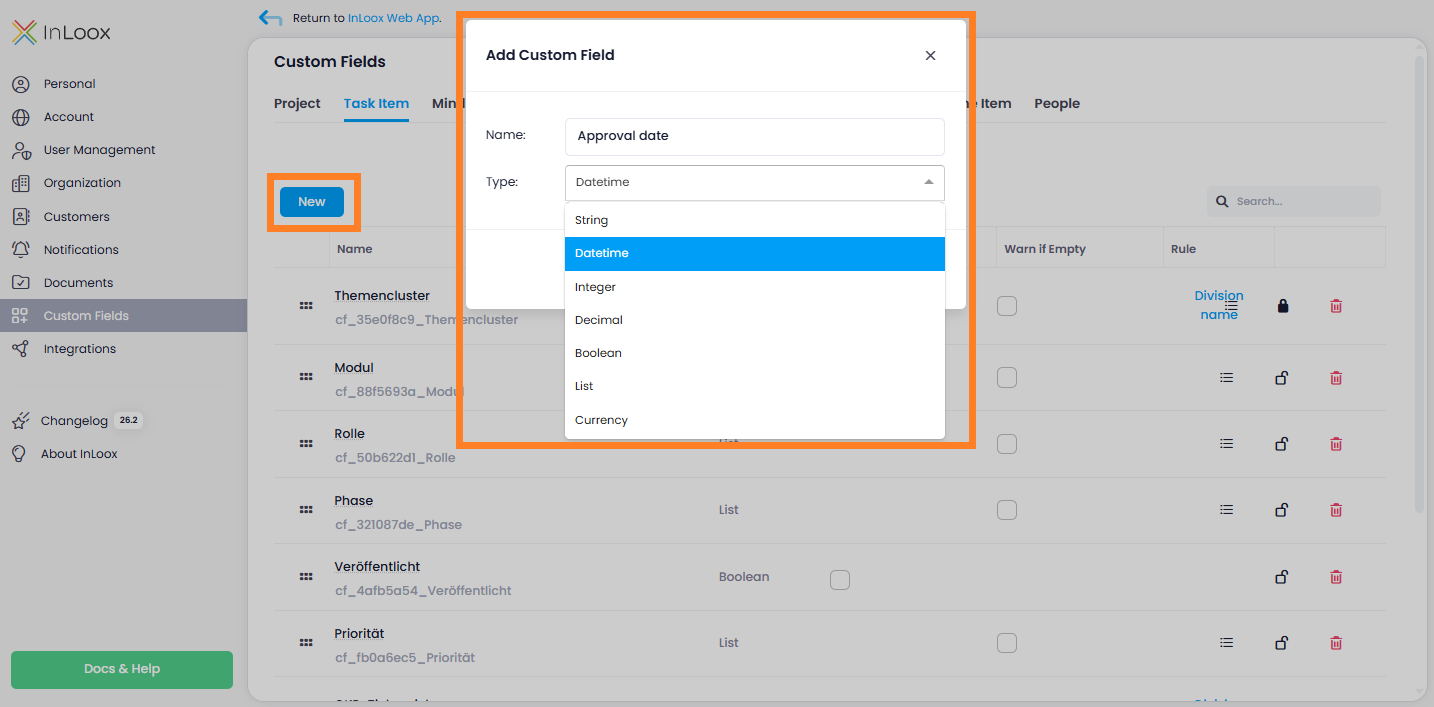
- Click the New button within the desired section to open the editing window. By default, a section called Custom Fields exists. If you have created additional sections, each section has its own New button.
- Type in the name of the custom field.
- Select the type from the drop-down menu (see Types of Custom Fields above).
- Click Save. The custom field is created and is "always visible" by default.
How to set a display rule for a custom field
After creating the custom field, you can set a specific rule for when it should be displayed.
-
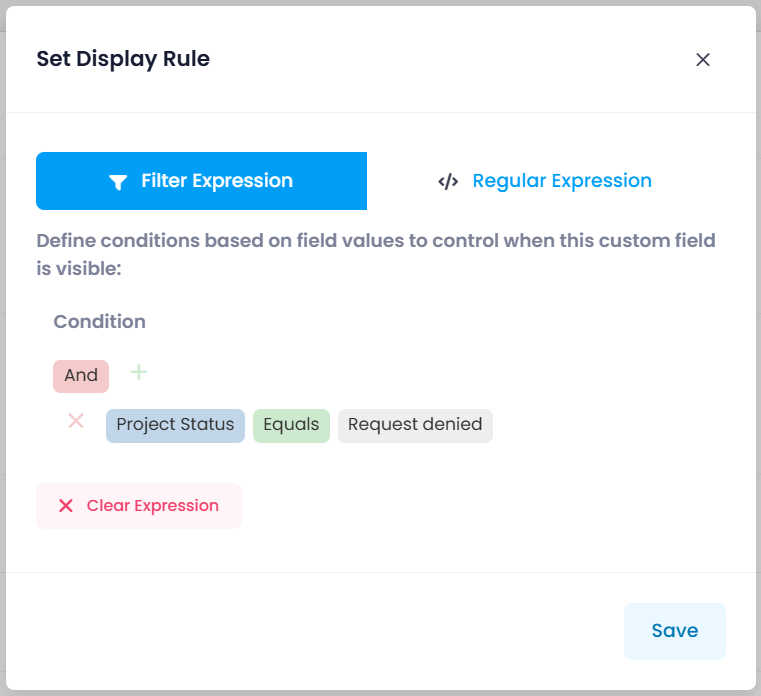
In the Rule column, click "Always visible" (or the existing rule label) to open the Set Display Rule editing window.
-
Choose whether to define the rule with filter expressions or regular expressions.
Create a rule with filter expressions (default)
Filter expressions let you build conditions visually, without writing regular expressions. You can combine multiple conditions using logical operators and even show or hide custom fields based on the values of other custom fields.
- Click And and select a logical operator:
- And — all conditions must be met for the field to appear. Example: A custom field in the project area should only appear when the department is set to E-Development. Add the condition: Department equals E-Development.
- Or — at least one condition must be met. Example: A custom field should appear for both the E-Development and IT Department. Add: Department equals E-Development. Then click + next to Or and add: Department equals IT Department.
- Not And — the field is hidden only when all of the following conditions are true. If only some match, the field is still displayed. Example: A custom field should not appear when the project name contains Development and the customer is internal. Add: Project name contains Development AND Customer equals internal. The field is hidden only when both conditions are true — if only one matches, it is still displayed.
- Not Or — each individual condition prevents the field from being displayed. Example: A custom field should only appear when the project status is Started. Add the conditions: Project status equals Requested, Project status equals Rejected, and Project status equals Not started. The field appears for all other statuses but not for these three.
- Click the + icon to add:
- Condition — a single filter condition.
- Group — a group of conditions for more complex logic.
- Click Save to store the rule. You can change it at any time. Changes only apply to newly created items — they do not take effect retroactively.
Custom fields can be shown or hidden based on the value of another custom field. For example, you have two custom fields: "Idea approved" (a checkbox) and "Approved on" (a date field). You can configure "Approved on" to only appear when "Idea approved" is set to Yes.
Create a rule with regular expressions
If you prefer working with regular expressions, proceed as follows:
-
Click the </> Regular Expression tab in the Set Display Rule window.
-
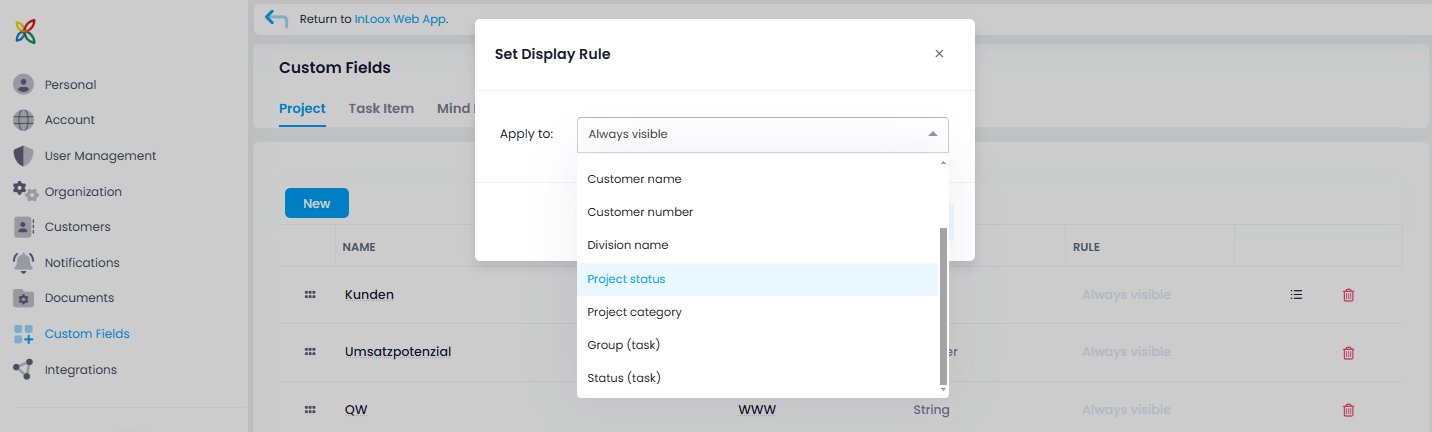
From the Apply to dropdown, select the data field for the condition. The following options are available: Project name, Project number, Customer name, Customer number, Division name, Project status, Project category, Group (Task), and Status (Task).
-
In the Rule field, enter a regular expression. For example, if you selected Client number in Apply to, enter the desired client name, e.g.,
XYZ Corporation. Use the Test field to validate your expression. -
Click Save to store the rule. You can change it at any time. Changes only apply to newly created items — they do not take effect retroactively.
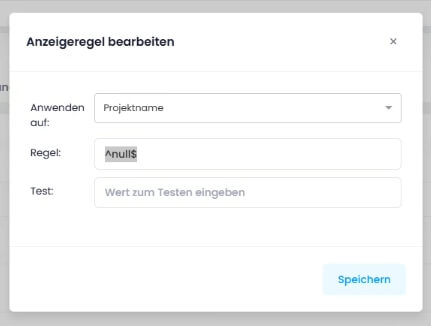
To create custom fields for personal tasks without a project context, create the custom field in the Task Item tab and set a rule for the Project Name field using the expression: ^null$
The custom field will then automatically appear for all personal tasks that are not part of a project.
How to edit or delete a custom field
You can edit the Name, Default Value, and Rule of an existing custom field by clicking on it. You cannot change the type of an existing custom field.
To delete a custom field, click next to it and click Delete to confirm.
How to enable write protection for custom fields
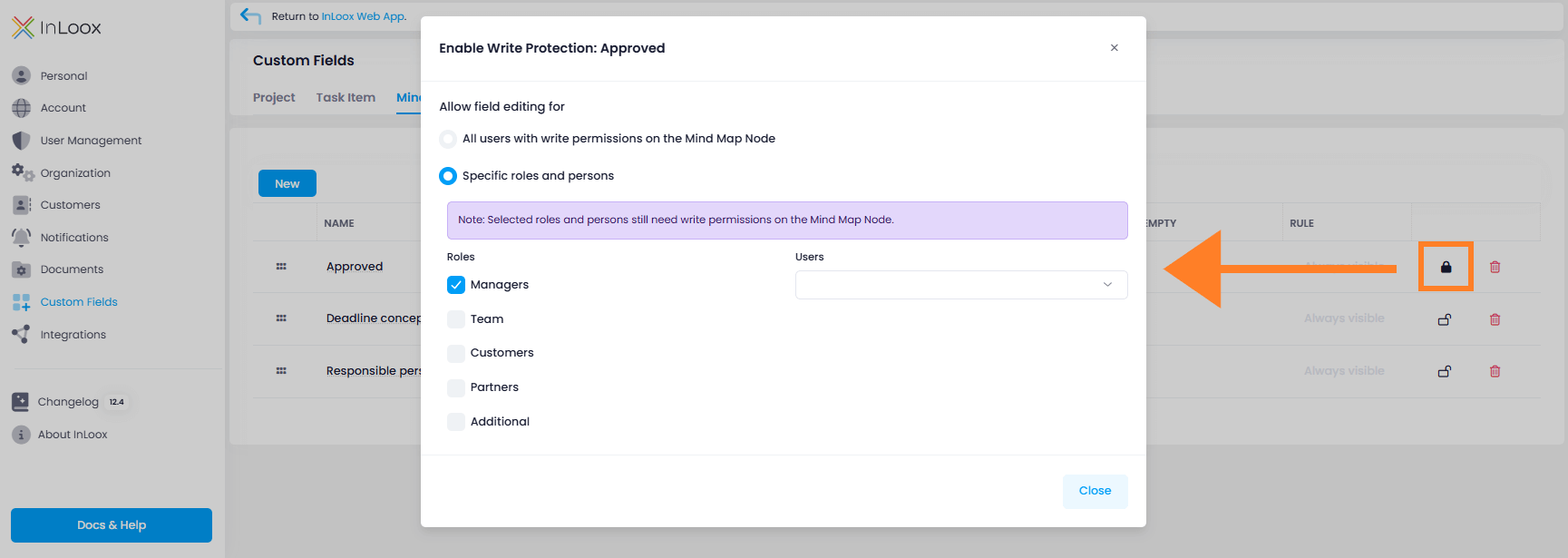
Custom fields can be locked for editing. You can enable write protection individually per custom field and define who can edit it:
- All users with editing permissions for the section where the custom field was created (e.g., document editing permission = permission to edit custom fields in Documents).
- Users with a specific role (e.g., only "project manager" role holders can edit a particular custom field).
- A specific person assigned to the custom field.
Steps:
- Go to Account Settings and click on Custom Fields.
- Select the section and click New to create a custom field.
- Enter the name and select the type, then click Save.
- Click next to the custom field.
- In the Enable write protection window, define who can edit this field.
- Click Save.
To modify the setting later, click again.
How to make custom fields mandatory
By default, custom fields are optional. To make a field mandatory, check the "Warn if empty" box. Users will see a red notification alerting them to fill in the required field.