Clients and Client Numbers
Clients are now managed in the new Organizations section. To create or edit a client, open Organizations from the left main menu. Client numbering is still configured here, under Account Settings → Clients → Numbering (see below).
You need to be the administrator of your InLoox account to access the account settings.
Create and edit clients
To create and edit clients, open the Organizations section and use the New Organization button. To change the name of an existing client, open it in the Organizations section and edit its details.
Define the client numbering
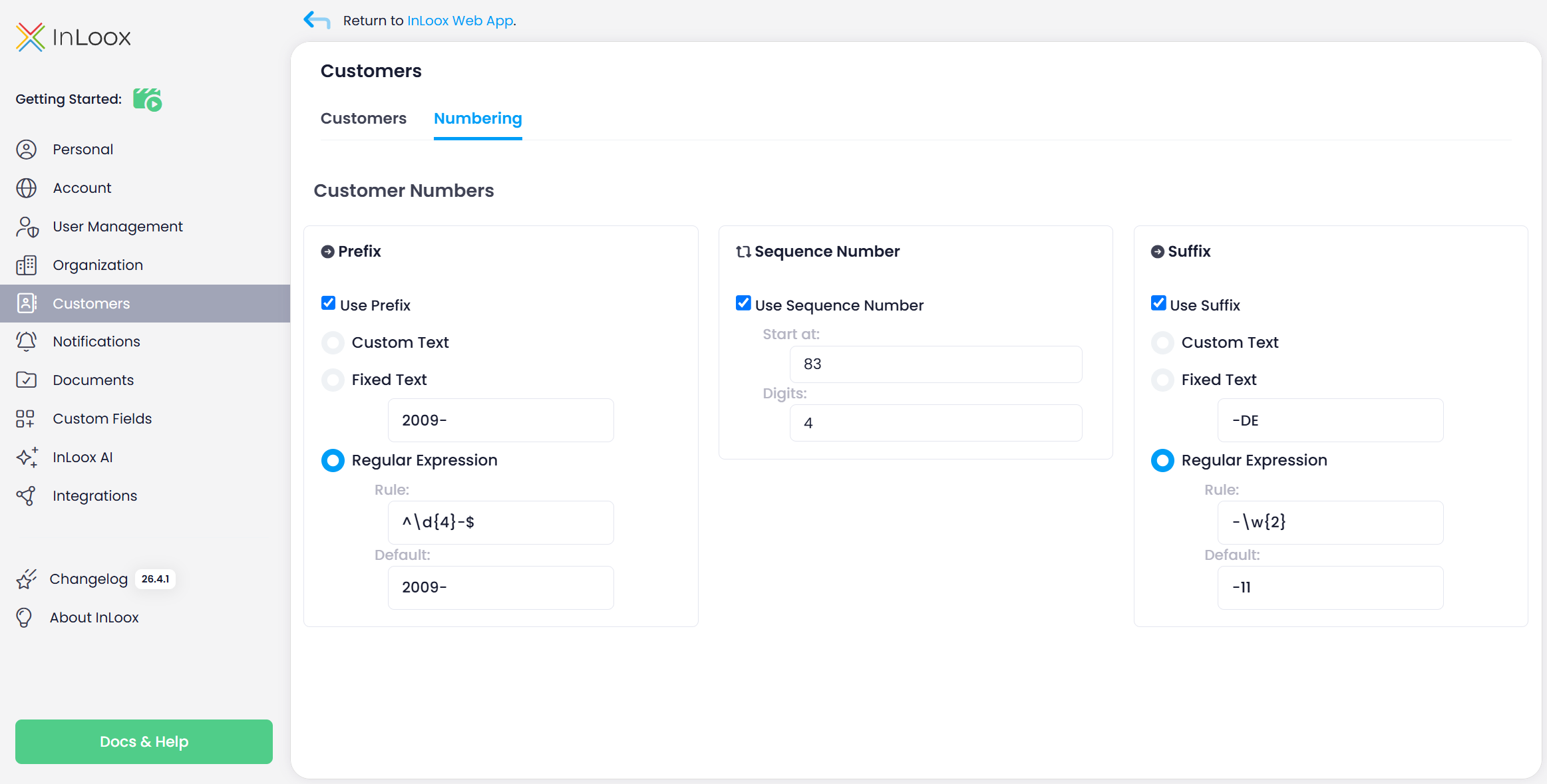
You can define the principle used to generate client numbers.
In the InLoox Account Settings, click on Clients and then on the Numbering tab.
A client number can consist of the following parts:
- Prefix
- Sequence number
- Suffix
If you configure the sequence number with a fixed digit length, InLoox pads shorter values with leading zeros (for example, 0007).
We recommend using regular expressions to define the prefix and suffix consistently and to use sequential numbers.
When using a regular expression as the rule for the prefix or suffix, InLoox displays a warning if the rule is not a valid regular expression, or if the Default (example) value does not match the rule. Ensure that the rule and the default value are consistent — otherwise, number generation and duplicate-number resolution may not work correctly.
You can also use a fixed text to define the prefix or suffix. However, avoid using the year here, as you would need to adjust this field manually when the year changes.
If you select custom text for the prefix and suffix, all InLoox users with the "Edit project" and "Edit manage" permissions can enter the prefix manually. This may result in inconsistent client numbering.
The client number can consist of only the sequence number. In that case, simply uncheck the Prefix and Suffix boxes.
If you do not want to work with client numbers at all, uncheck all three boxes.