Change View Mode
On larger screens (1400 pixels or more), you can switch between two view modes in InLoox. By default, each area is displayed in split-screen mode. For example, you see the project list on the left and the open project on the right.
You can switch to full view by following these steps:
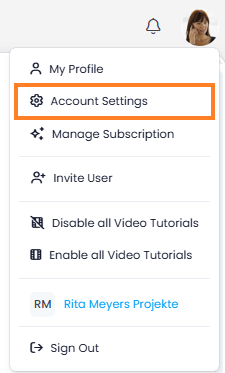
- In InLoox, click your profile picture in the upper-right corner.
- Click Account Settings.
- Click Personal.
- Under View mode, select Full view.
note
The split-screen mode is only available for screens 1400 pixels wide or larger. On smaller screens, InLoox always uses the full view.